
Invite the client
On the case, open Client portal and choose Invite client. The Client access table shows who can open the portal, what they can do (view and send documents), since when, and whether they have joined. Priya Nair joined on 30 September 2026. Revoke removes access at once.
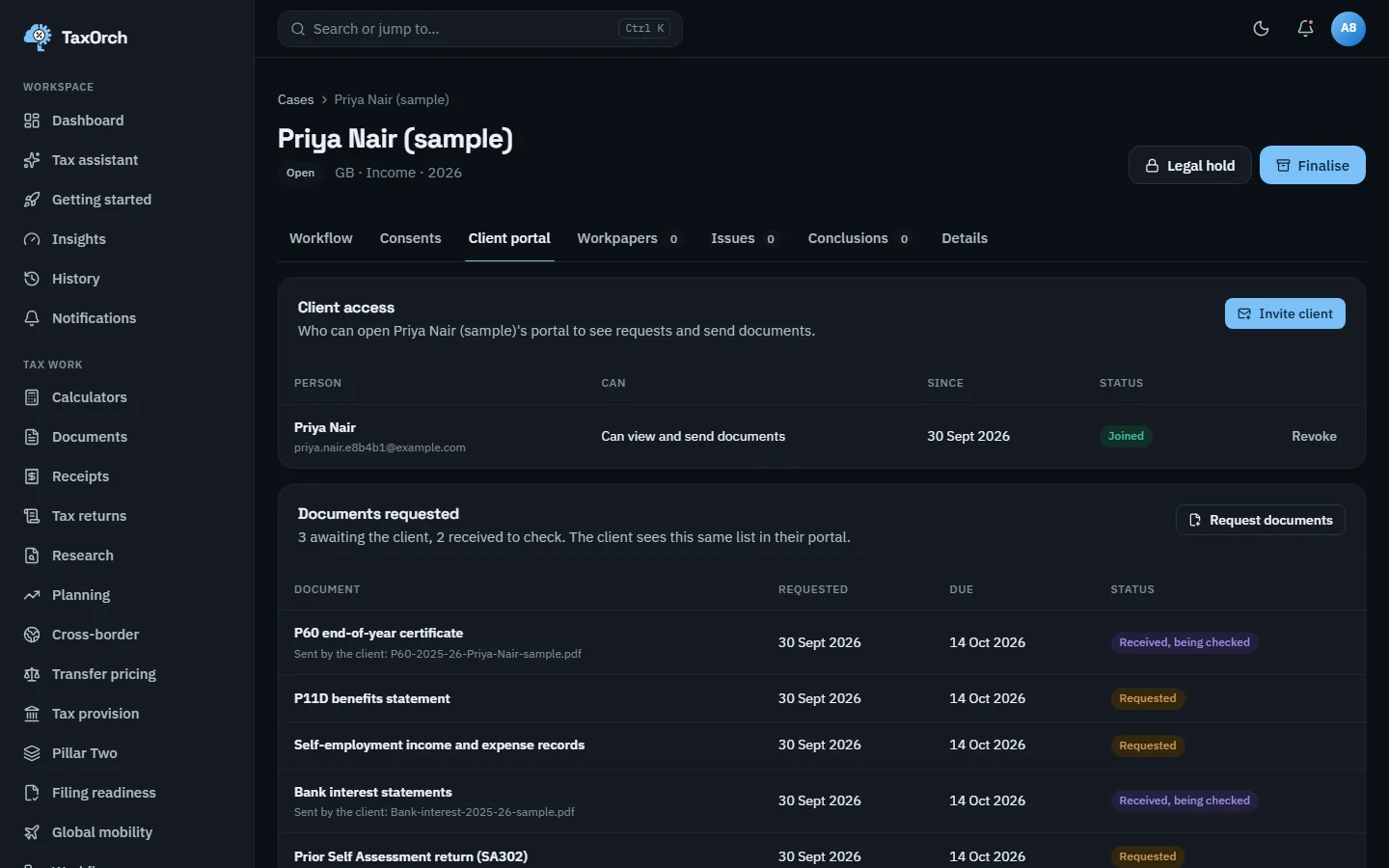
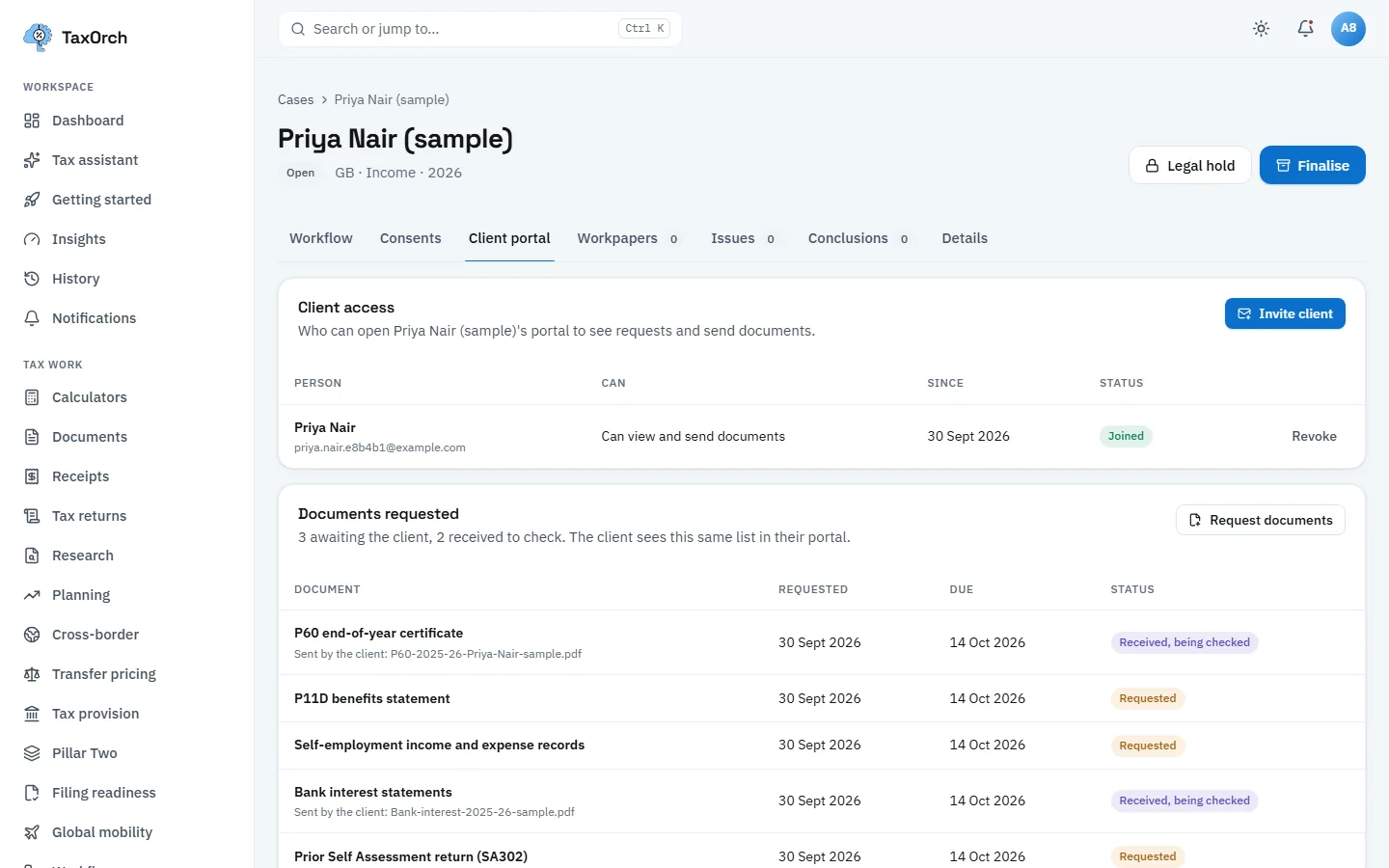
The firm's view: who has portal access, and the document requests with their status.
Request documents
Request documents adds items to the list with a due date. On the sample case five are requested for 14 October 2026: a P60 end-of-year certificate, a P11D benefits statement, self-employment income and expense records, bank interest statements and the prior Self Assessment return (SA302). The heading counts three awaiting the client and two received to check.
What the client sees
The client's portal opens on their name with three tiles: documents to send, overdue, and the next due date. Below is the same list the firm sees, with a Send button on each request and Send again on anything already received. A note explains that when the firm issues a return, a letter or a memo, it appears here to read. Work pages the client is not allowed to see are locked in the sidebar.
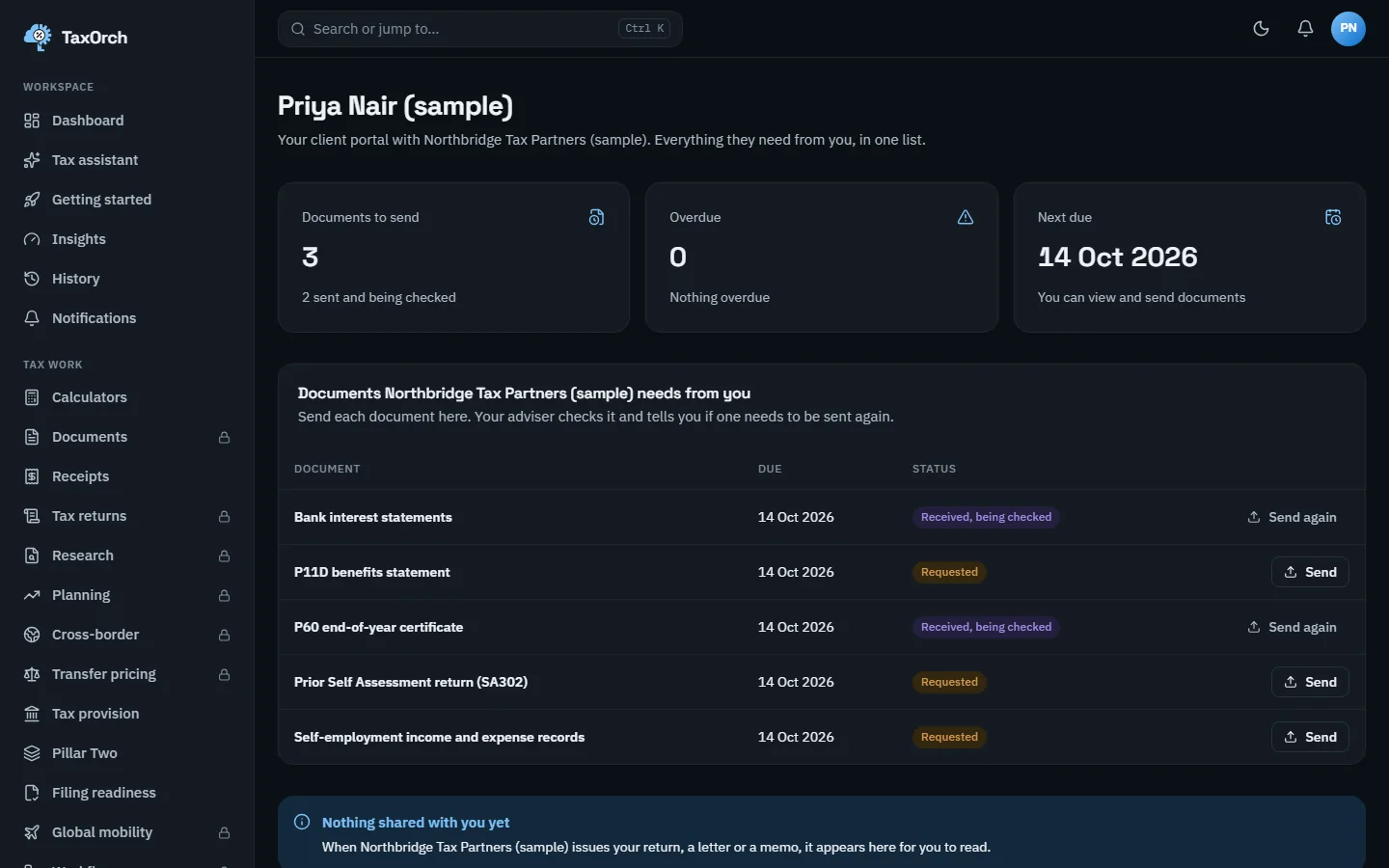
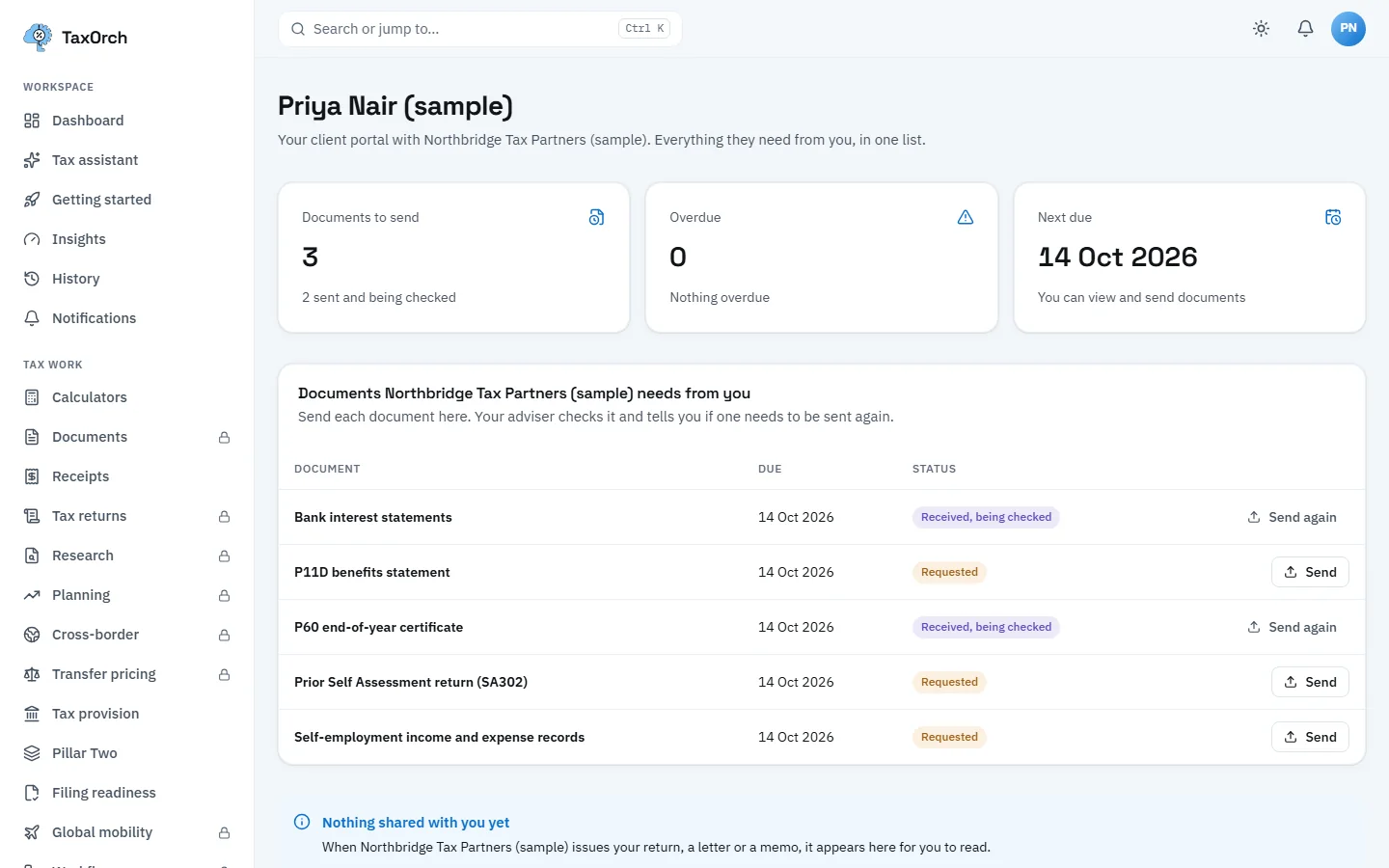
The client's view: what is needed, by when, and a Send button on each request.
Files arriving
A received file is named under its request (for example P60-2025-26-Priya-Nair-sample.pdf) and goes into document review in the engagement. If it is unreadable or the wrong document, the firm marks it and the client sees Send again.
Tips
- Set a due date the client can meet; the portal shows Overdue once it passes.
- Request everything at once; the client sees one list, not a stream of emails.