
Import a trial balance
Choose Accounting, then Import trial balance on the Trial balance & statements tab. Each import is listed with its period, entity, currency, version and status. Northbridge Studio Ltd (sample) has a GBP trial balance for 6 April 2025 to 5 April 2026 at version 1, status Imported.
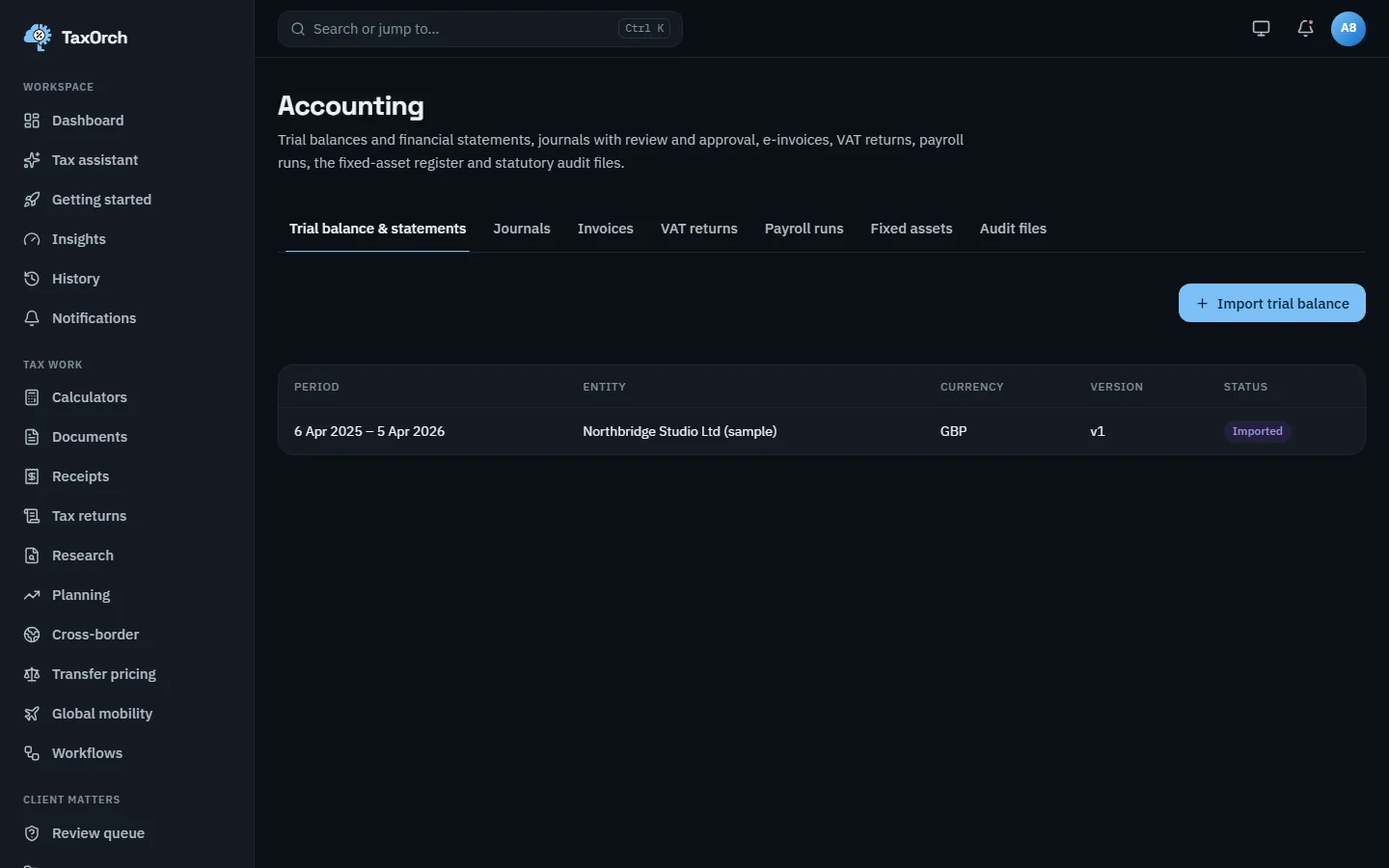
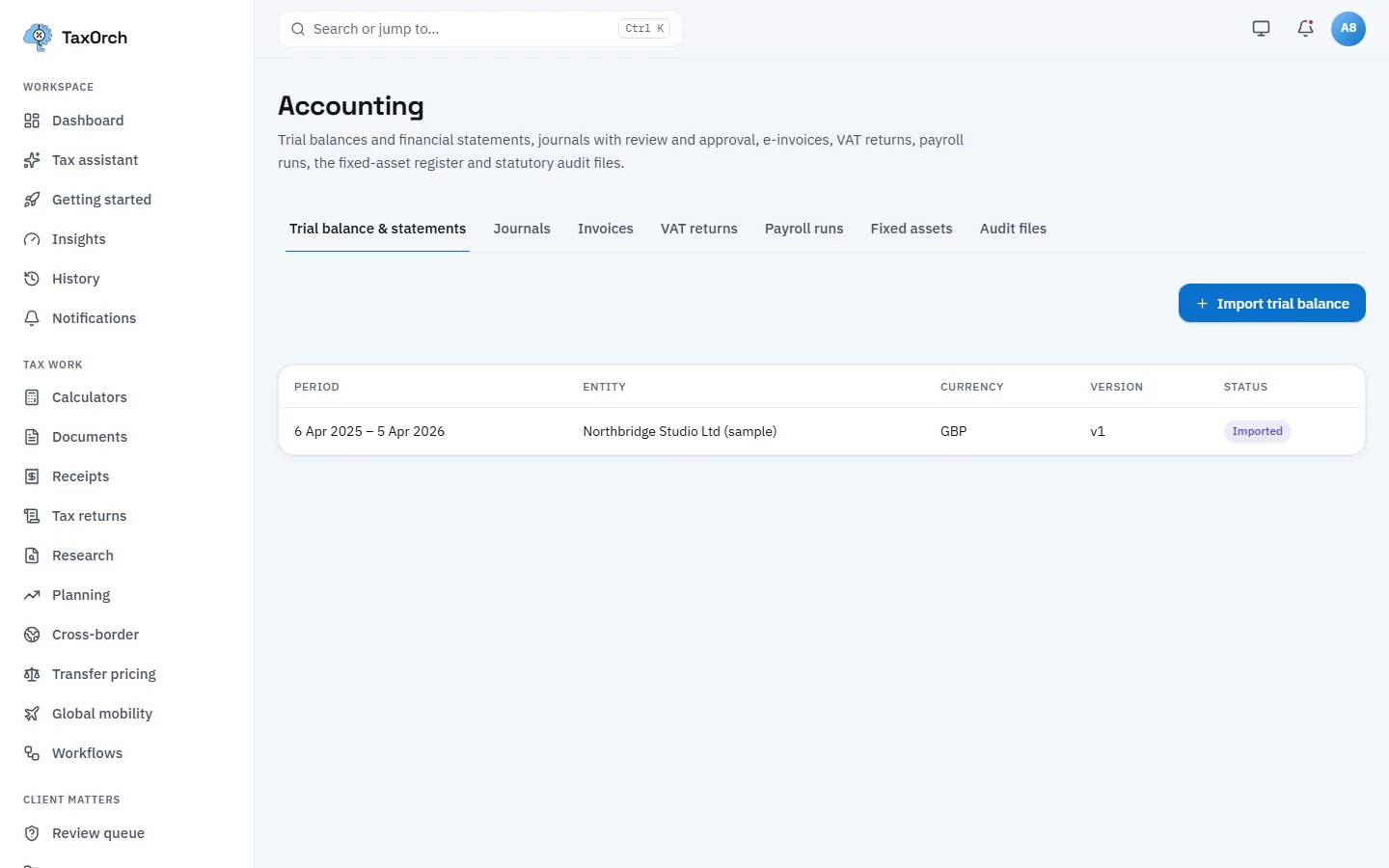
Accounting: the imported trial balance with its period, entity, currency and version.
Map accounts and accept the mappings
Open the trial balance. The panel shows accounts counted, how many are categorised, how many a reviewer has accepted, and that debits and credits balance. Map accounts assigns each account to a category; Accept mappings records a reviewer's acceptance; Reconcile checks the totals. Sample Holdings Ltd for 2026 has 24 of 24 accounts categorised and accepted, £6,504,900.00 on each side, and an accounting profit of £880,000.00 broken down by category.
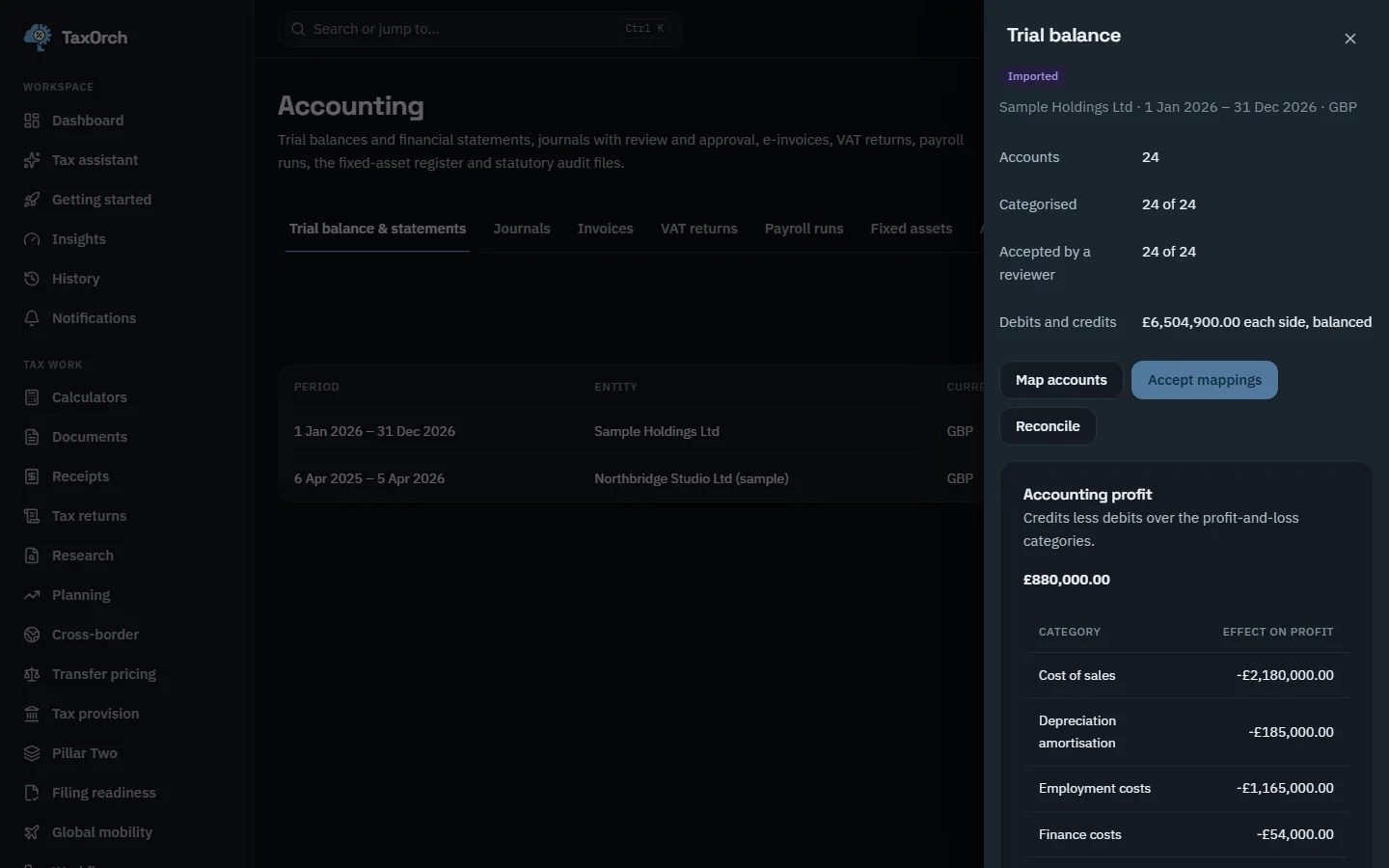
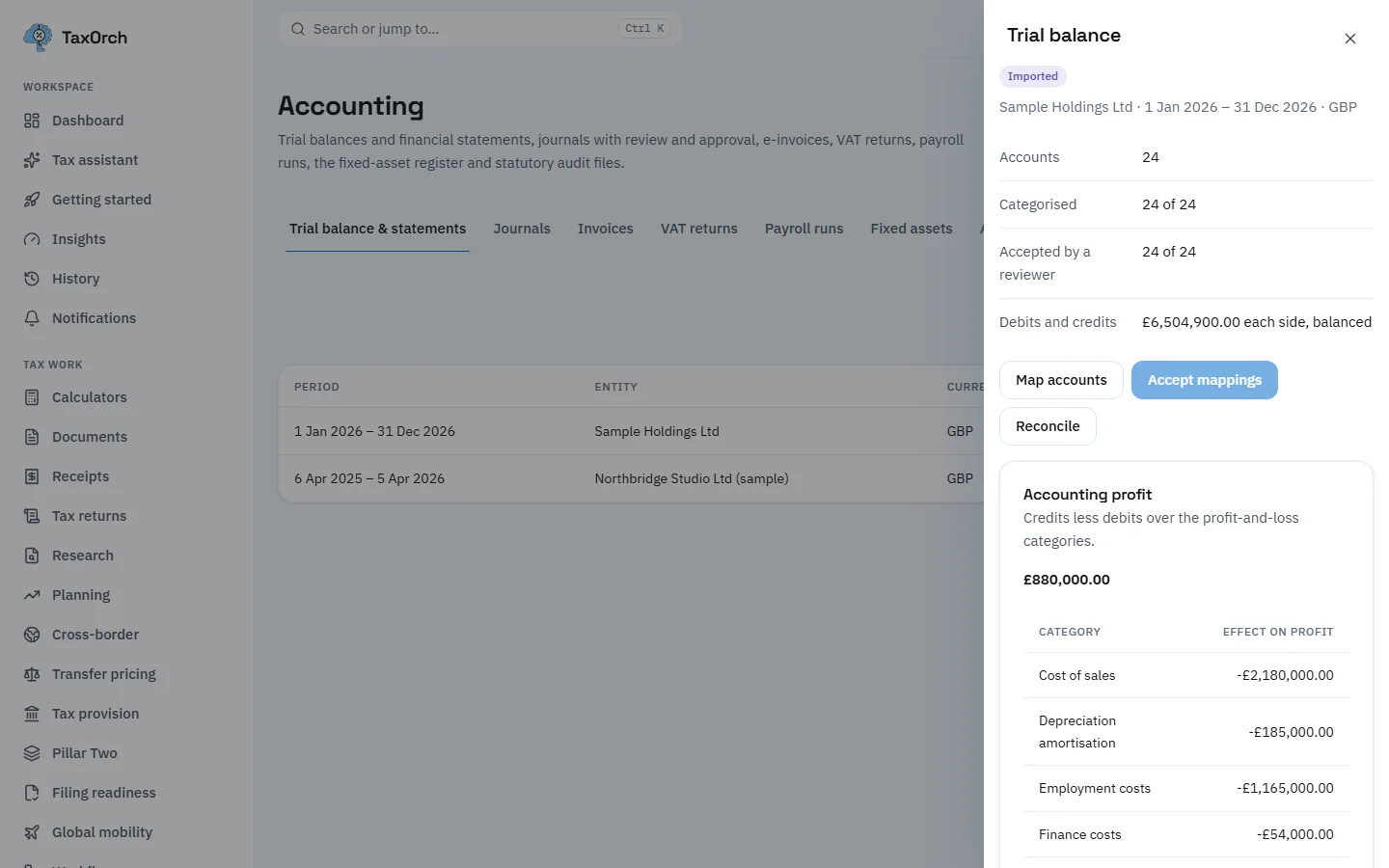
A mapped and reviewed trial balance: every account categorised and accepted, and the books balanced.
Review expense classifications
Choose Books. Expense review lists each expense with the suggested category, the confidence and the amount; Confirm accepts the suggestion, the cross rejects it. Every entry is held for your approval; nothing is posted on its own. The other tabs are Ledger insights, Anomalies, Categories, Chart of accounts and Commerce ledger.
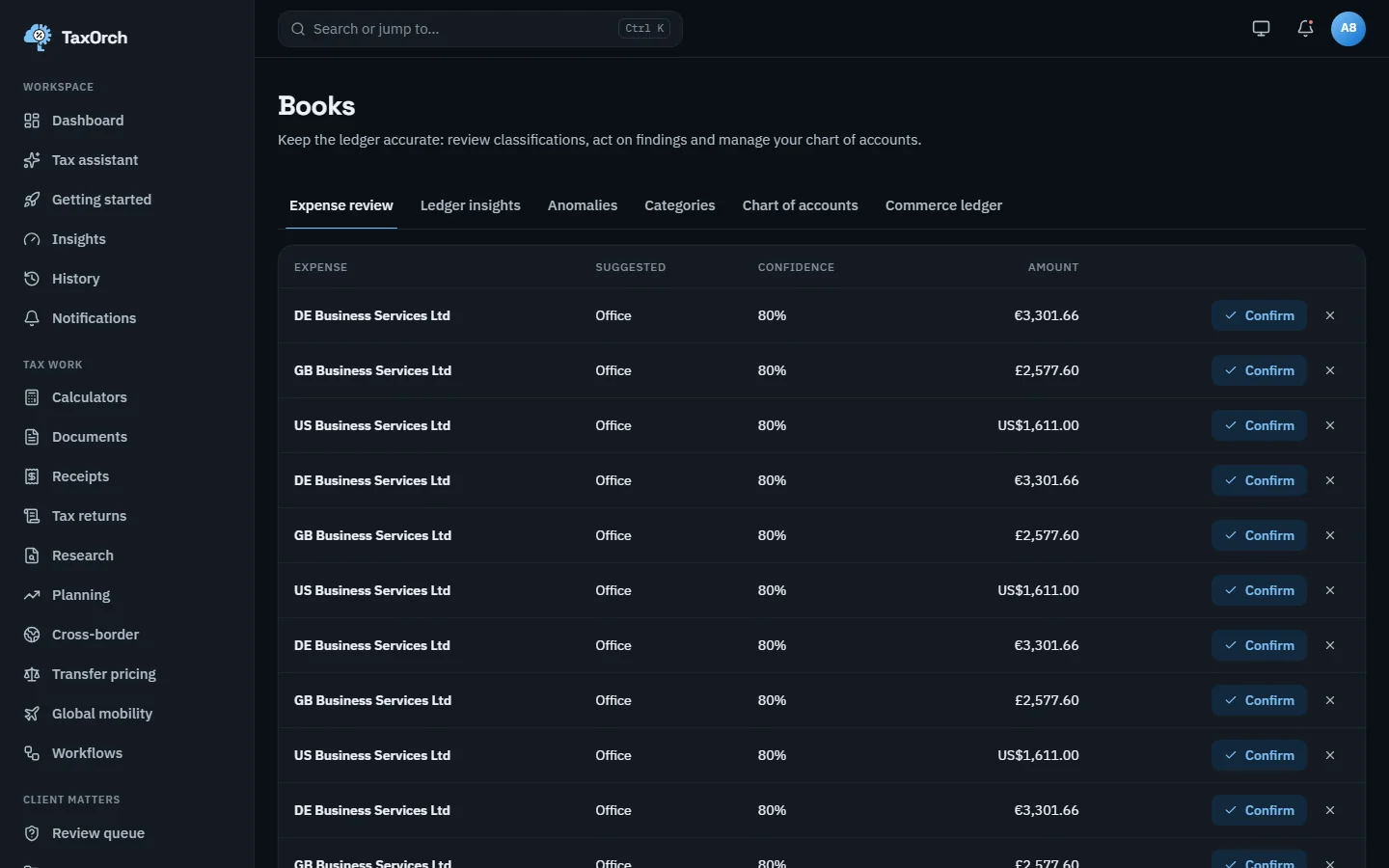
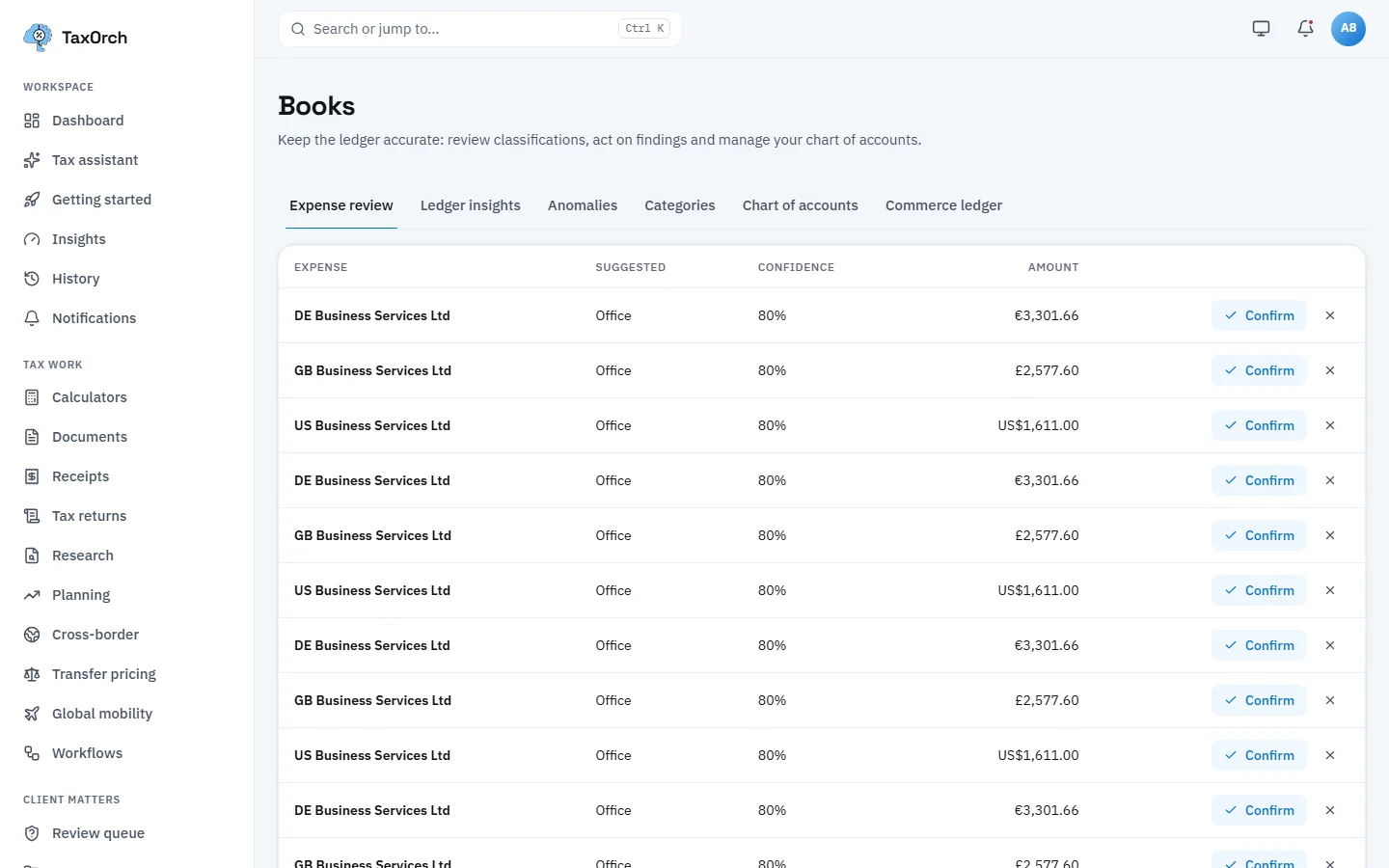
Expense review: suggested category, confidence, amount, and a Confirm button on every row.
Journals, VAT returns, payroll and fixed assets
The Journals tab holds proposed entries with review and approval before they post. VAT returns builds the return from the ledger for the period. Payroll runs and Fixed assets keep their registers; Audit files prepares the statutory file. Each tab follows the same rule: a proposal, a reviewer, then a record.
Ask the AI bookkeeper
The AI bookkeeper answers questions about your transactions, categories and ledger, and every answer names the records it used. The examples on screen: which expenses last quarter look miscategorised, and what was spent on software this year.
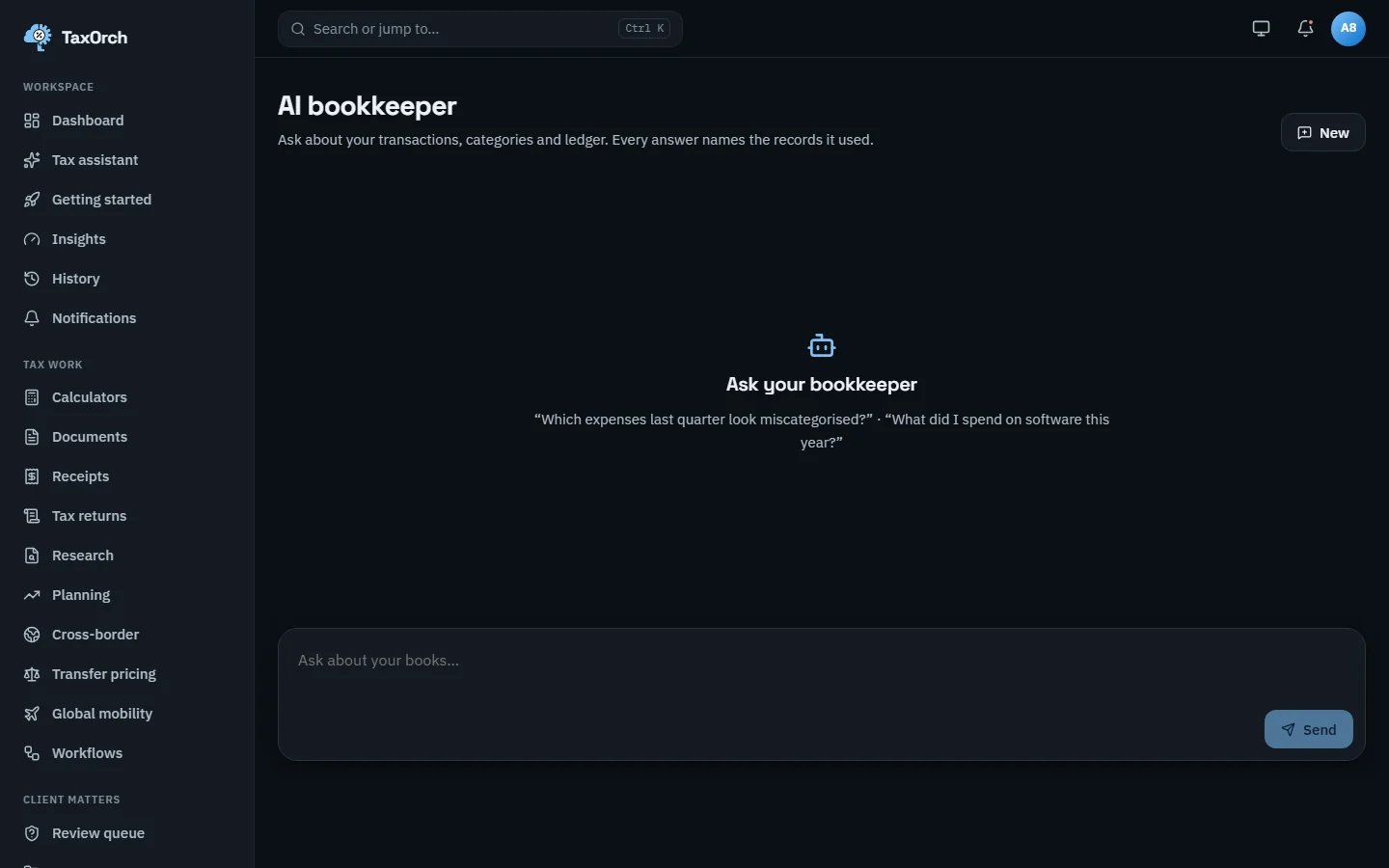
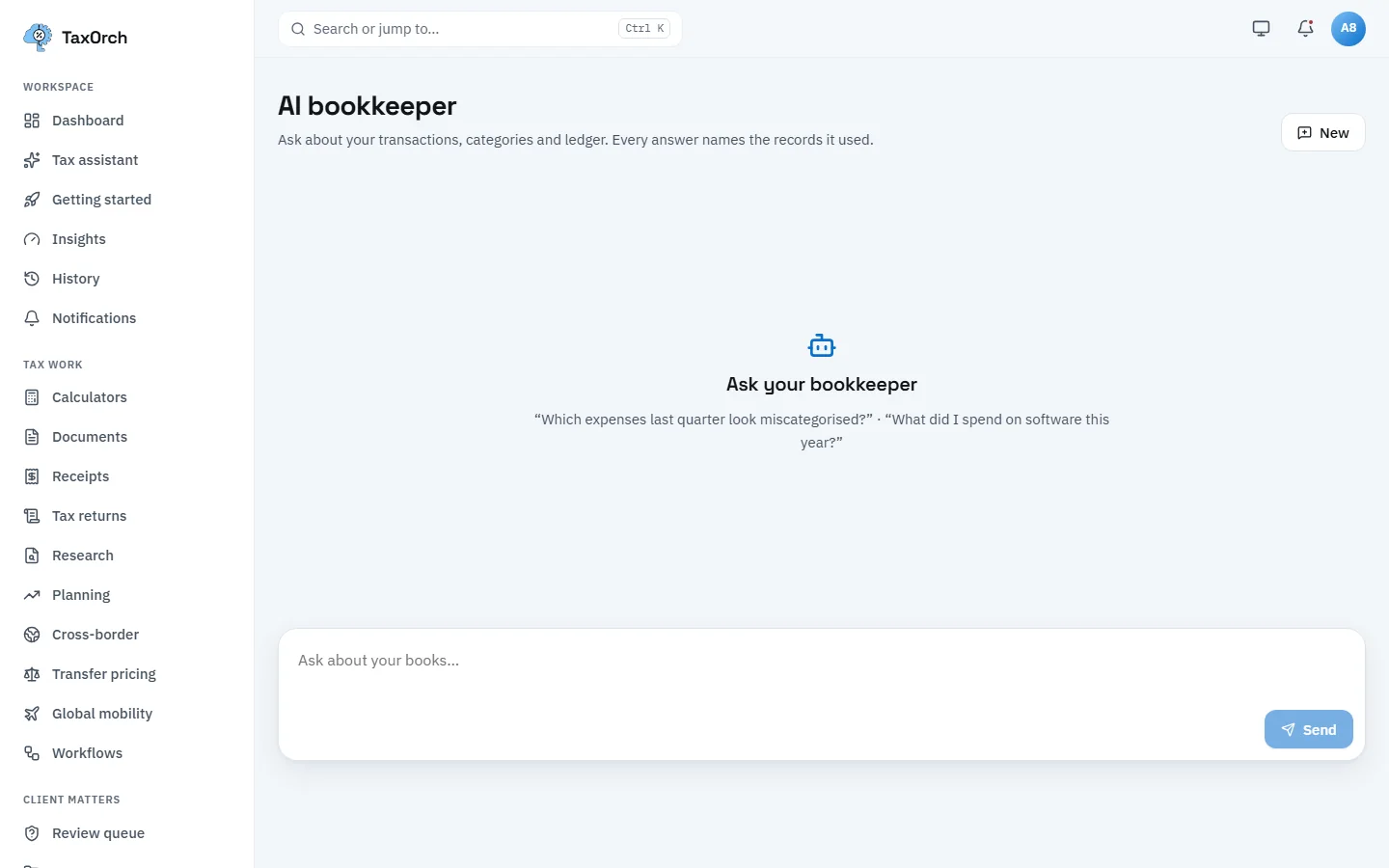
The AI bookkeeper: questions over your own ledger, with the records named in each answer.
Invoices and e-invoicing (In development)
The Invoices tab prepares e-invoices in Peppol BIS Billing 3.0 and checks them against the EN 16931 business rules. It carries an In development badge. Sample invoices to Kanaal Media B.V., Rheinwerk Handels GmbH and Hofmann Logistik GmbH show the number, issue date, customer, place of supply, total and state (Draft or Issued).
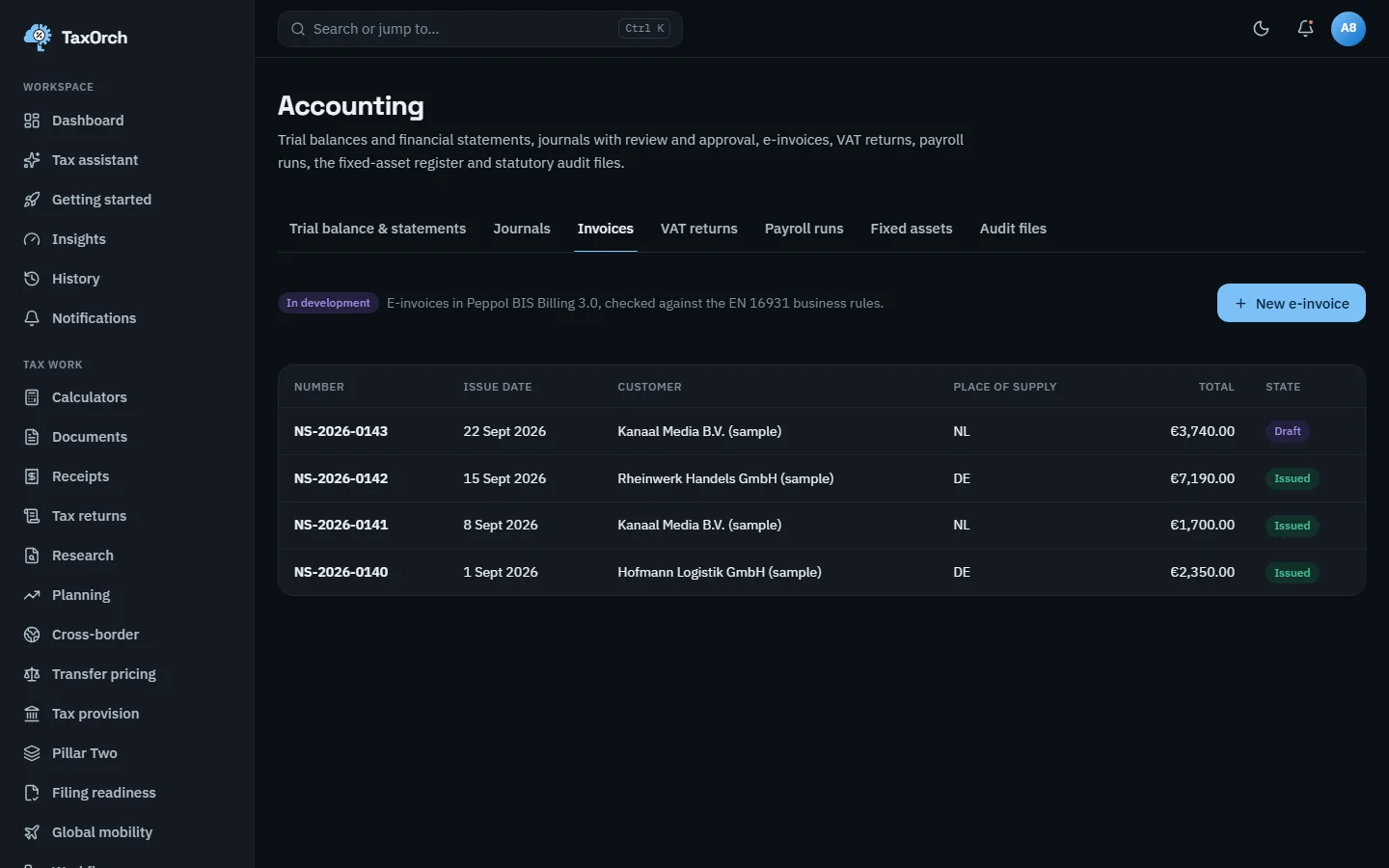
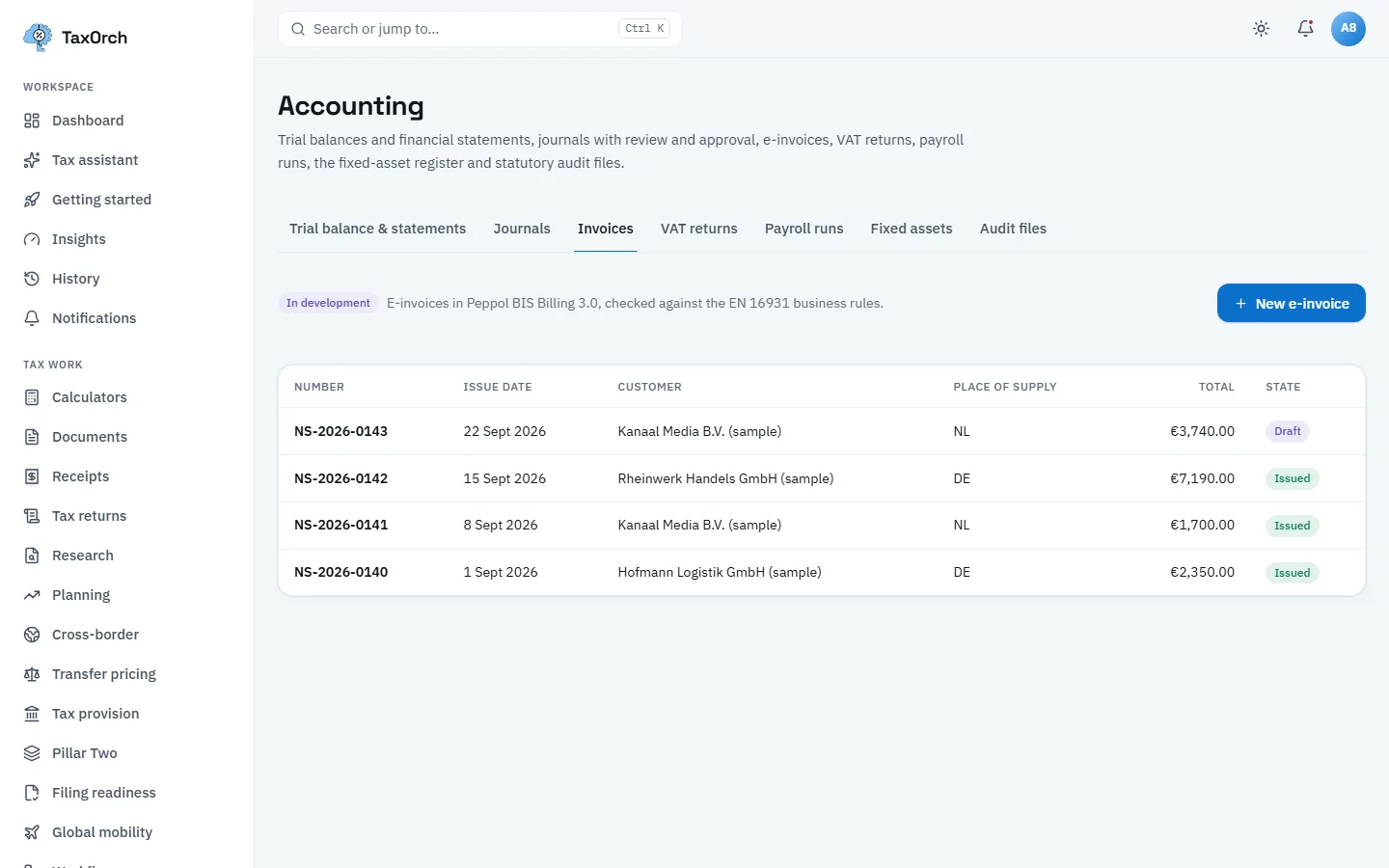
Invoices (In development): Peppol BIS Billing 3.0 drafts and issued invoices with place of supply.
Create an e-invoice draft
New e-invoice takes the buyer's postcode, VAT number and Peppol address, then one or more lines with description, quantity, unit, unit price and VAT treatment. A line with no VAT needs a reason; the sample line is a reverse-charge motion graphics package for €3,200.00. Totals and the VAT breakdown are computed; the invoice stays a draft until you issue it.
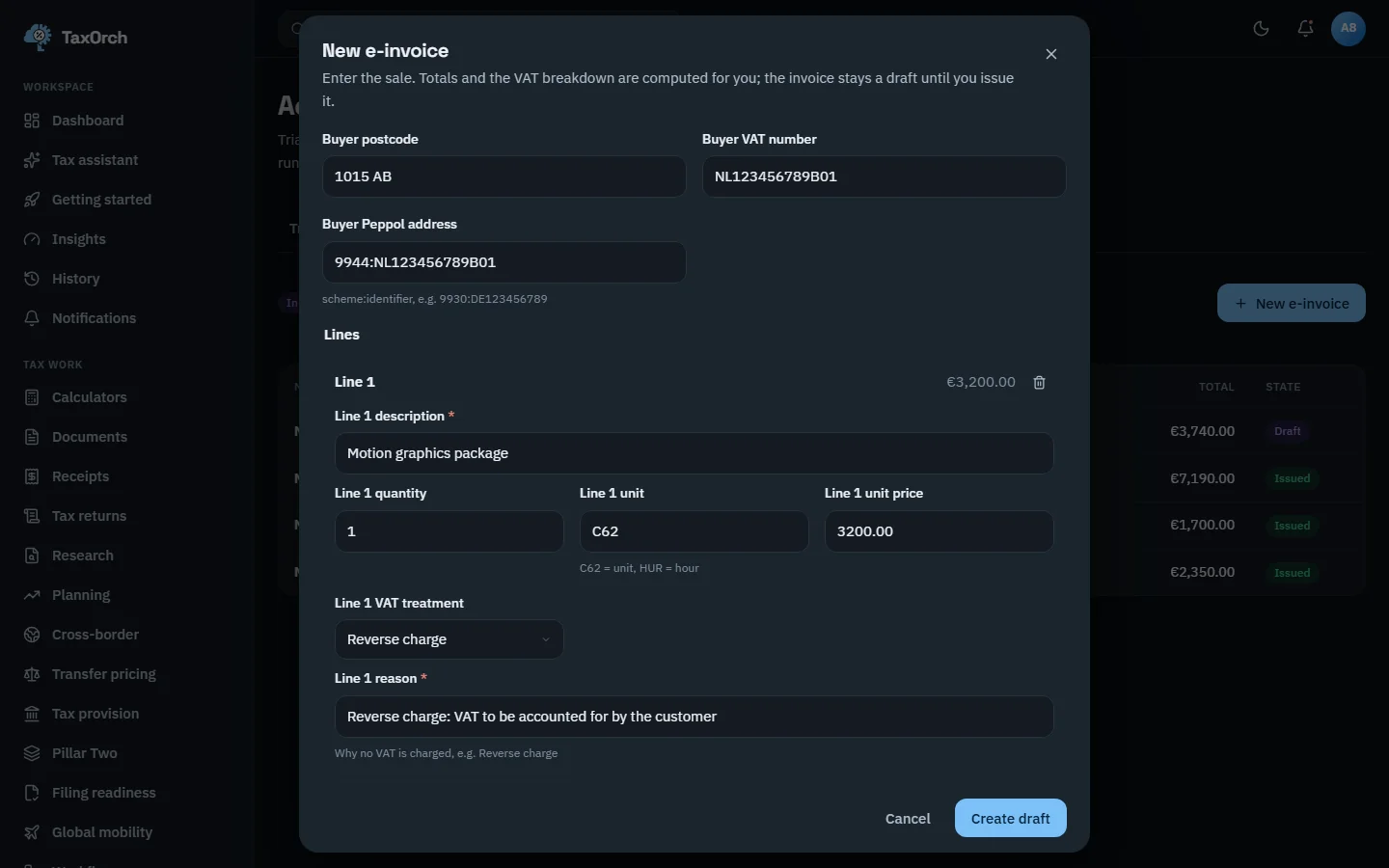
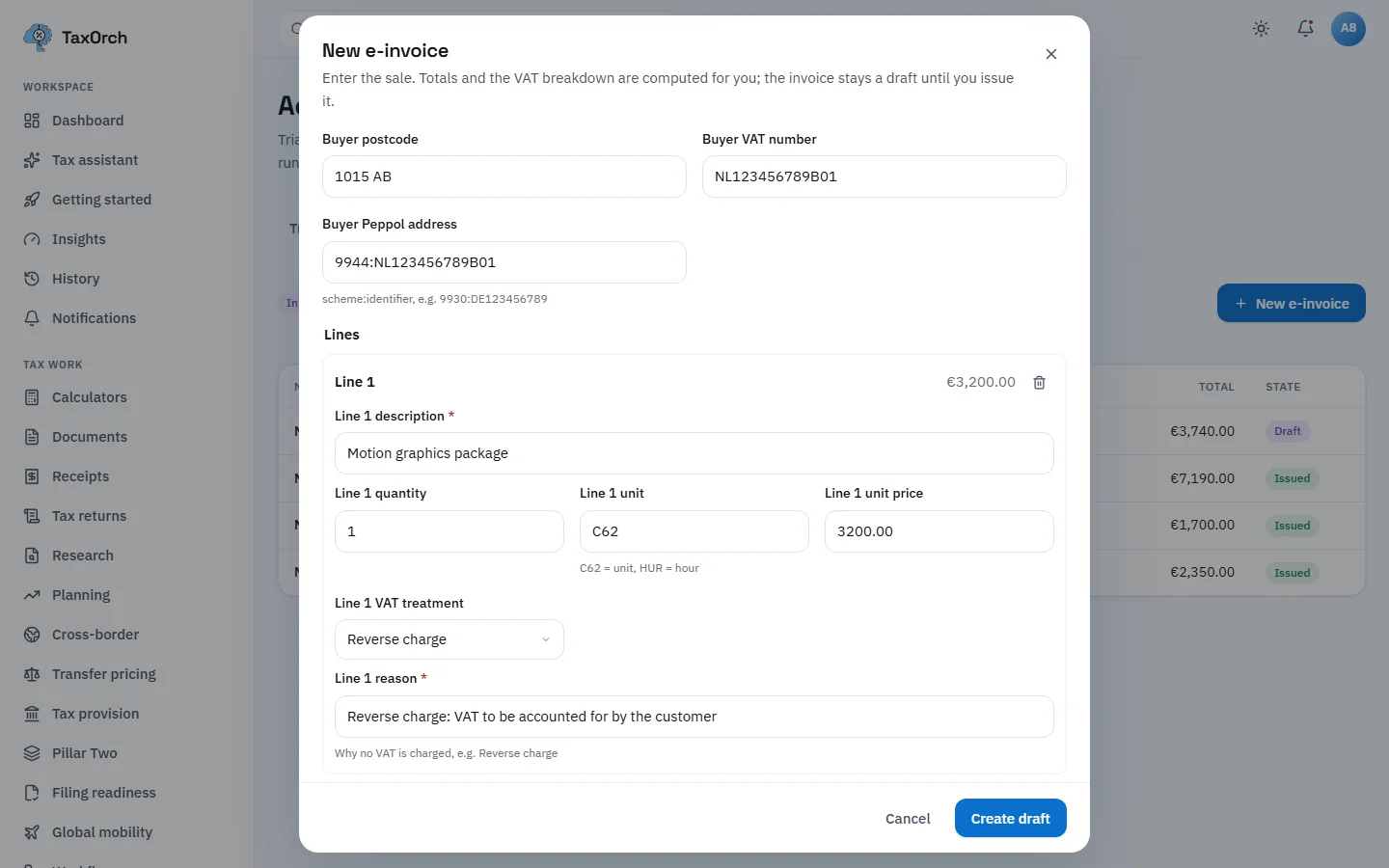
A new e-invoice: buyer identifiers, one reverse-charge line with its reason, and Create draft.
Connect an accounting system (Beta)
Accounting connections imports ledgers from QuickBooks Online, Xero and NetSuite. All three carry a Beta badge. Imports are read-only: nothing is written back. Each connection shows the company or account, when it last imported, what the last import brought in, and tabs for invoices and bills, transactions and the chart of accounts.
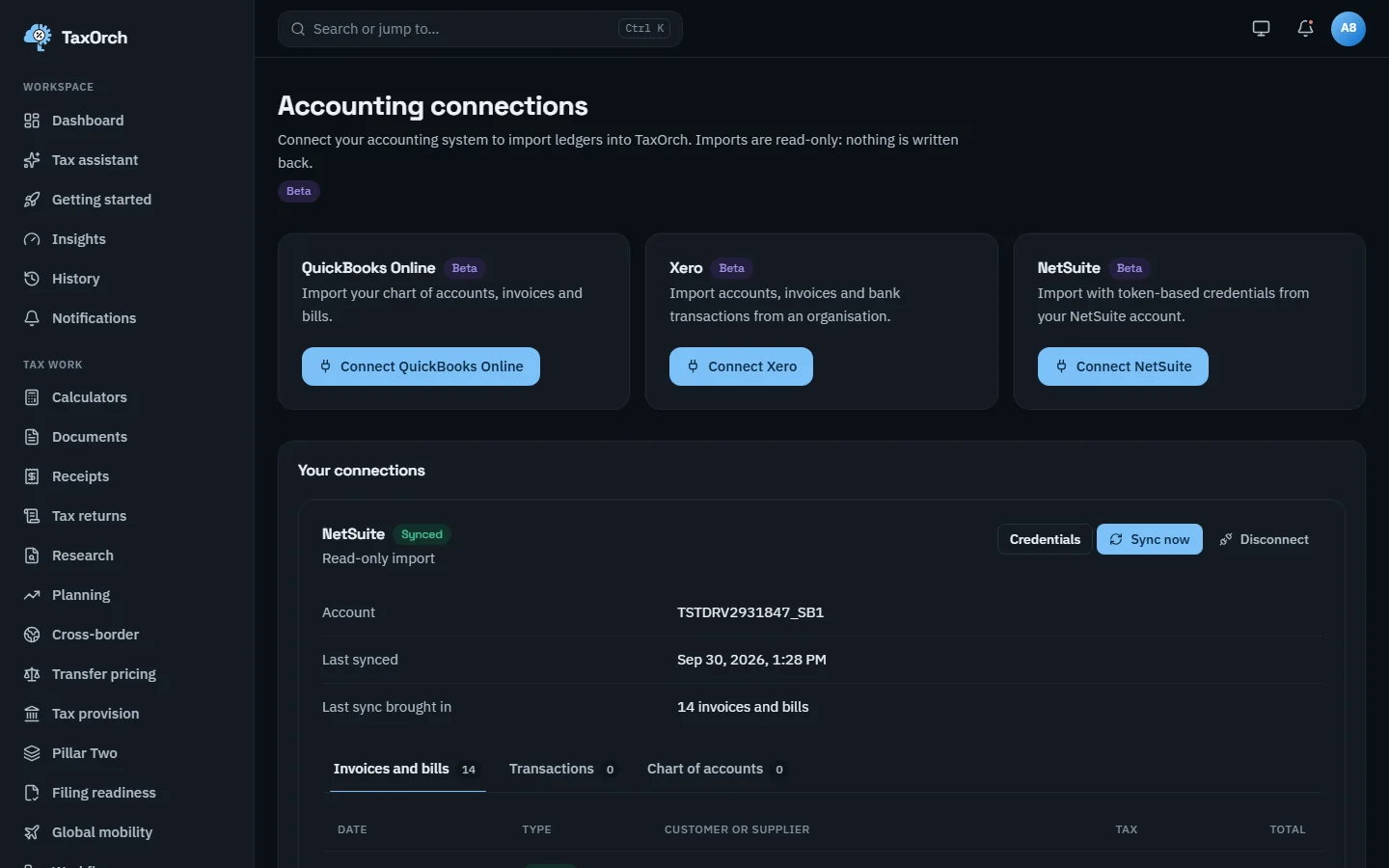
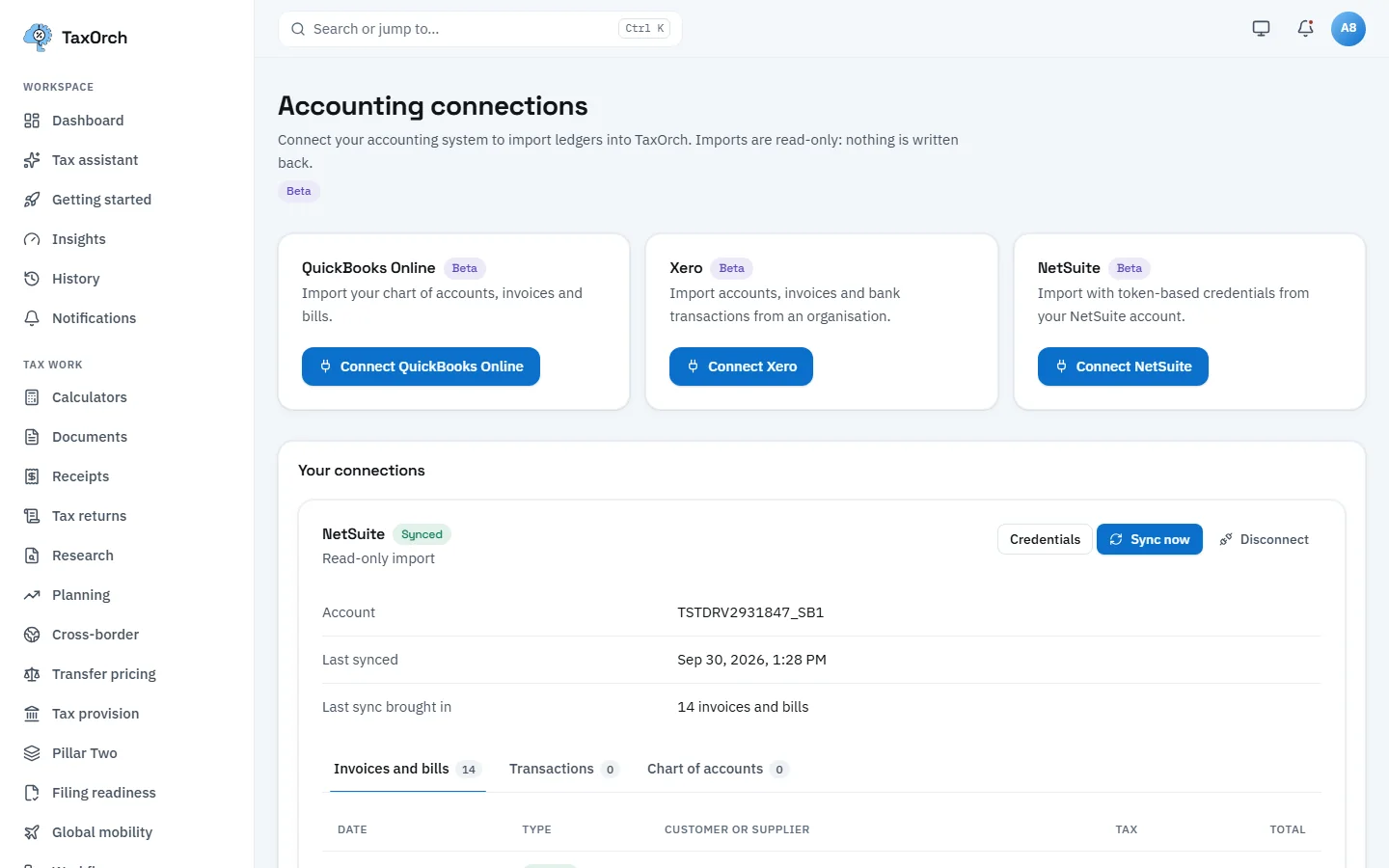
Accounting connections (Beta): three systems, read-only imports, and what the last import brought in.
Read the imported records
The QuickBooks Online connection for Northwind Coffee Roasters (sample) brought in 20 invoices and bills, 12 accounts and 6 bank transactions; each record shows its date, type, customer or supplier, tax and total. The Xero connection for Kestrel Design Studio Ltd (sample) shows the same for 16 invoices and bills, 8 accounts and 10 bank transactions in pounds.
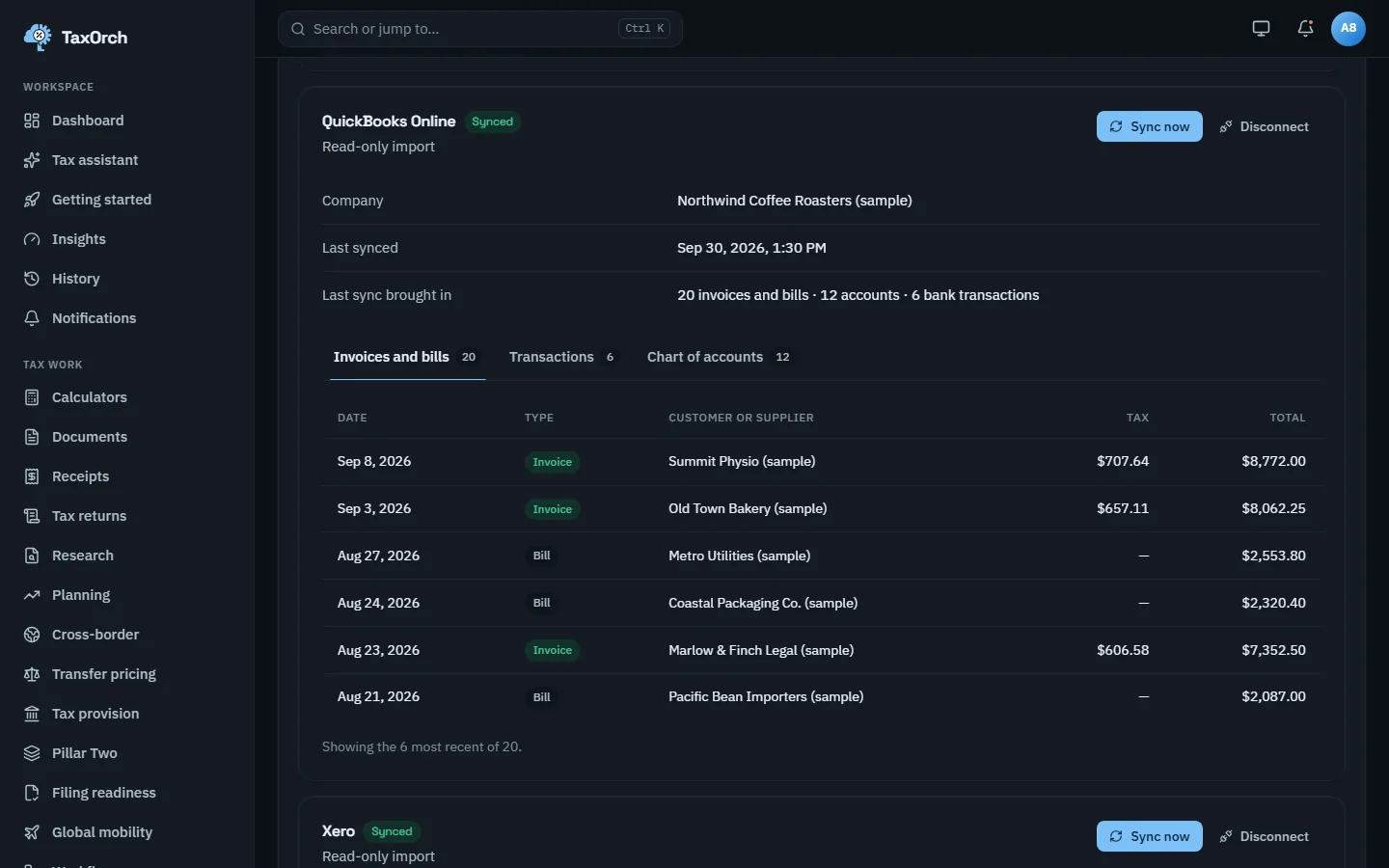
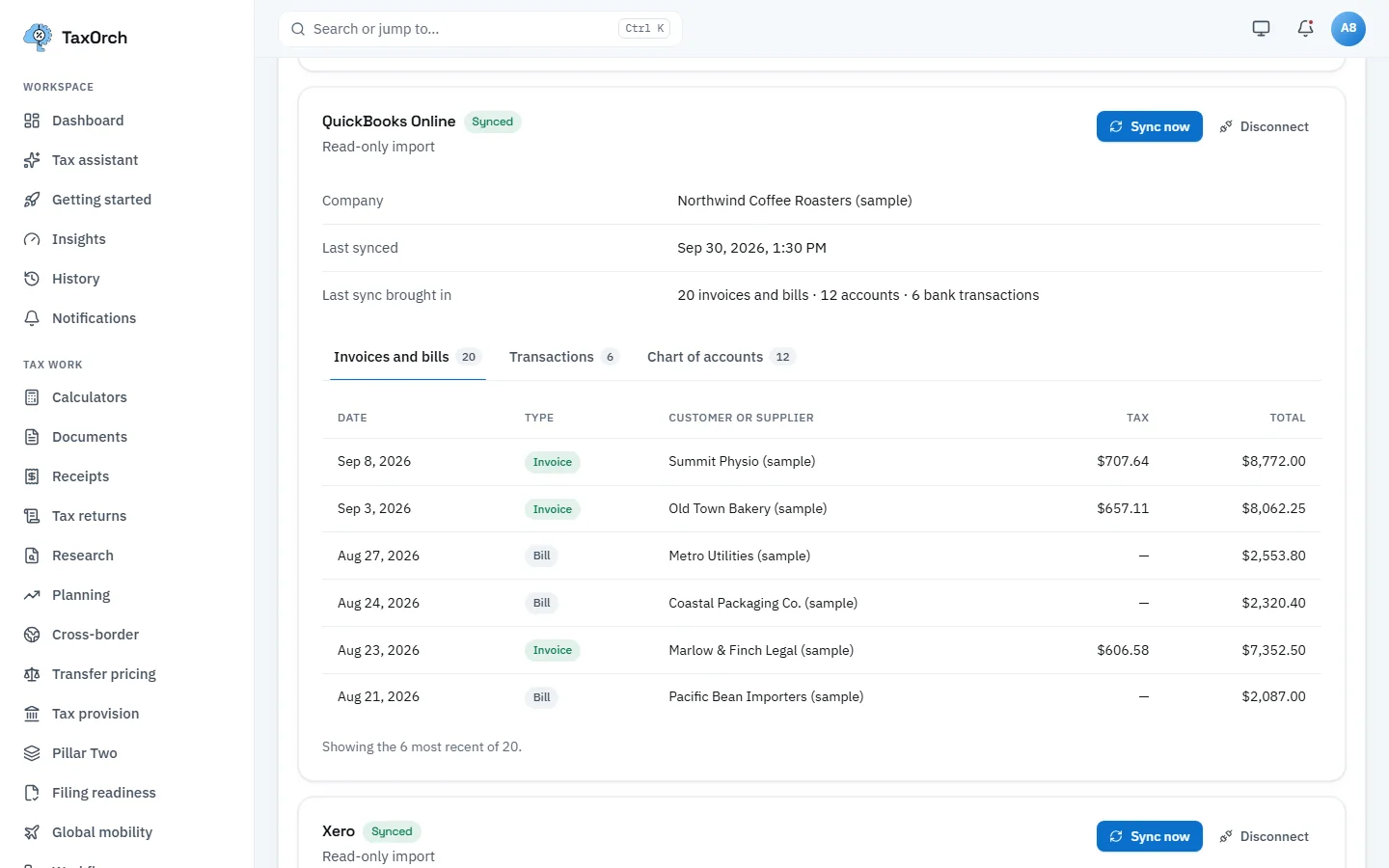
Imported QuickBooks Online records: invoices and bills with their tax and totals.
When an import fails
A failed import is shown as it is. The NetSuite connection reads Last sync failed: TaxOrch could not reach NetSuite, check the account details and try again, and the records from the last successful import are kept. Technical details expand for support; Try again re-runs it.
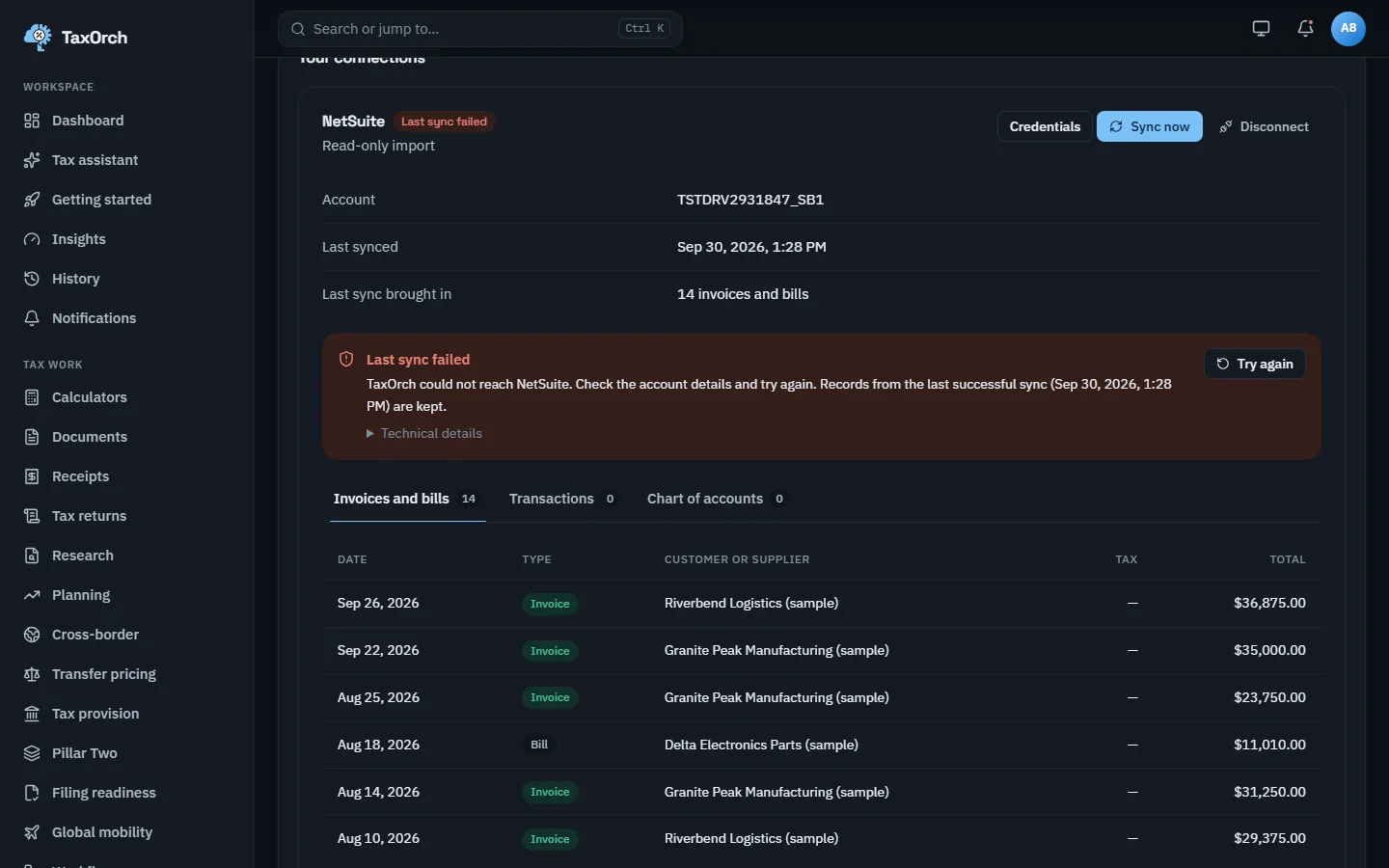
An import that failed, said plainly, with the earlier records kept.
Bank feeds and anomaly checks
Bank feed transactions land in Books for classification like any other entry. The Anomalies tab lists findings across the ledger (duplicates, unusual amounts, missing tax) for a person to act on. Tax tools also has a Cross-source anomalies view that compares figures across sources for a year and jurisdiction.
Tips
- Import the trial balance before opening a provision cycle; the provision binds a reviewed version.
- Confirm categories in batches by vendor; the confidence column shows where to look first.
- Keep connections read-only in your mind as well: TaxOrch never writes to your accounting system.