
Amounts come only from the figures printed on the document. Nothing unclear flows silently into a calculation.
Upload a document
Choose Documents. Pick the document type (or leave Other document), add a client reference if you are a firm acting for clients, and drop the file. PDF, images, CSV and XLSX are accepted up to 20 MB. Each upload appears in the table below with its type, client, status and time.
On the sample workspace, three sample invoices have been uploaded twice and every row shows Needs review.
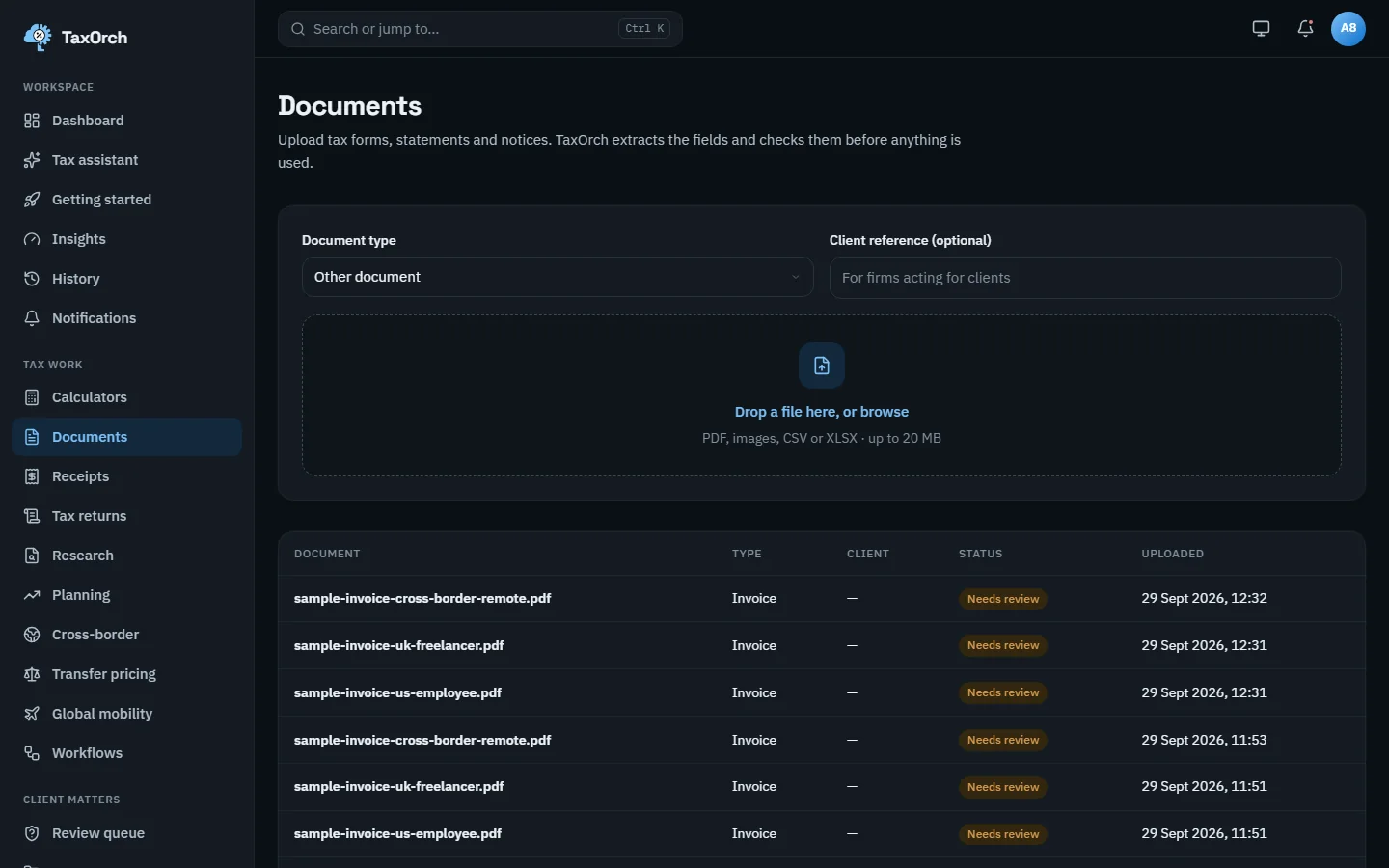
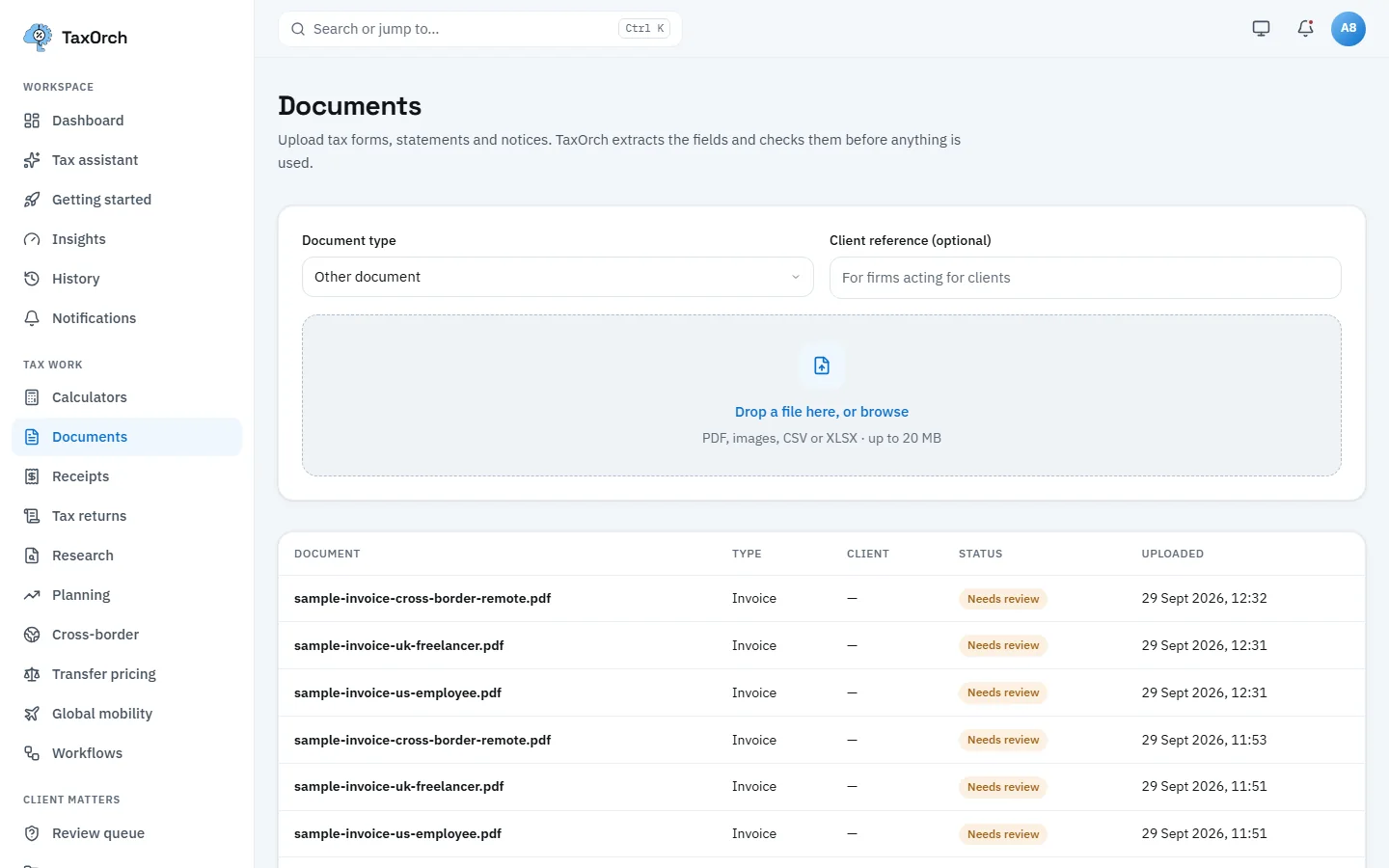
Documents: type, optional client reference, the drop zone, and each upload with its status.
Scan receipts and invoices
Choose Receipts. Drop photos or PDFs (up to 20 MB each). TaxOrch reads the vendor, date, amount and tax, suggests a category, and keeps a verifiable record. The table shows every receipt with its vendor, date, category, status and total in the document's currency, and Export CSV downloads the list.
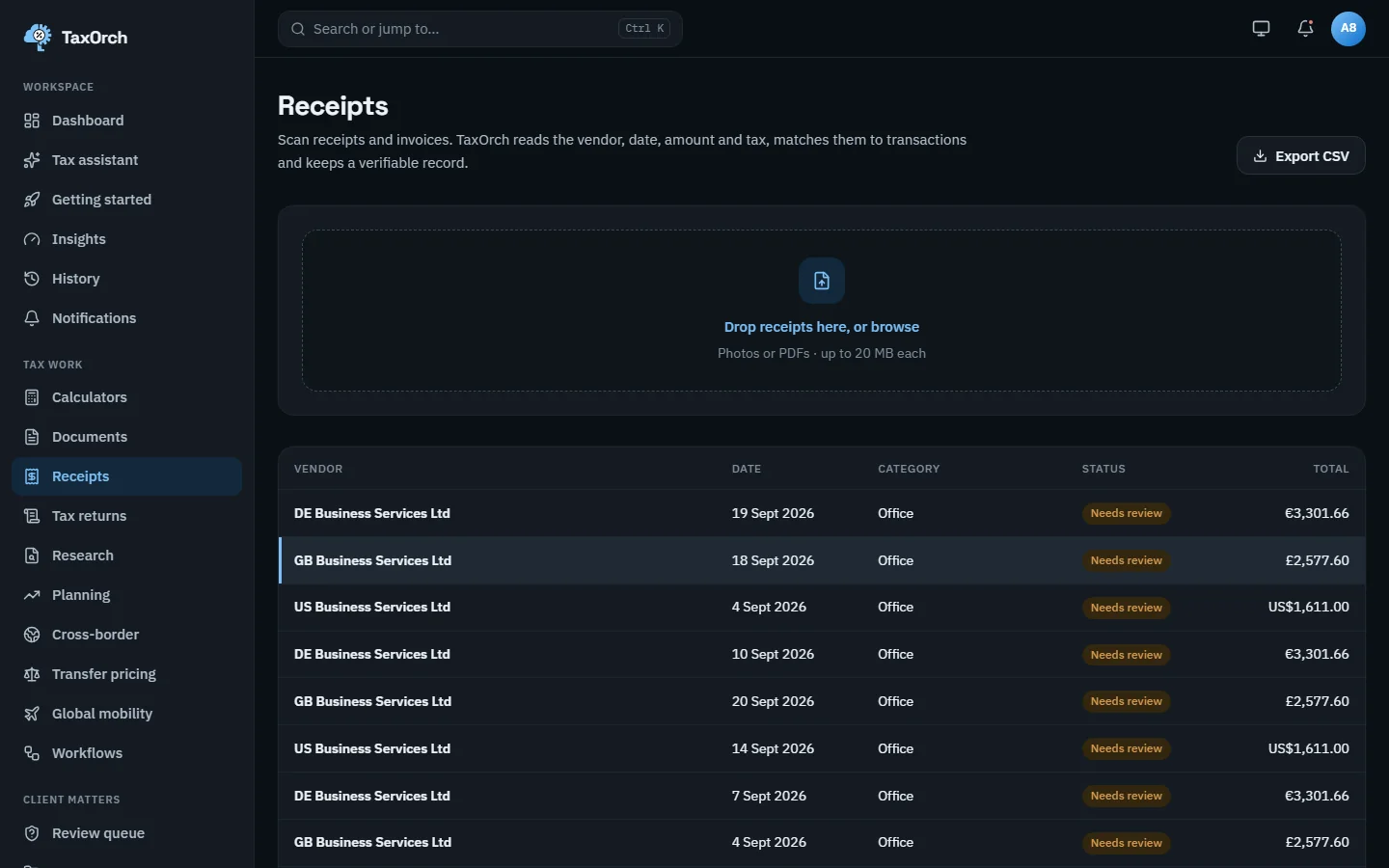
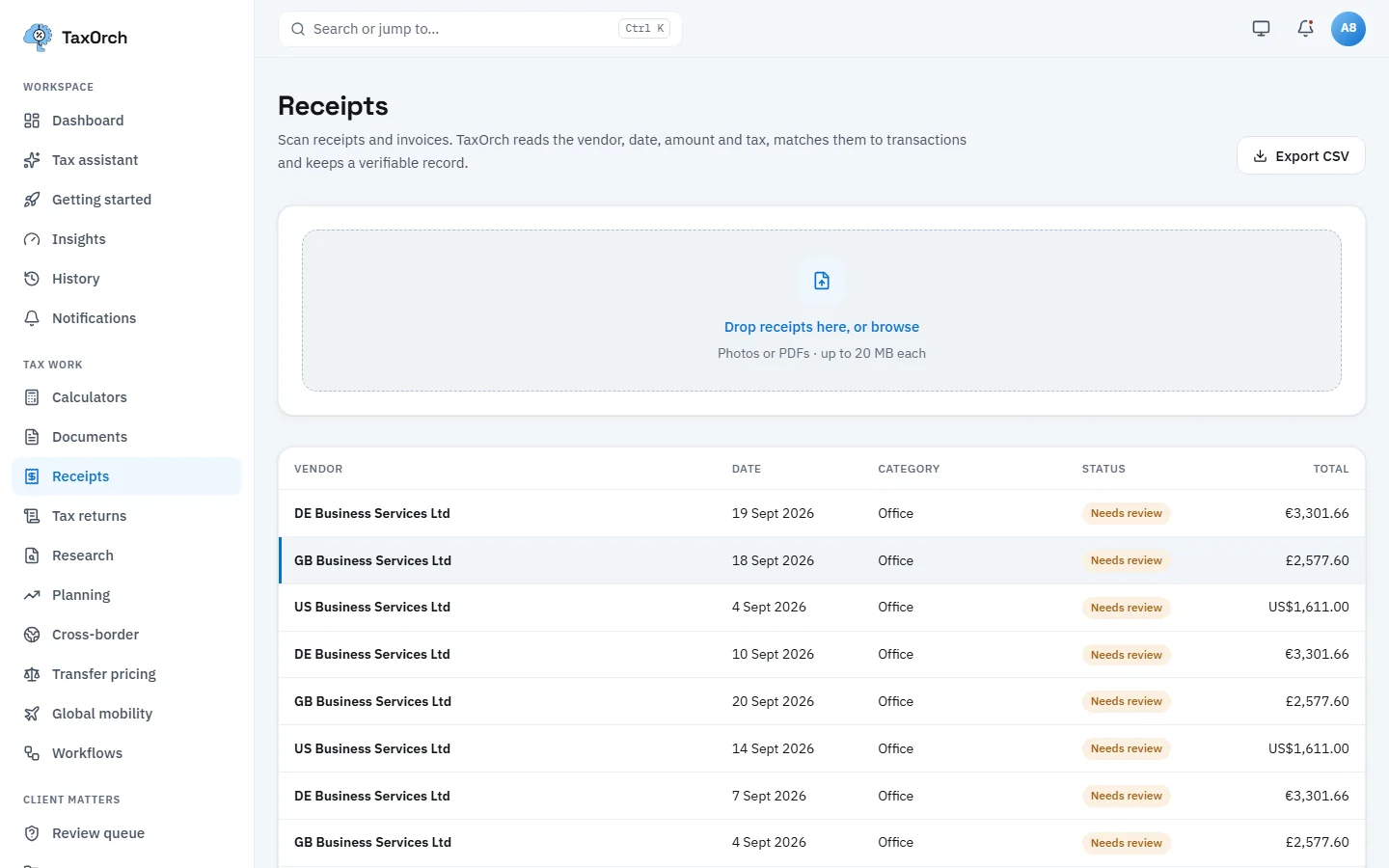
Receipts: vendor, date, suggested category, status and total, in the currency on the document.
See what was read and where each figure came from
Open a receipt. The header shows the vendor, date and total; the panel What this receipt is lists the document type, who was paid, who paid, what was bought, what it was for, the billing period and the suggested category, each described by TaxOrch and checked against the document.
Four actions sit at the top: Re-read, Verify, Send to books and Finalise. The status stays Needs review until you confirm the flagged fields and finalise.
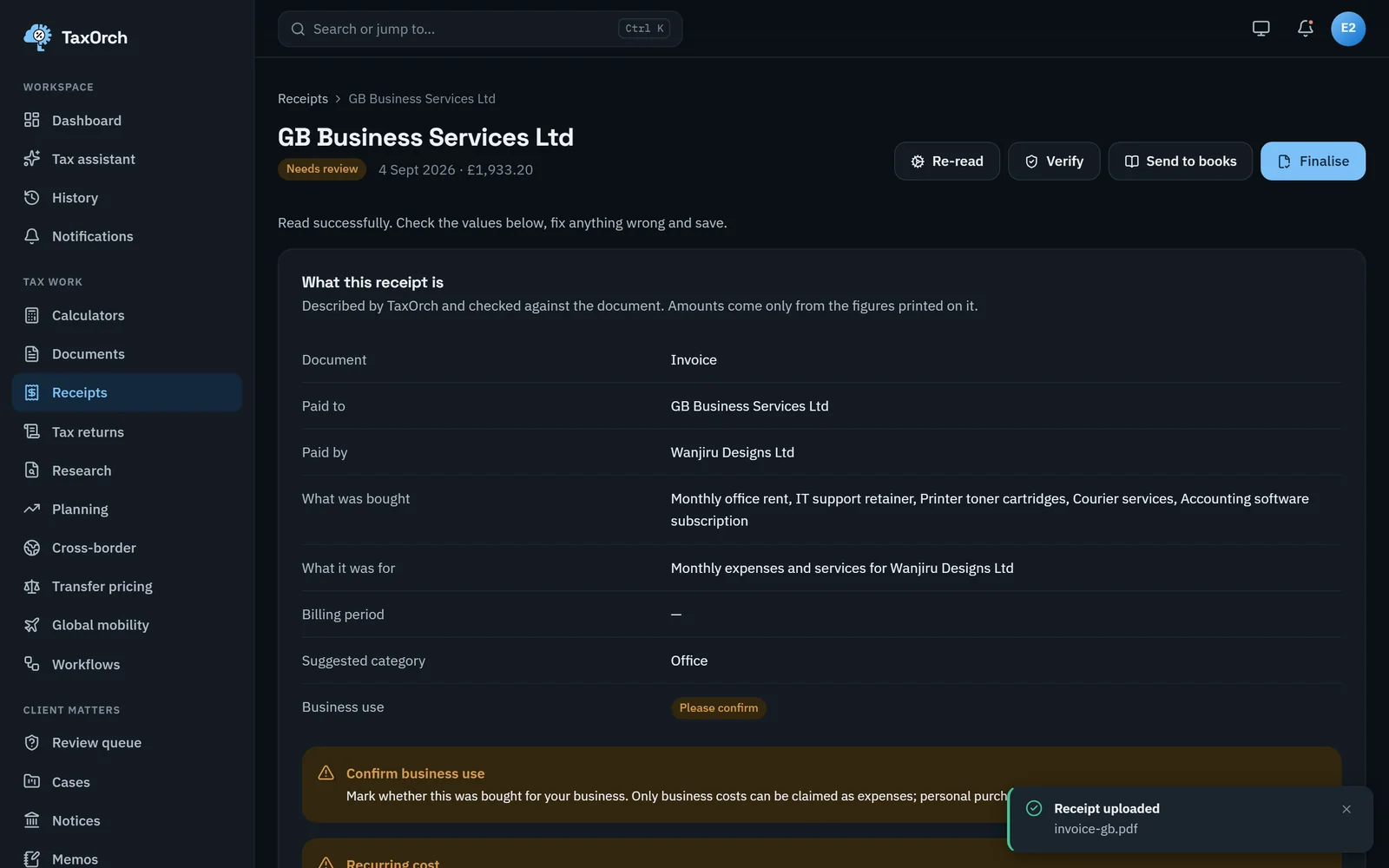
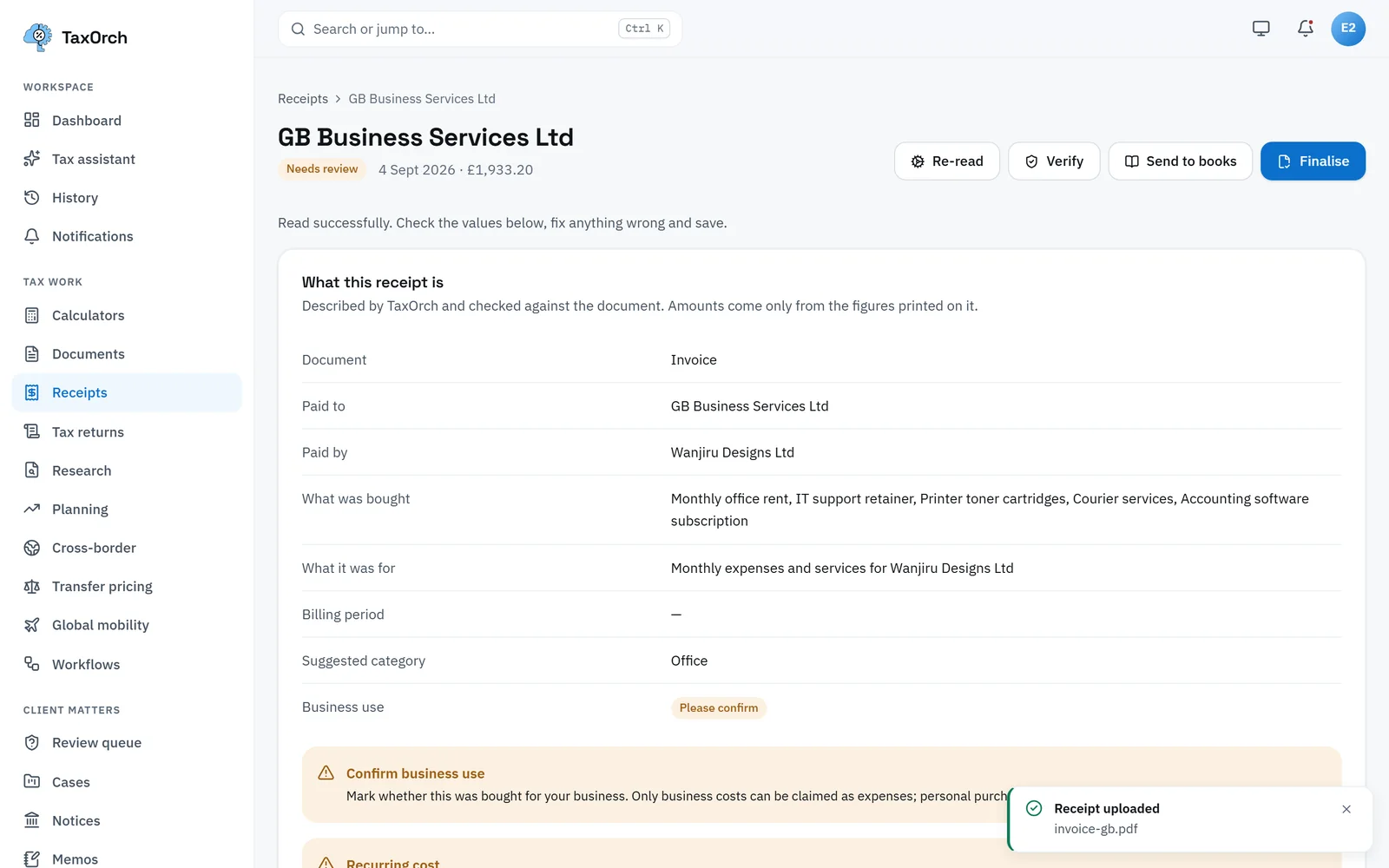
One invoice read: parties, items, purpose and category, with business use waiting for confirmation.
Confirm uncertain figures and send to books
Anything marked Please confirm needs a person: here, whether the purchase was for the business, and whether it is a recurring cost. Fix anything wrong, then Verify records that a person checked it, Send to books proposes the ledger entry (nothing posts without approval, chapter 7), and Finalise closes the receipt.
Track what is missing on an engagement
Inside a client case, the Document checklist step lists what a practitioner asks for in that country, and the Document review step shows each document read and checked: totals add up, dates and parties present. On Jordan Ellis (sample), a US expense document of USD 1,611.00 has been read in full.
The client portal (chapter 5) shows the same list to the client, with what has arrived and what is still requested.
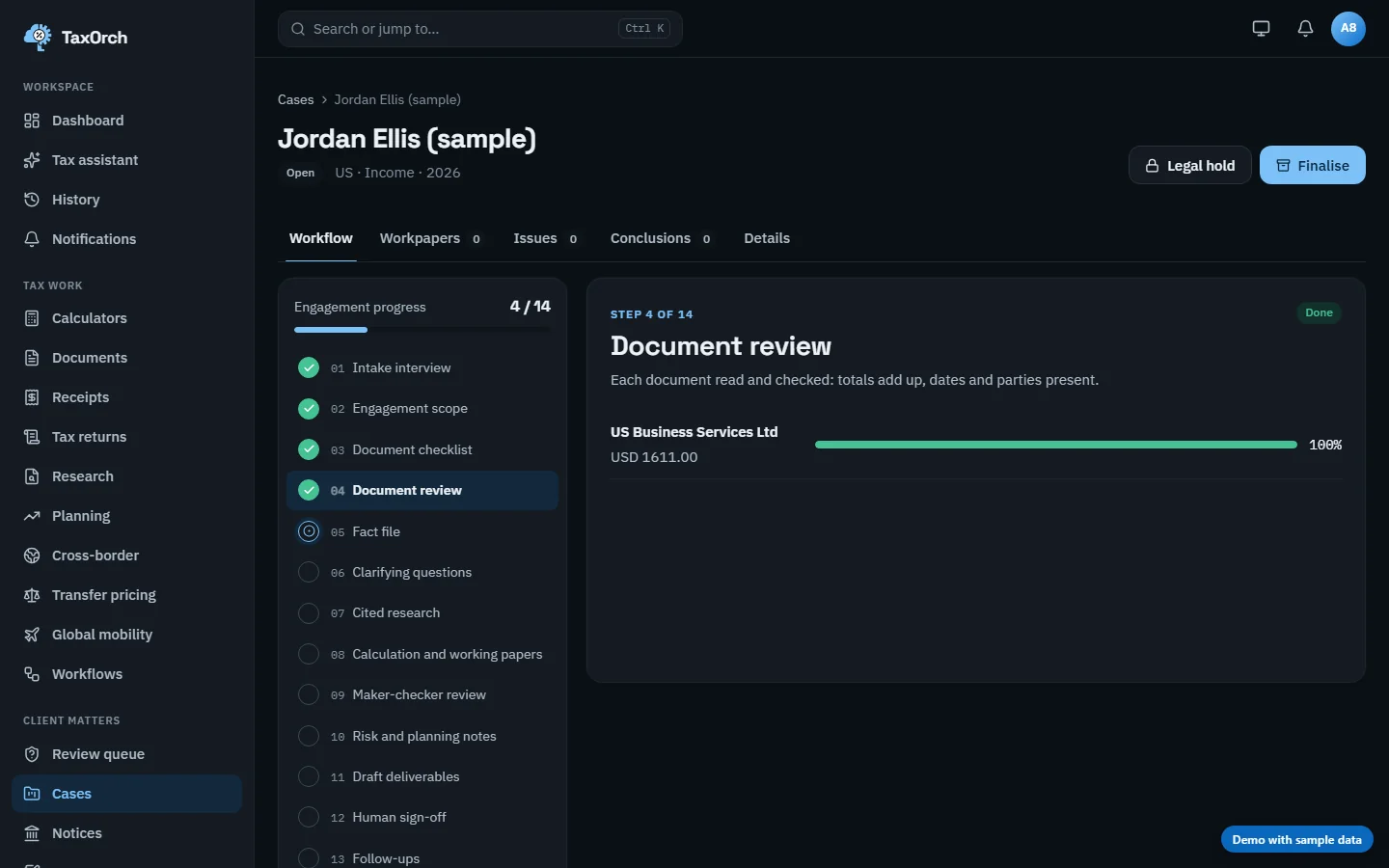
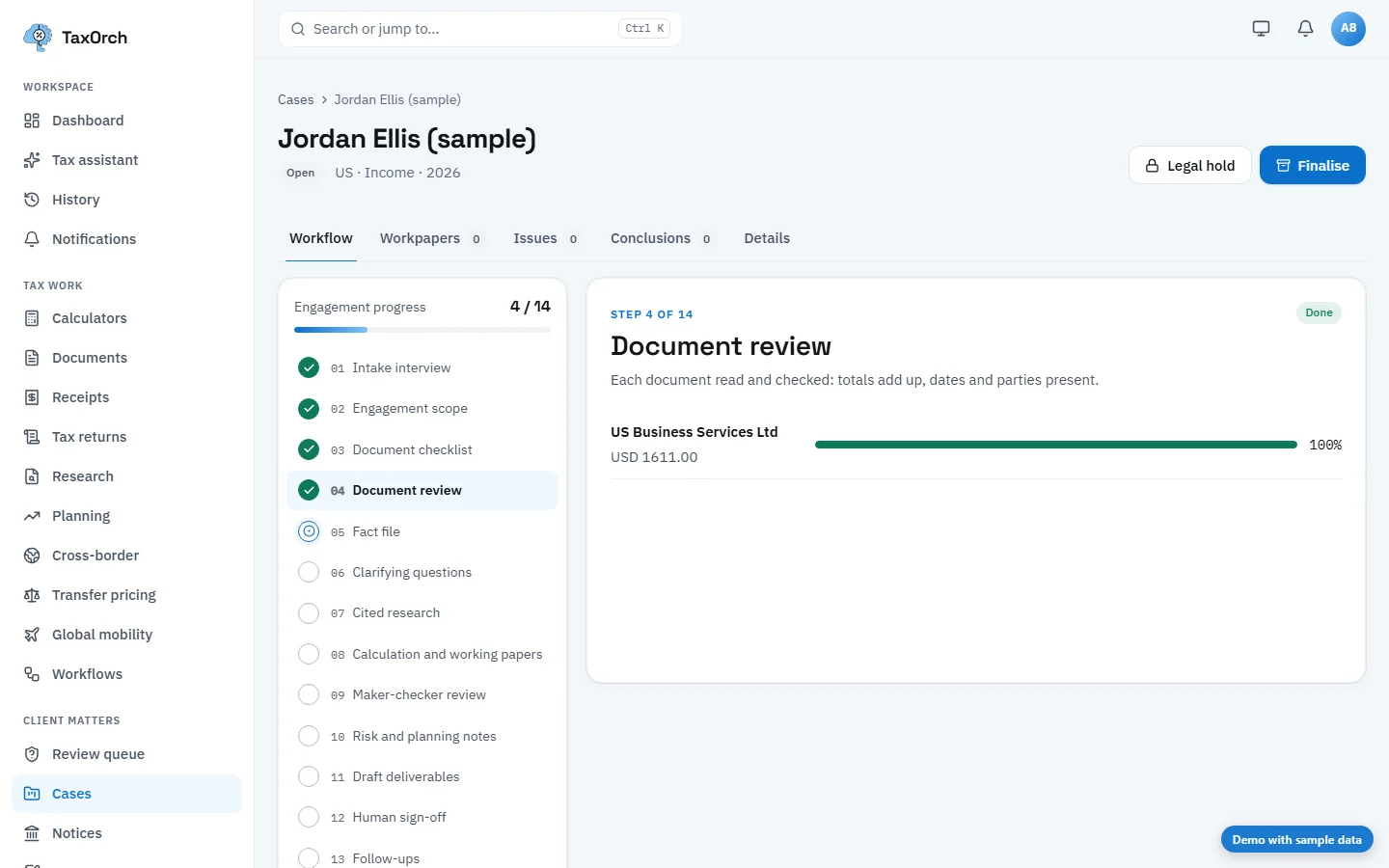
Document review inside a case: each document read and checked, with the engagement progress on the left.
Tips
- Photograph receipts straight on and in good light; a flattened invoice reads better than a folded one.
- Set the document type when you know it: it tells TaxOrch which fields to look for.
- Use the client reference on every upload if you act for several clients; it keeps documents with the right engagement.