
Product manual · Chapter 12 of 14

Branding and white-label

The White-label licence runs TaxOrch under your brand: your name, logo, colours, web address and email sender name, for your clients and staff. TaxOrch hosts and runs it. This chapter shows the sample brand Harbor & Pine Tax Advisors (sample), which is not a real firm.

Download as PDF (opens in a new tab)4 min read · Firms, advisers and fintechs on the White-label licence, and Business customers checking what it adds.
  1. Set the brand

    Organisation, Branding. Enter the display name, the email sender name (shown as the From name once a domain is verified), the support email (the reply-to, shown on the sign-in screen), an optional sending address, and the primary and accent colours. The live preview shows how sign-in, buttons and email footers will look. Contrast is checked as you type: the sample accent colour is flagged at 2.66:1 on white, below 4.5:1.
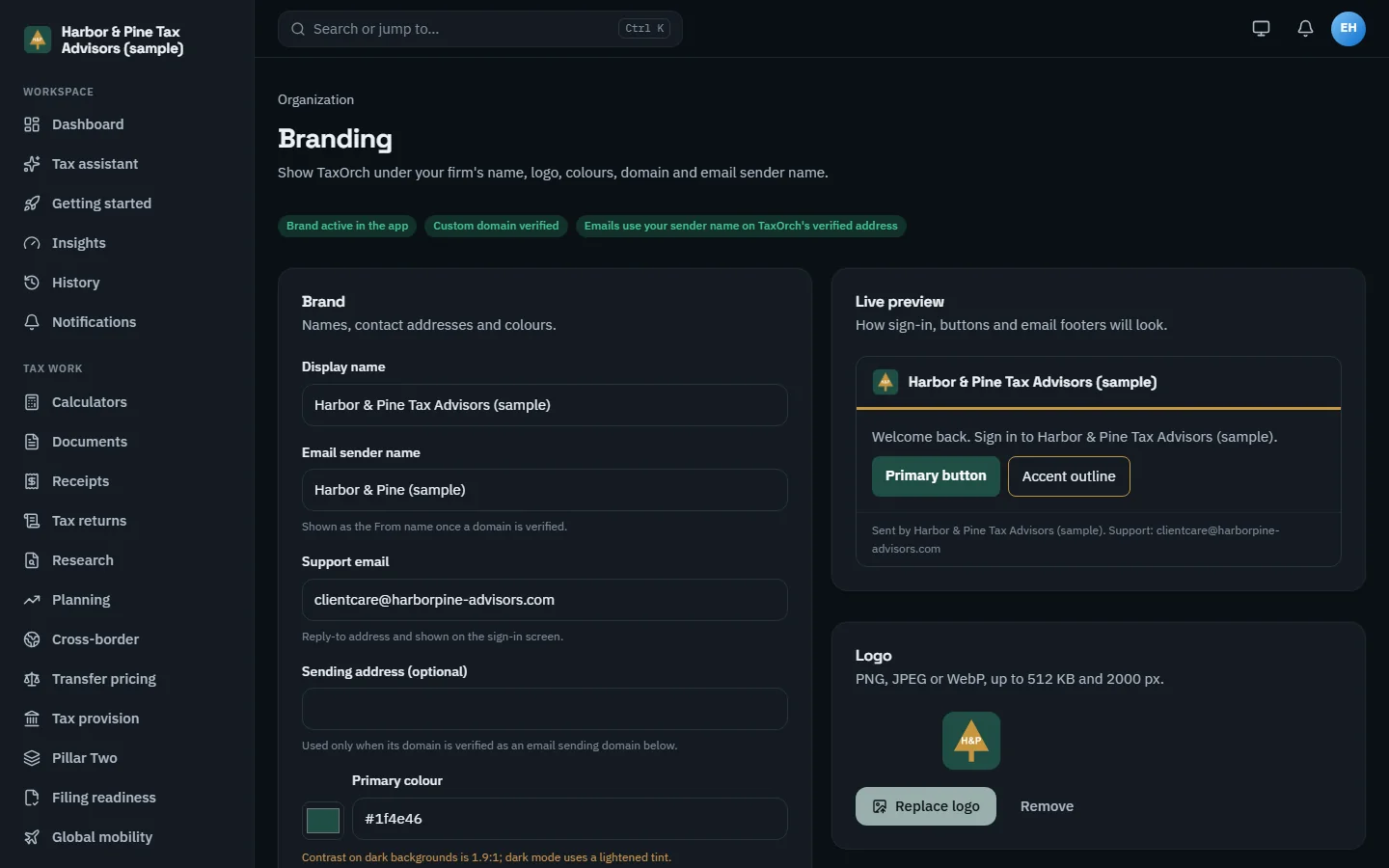
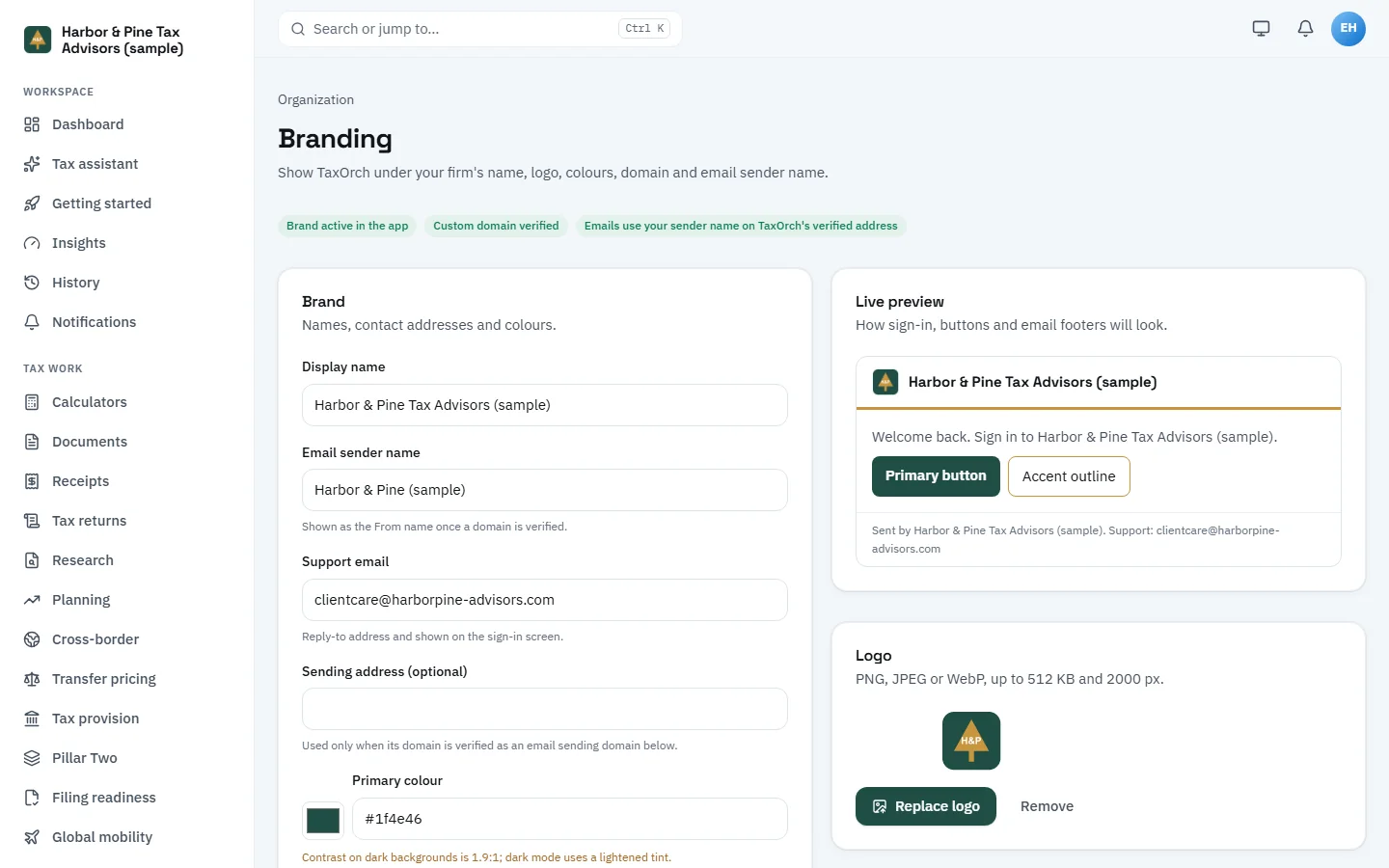
    The TaxOrch Branding page for Harbor & Pine Tax Advisors (sample) with display name, email sender name, support email and primary colour fields, three green status badges, a live preview of the branded sign-in and buttons, and the uploaded logoThe TaxOrch Branding page for Harbor & Pine Tax Advisors (sample) with display name, email sender name, support email and primary colour fields, three green status badges, a live preview of the branded sign-in and buttons, and the uploaded logo

    Branding: names, addresses and colours, with the live preview and the uploaded logo.

  2. Upload the logo and check the colours

    Logo accepts PNG, JPEG or WebP up to 512 KB and 2,000 pixels. Colour fields warn when contrast is low: dark mode uses a lightened tint of a dark primary, and white button text on a low-contrast accent is flagged as hard to read. Save branding applies it.

  3. Verify your own web address

    Custom domain serves the app on your domain. Add the domain, choose its use (app domain), and prove ownership with a DNS TXT record; only verified domains show your brand. The sample domain portal.harborpine-advisors.com is Verified as the app domain, with Re-check and Remove beside it.
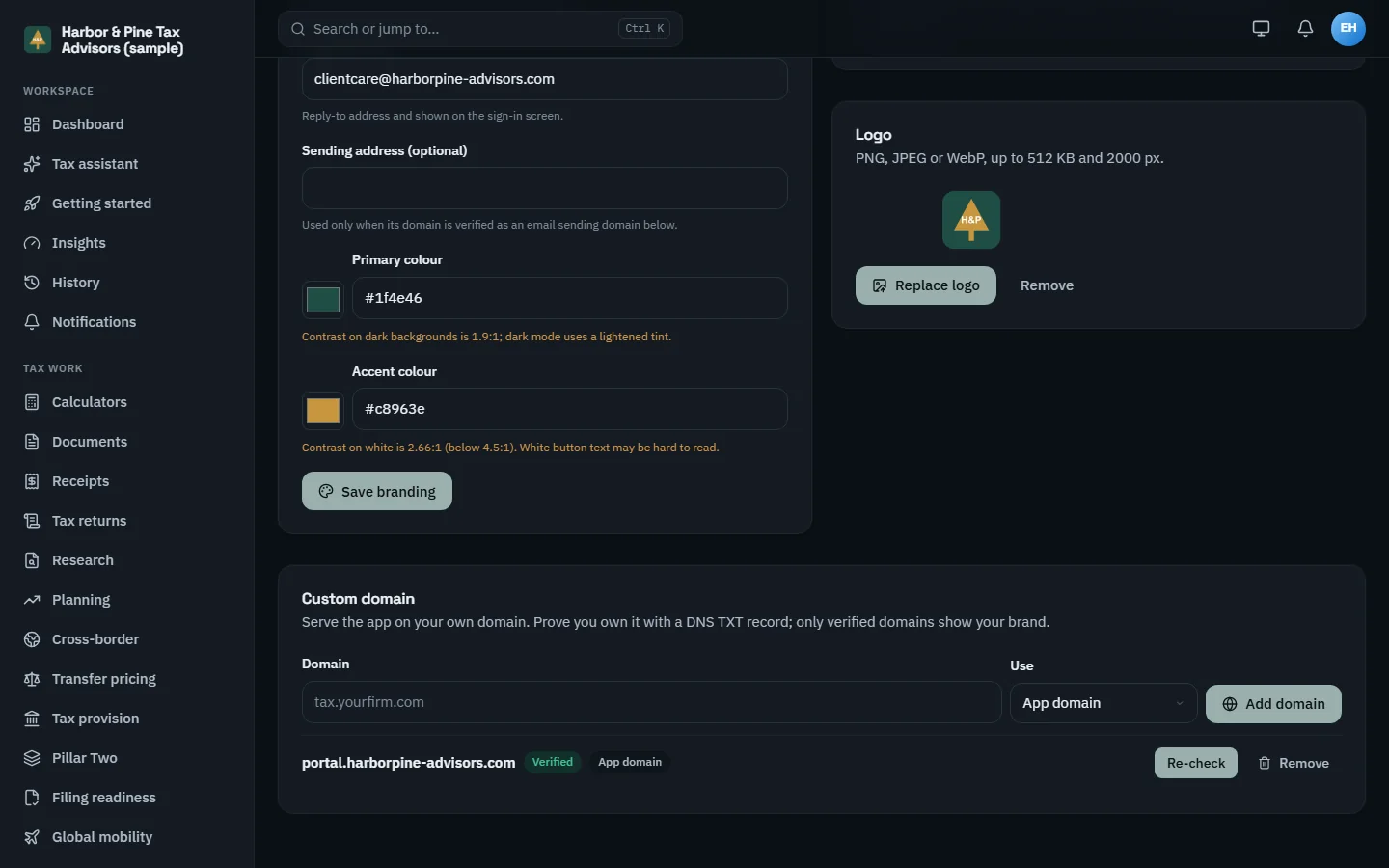
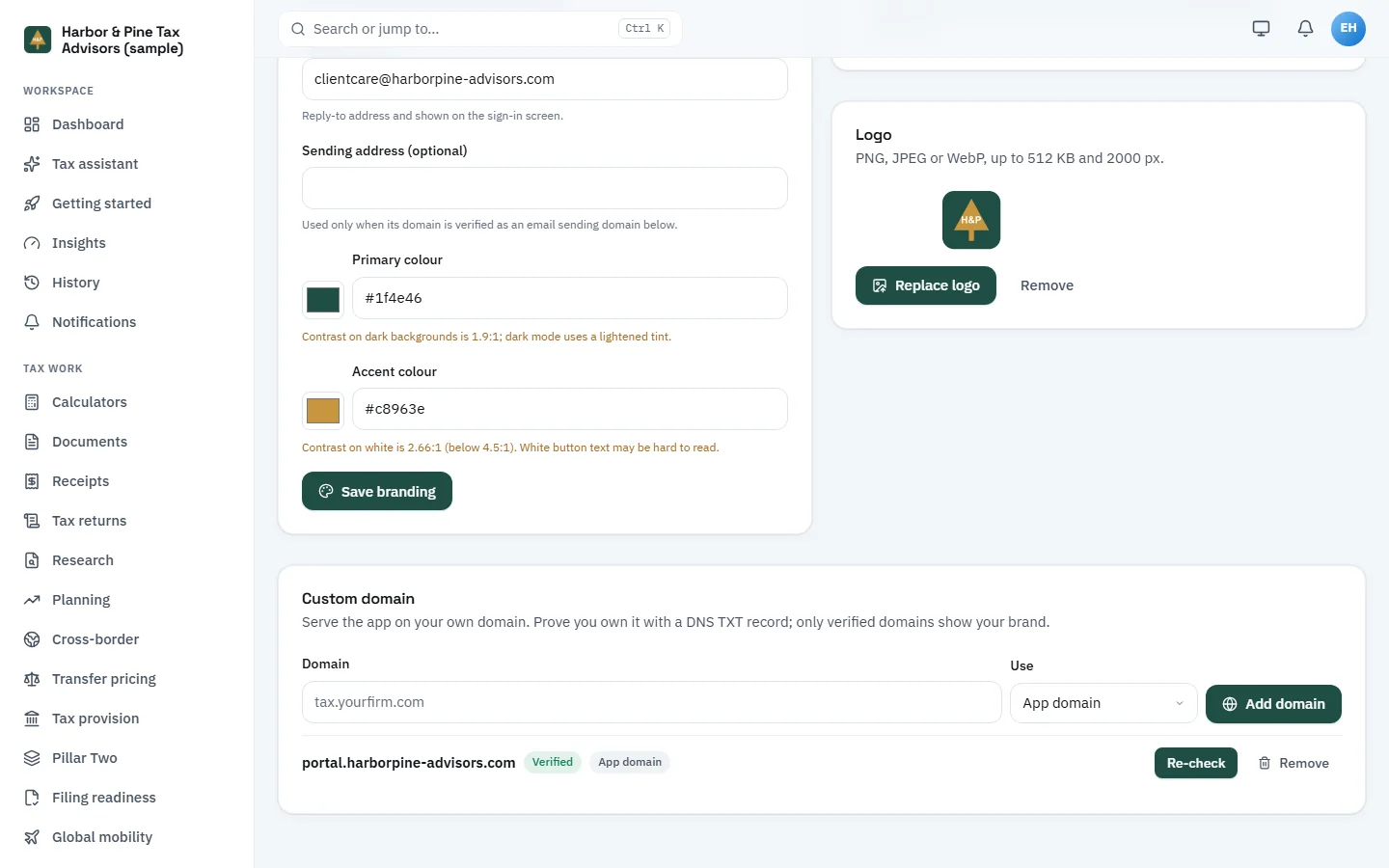
    The Custom domain section of the TaxOrch Branding page with a domain field, an App domain selector, an Add domain button, and portal.harborpine-advisors.com listed as Verified with Re-check and Remove actions, below the colour fields with contrast warningsThe Custom domain section of the TaxOrch Branding page with a domain field, an App domain selector, an Add domain button, and portal.harborpine-advisors.com listed as Verified with Re-check and Remove actions, below the colour fields with contrast warnings

    The custom domain verified by DNS record, and the contrast warnings on the colour fields.

  4. What your clients see: the sign-in screen

    On the verified domain, the sign-in screen carries your logo and name, your primary colour, and a welcome that names your firm. The copy on the right describes the workspace: documents, returns and answers traced to official sources, reviewed by a professional before filing. Pricing, Terms and Privacy links stay in the footer.
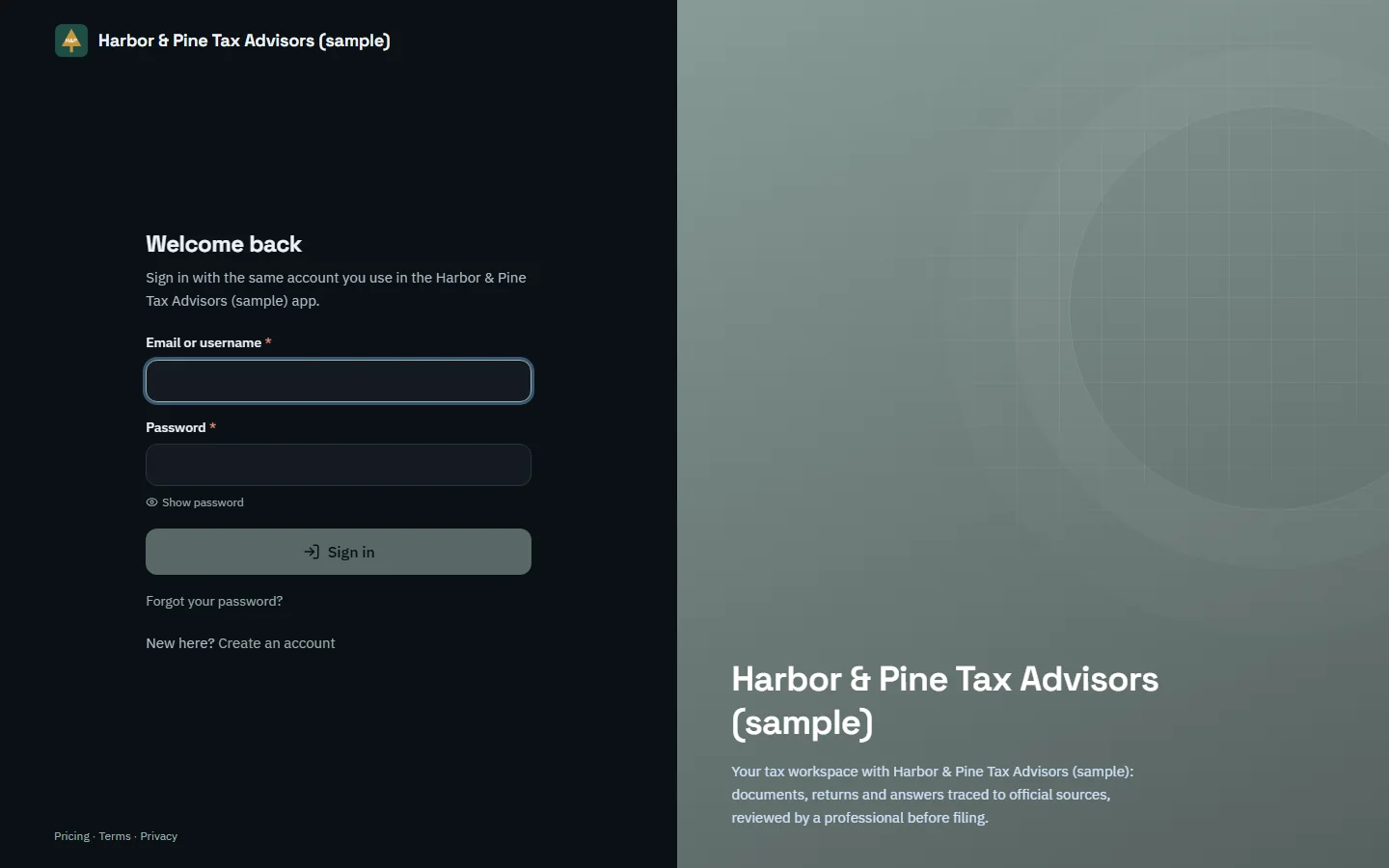
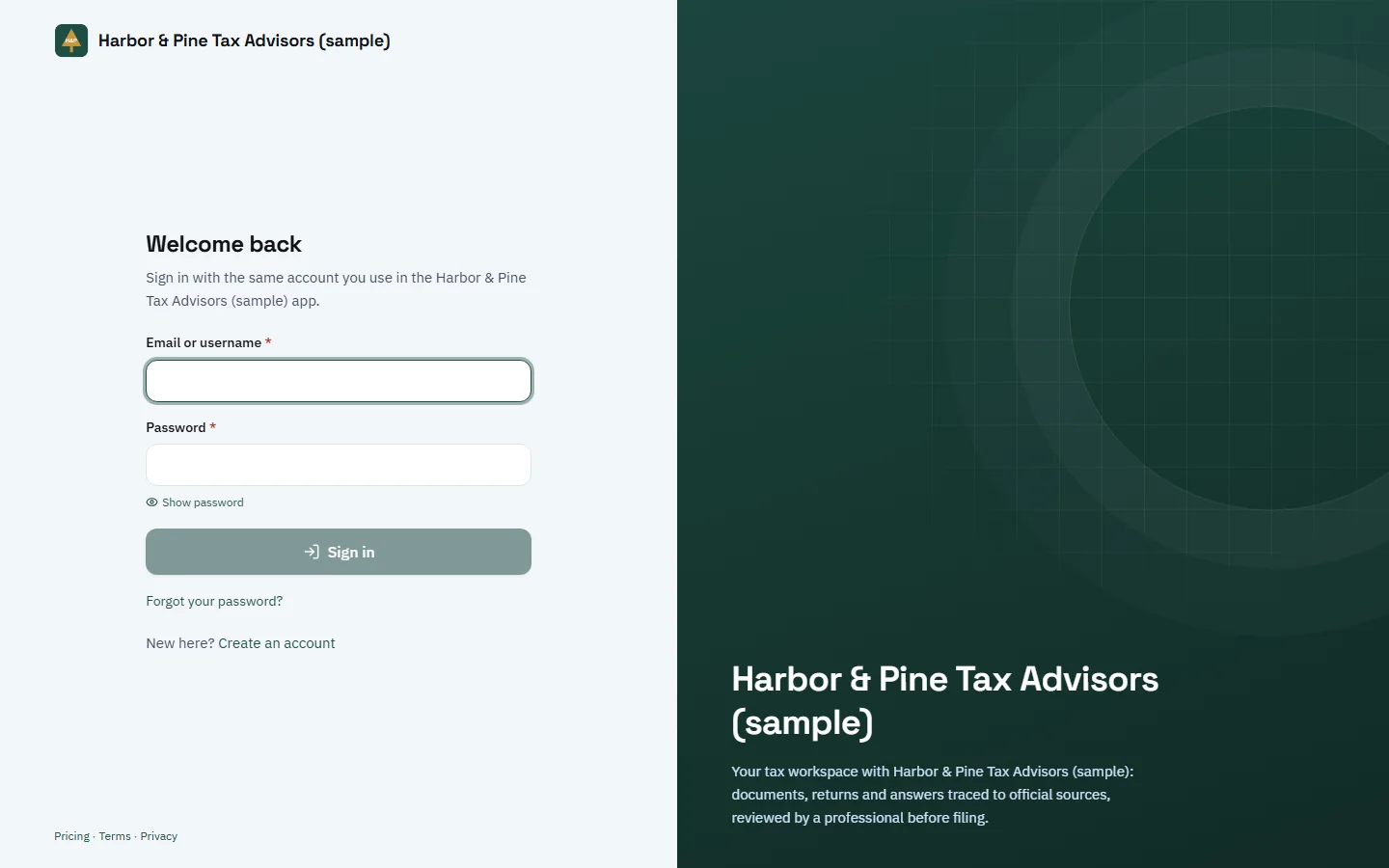
    A TaxOrch sign-in screen branded as Harbor & Pine Tax Advisors (sample) with the firm's logo and dark green colour, email and password fields, a Sign in button and a welcome panel naming the firmA TaxOrch sign-in screen branded as Harbor & Pine Tax Advisors (sample) with the firm's logo and dark green colour, email and password fields, a Sign in button and a welcome panel naming the firm

    The branded sign-in screen on the firm's own domain.

  5. What your clients see: the dashboard

    Signed in, the dashboard greets the person by name under your firm's name, with Upload receipt and Ask a question in your colours. Tiles show total spend recorded, tax on expenses, receipts needing review and the workspace's licence. A Workspace setup list for the firm covers brand identity, SSO, SCIM provisioning, roles and backup policy.
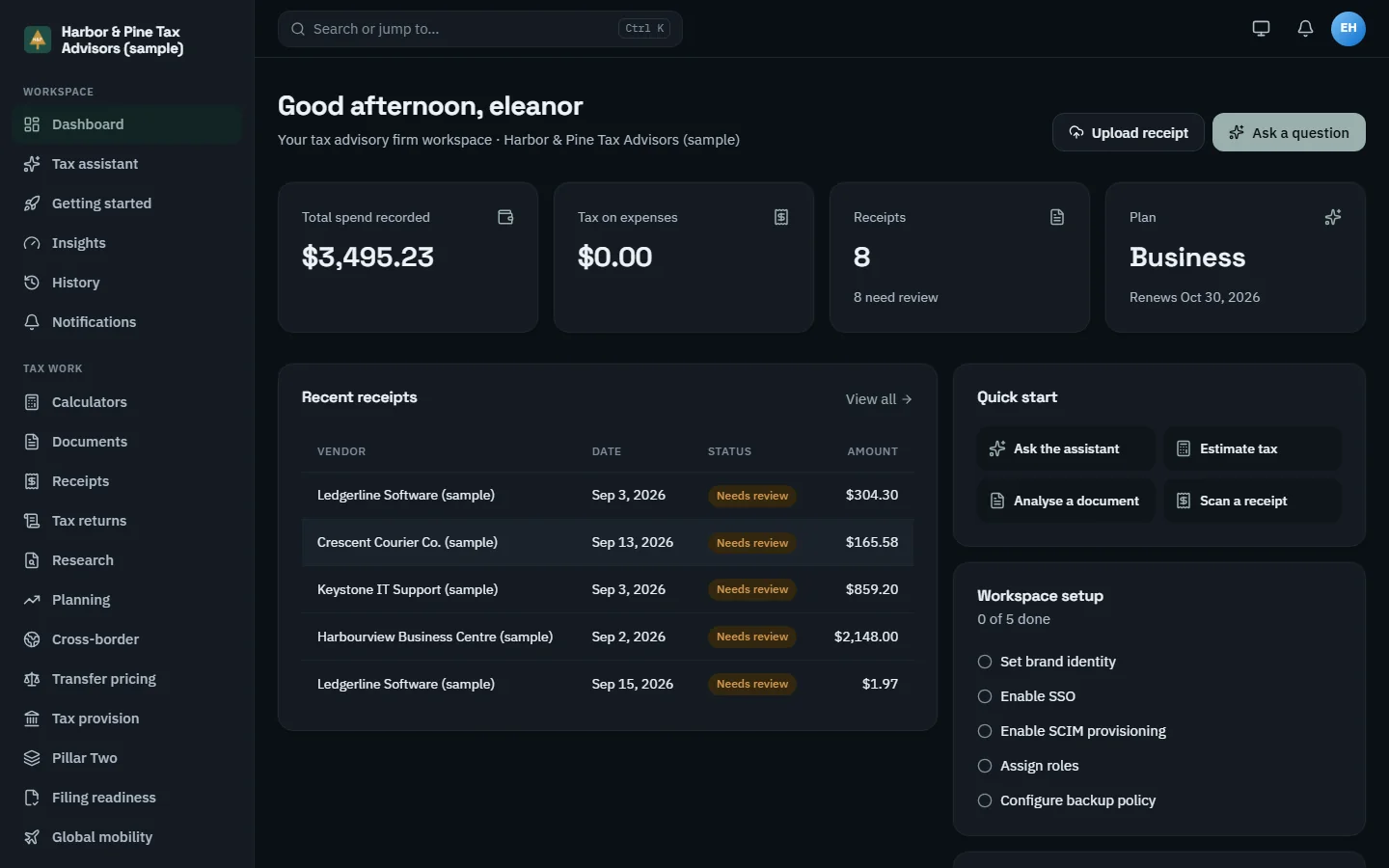
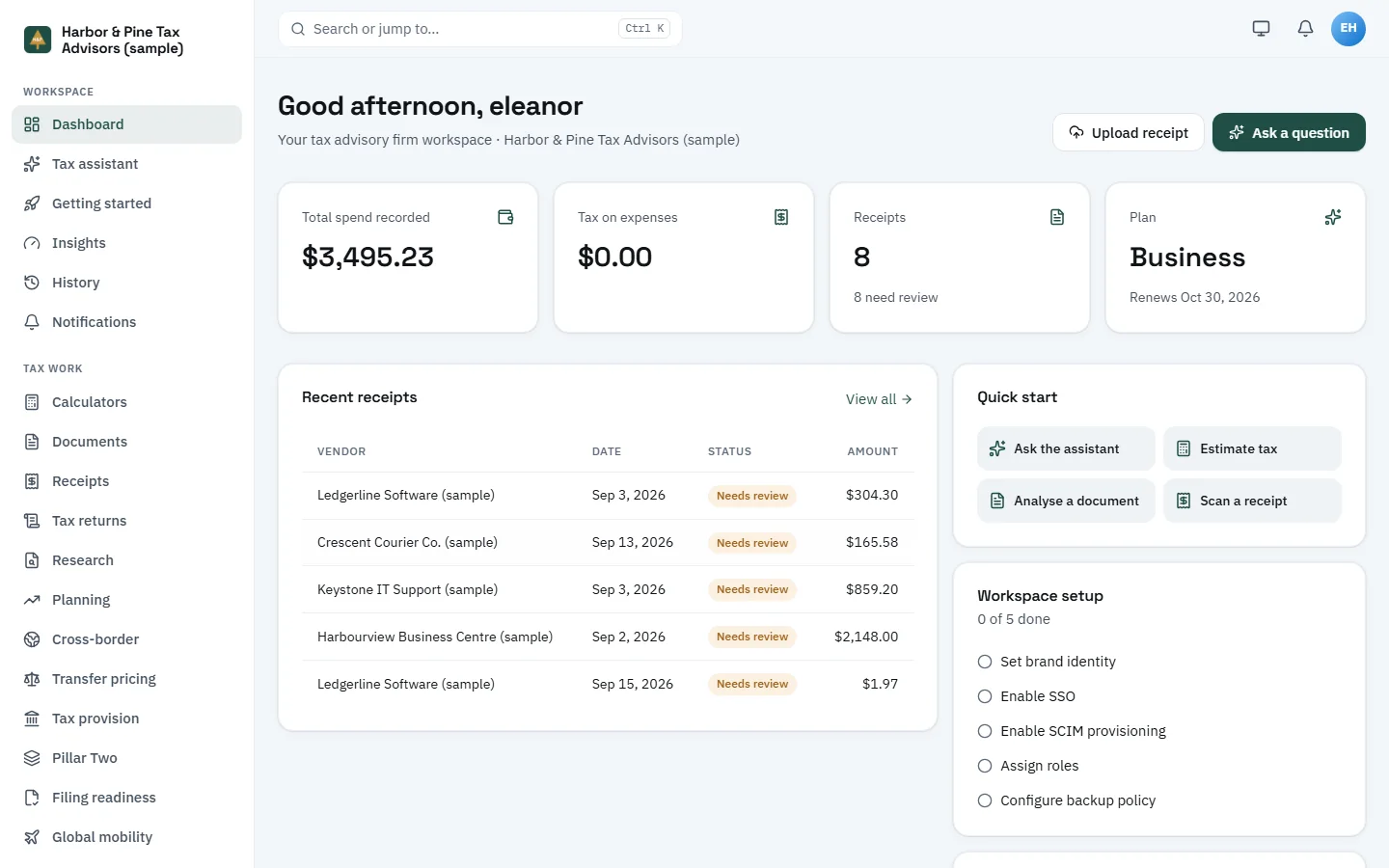
    A TaxOrch dashboard branded as Harbor & Pine Tax Advisors (sample) greeting the user, with tiles for total spend, tax on expenses, receipts and the Business plan, a recent receipts table marked Needs review, quick start buttons and a workspace setup checklistA TaxOrch dashboard branded as Harbor & Pine Tax Advisors (sample) greeting the user, with tiles for total spend, tax on expenses, receipts and the Business plan, a recent receipts table marked Needs review, quick start buttons and a workspace setup checklist

    The branded dashboard: the firm's name and colours on every element.

Tips

  • Pick an accent colour that passes the contrast check; the warning tells you the ratio.
  • Verify the email sending domain as well as the app domain, so emails go out under your name.

Limits

Try it on your own work

Try everything in the manual on your own work.

Ask for a demo account and work through these chapters with your own questions, or book a working session and check the file a reviewer would see.

Every screen in the manual was captured from the running product on sample data.

Decision support, not tax advice. A professional reviews before anything is filed.