
Open the organisation page
Choose Organisation. Identity: single sign-on, SCIM provisioning, roles and permissions, service accounts. Security: IP allowlist, alert routing, trust centre, data residency. Platform: API usage, integration webhooks, feature flags. Each card is one setting page.
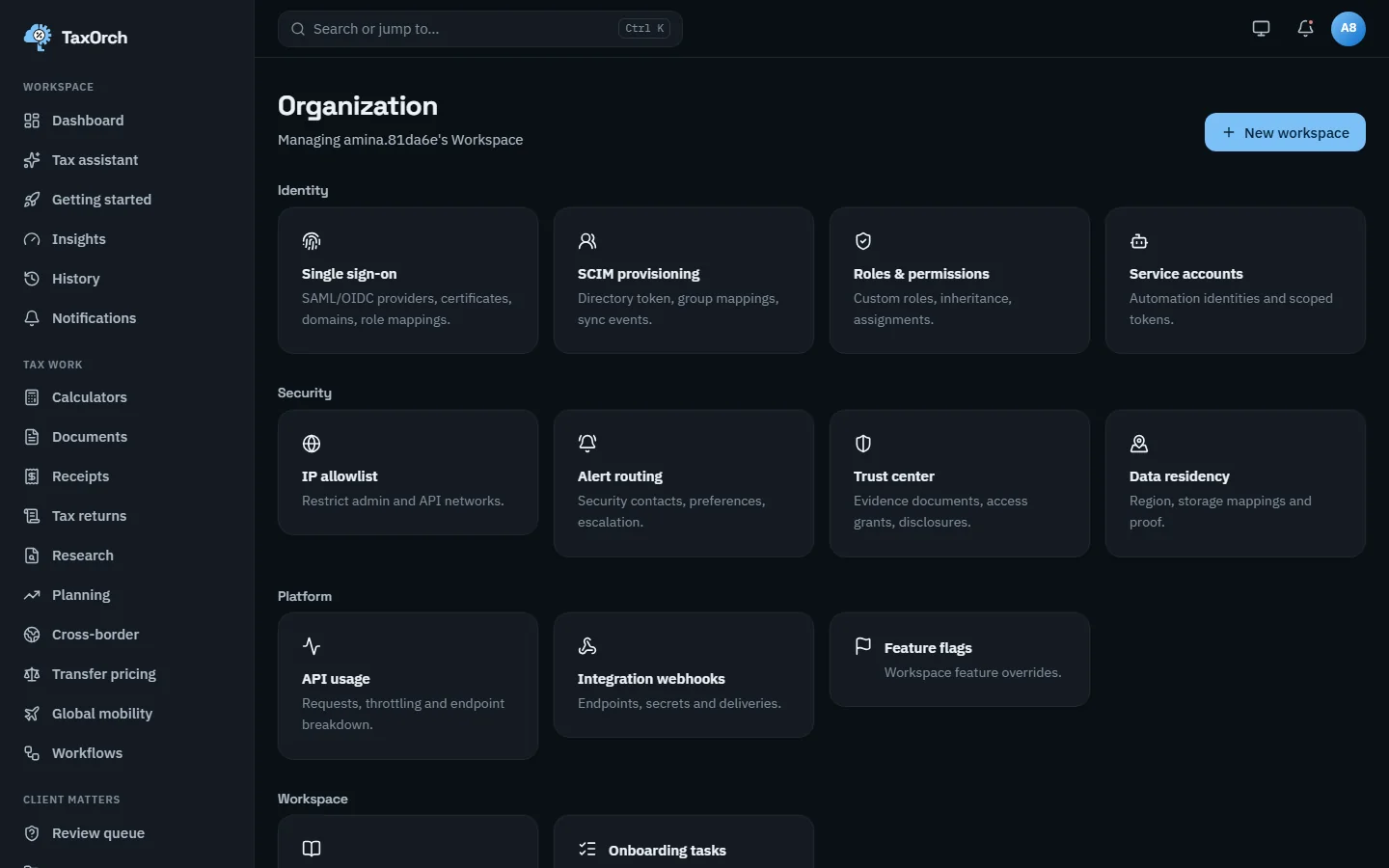
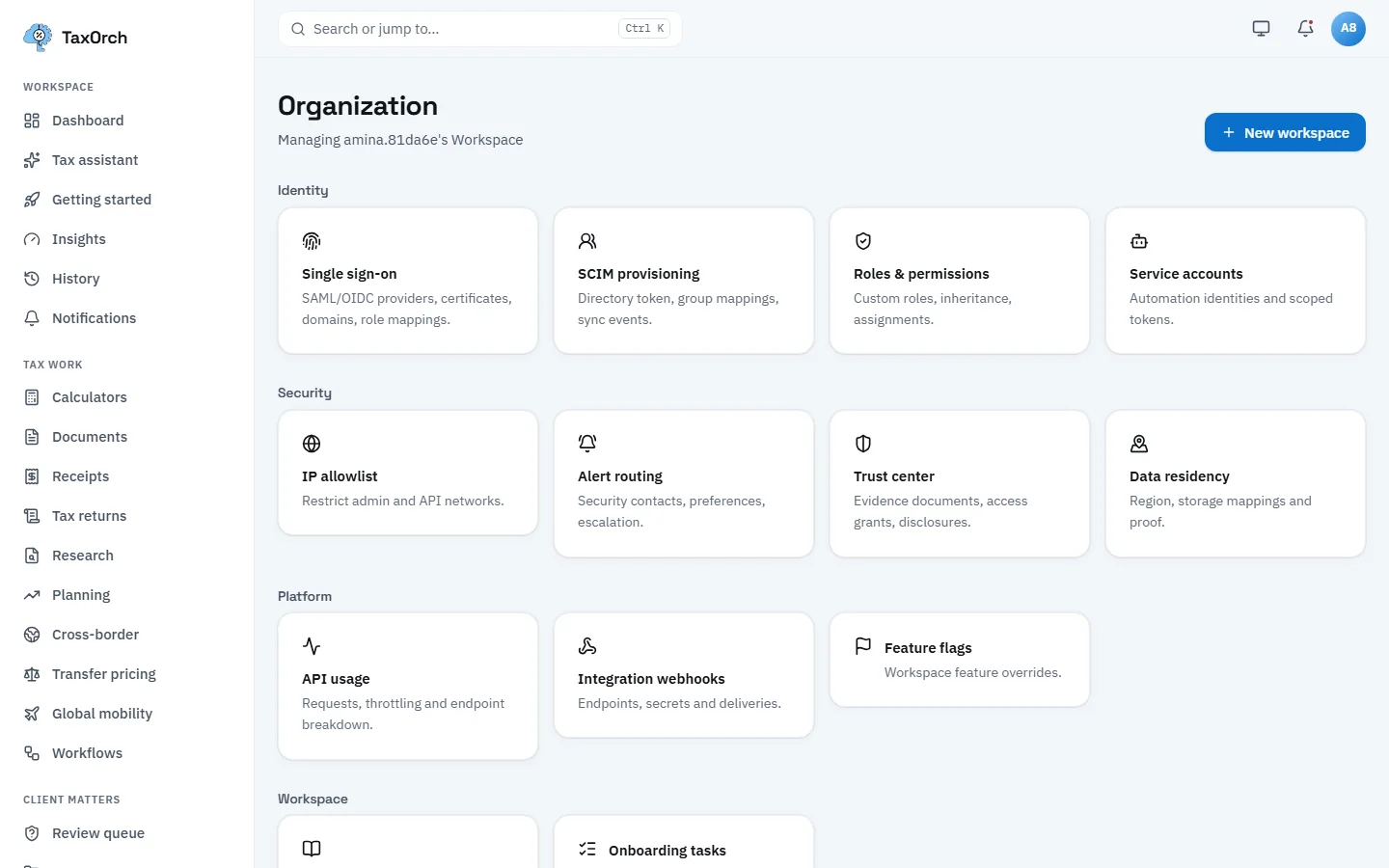
The organisation page: every administrator setting, grouped.
Invite members and set roles
Members are invited by email and given a role: Owner, Admin, Reviewer, Preparer or Viewer. Roles decide who can prepare, who can review, and who can sign off; the engagement workflow enforces that the preparer and the reviewer are different people (chapter 4). Roles can also be set from a directory group (next step).
Turn on single sign-on
Single sign-on lets the team sign in with the firm's identity provider over SAML 2.0 or OpenID Connect. Add provider takes the metadata; Test connection checks it. The sample workspace has two providers: Northbridge staff directory (sample), SAML 2.0, active since 30 September 2026, and Microsoft Entra ID (sample tenant), OpenID Connect, configured but not active. Sign-in with a provider is optional, so password sign-in still works, and TaxOrch starts every sign-in.
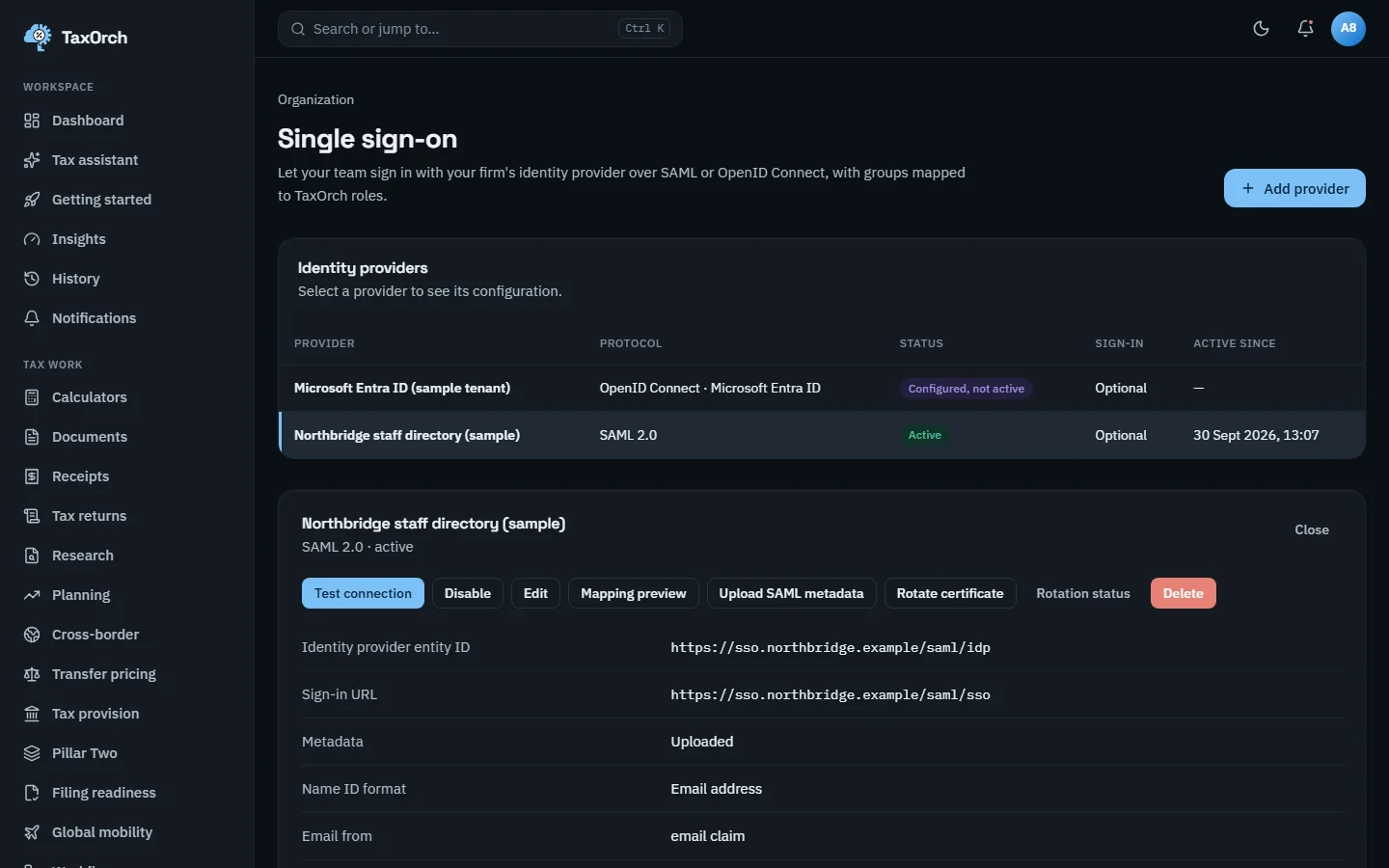
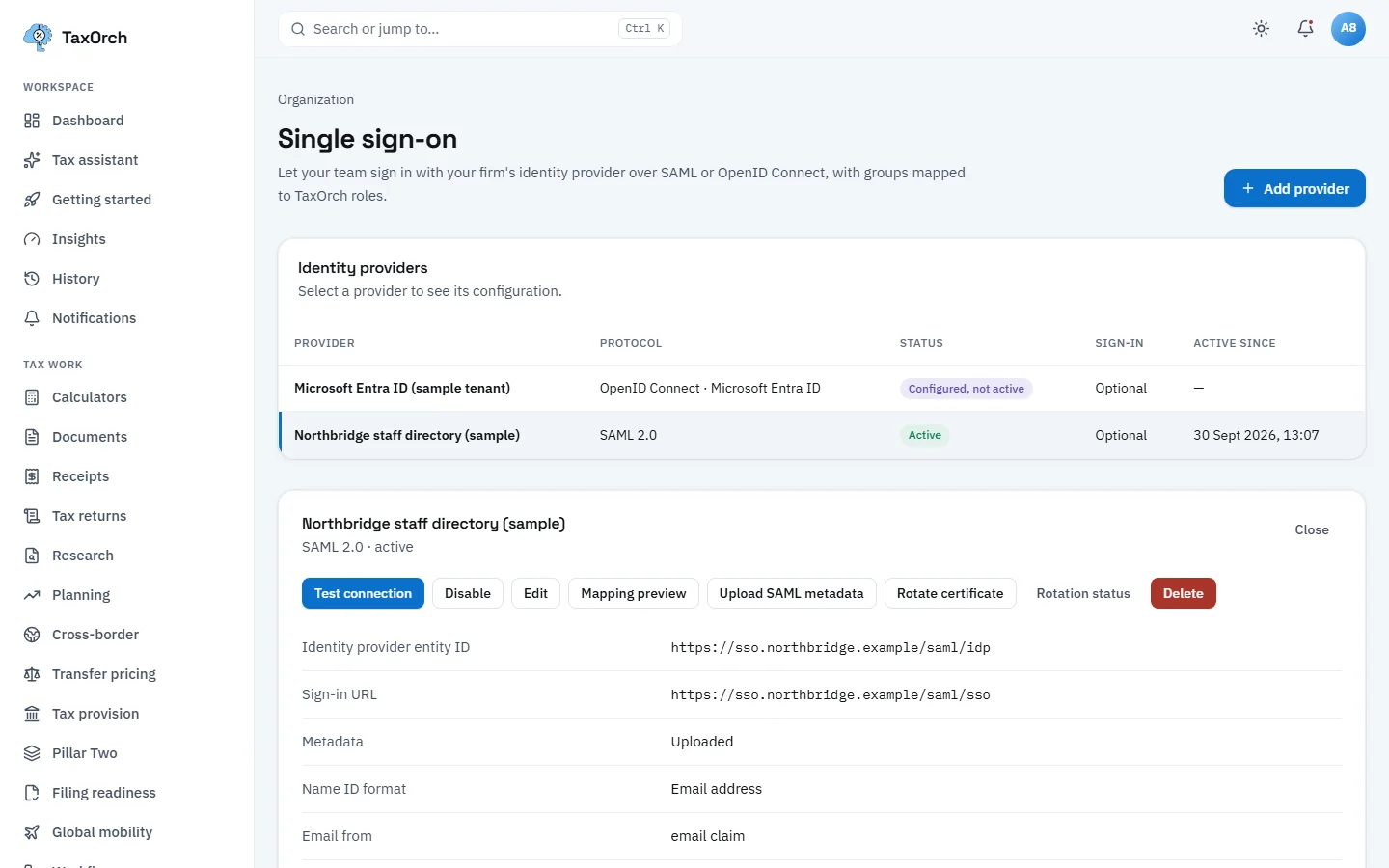
Single sign-on: a SAML provider active, a Microsoft Entra ID provider configured and waiting.
Map directory groups to roles and verify your domain
Group to role mappings assign a TaxOrch role from the first matching directory group, lowest priority number first: partners to Admin, reviewers to Reviewer, preparers to Preparer, staff to Viewer. Domains sends members whose email is on a verified domain to their provider; ownership is proven with a DNS TXT record and the screen shows Waiting for DNS record until it is found. Sign-in attempts lists every attempt with the result and reason.
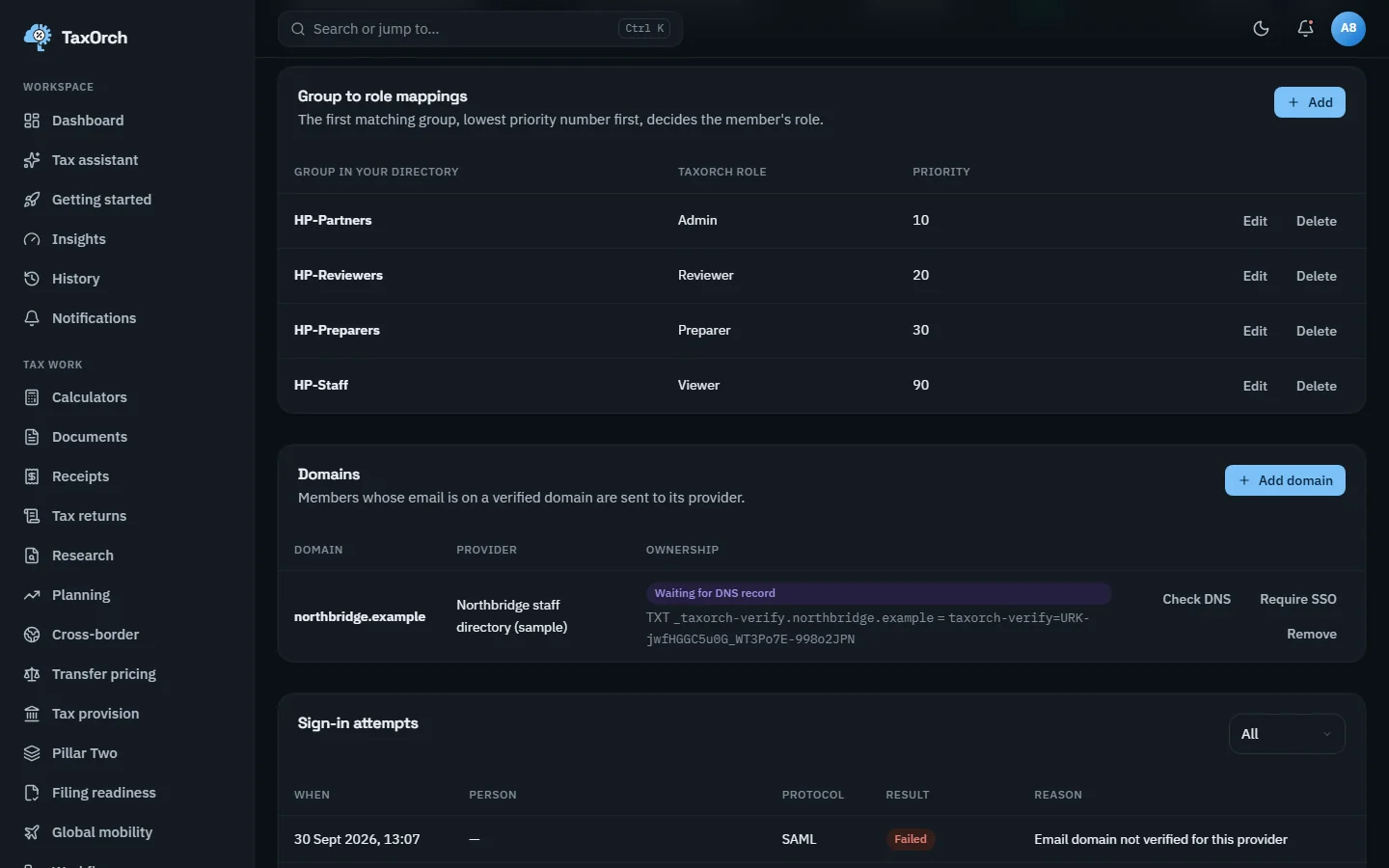
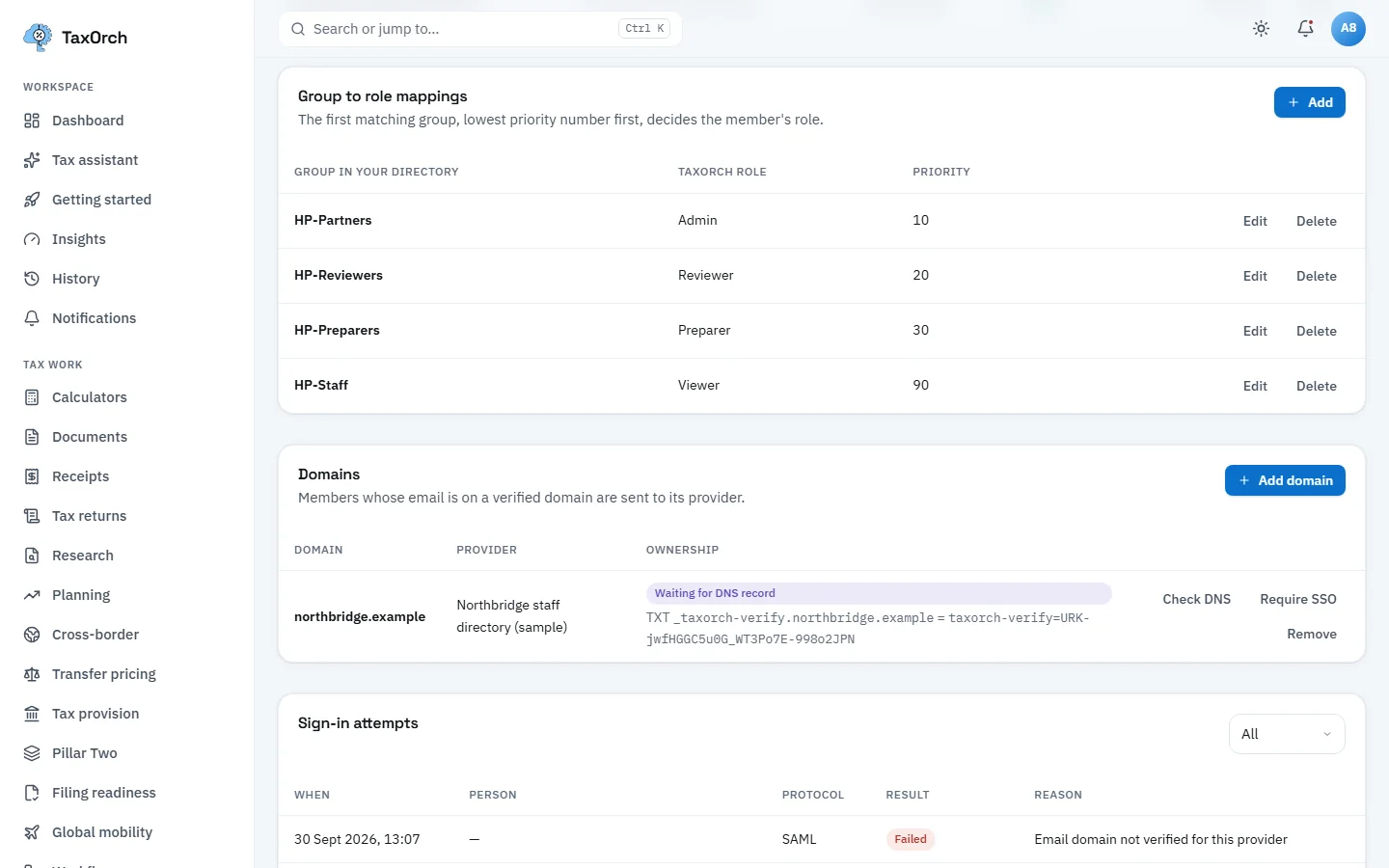
Group mappings, the domain waiting for its DNS record, and a failed sign-in with its reason.
Microsoft sign-in
The Microsoft Entra ID provider uses OpenID Connect with the tenant's issuer and discovery document, the application (client) ID, a client secret stored encrypted, and the openid, email and profile scopes. Email and groups come from claims; the role when no group matches is Viewer. Activate turns it on once Test connection passes.
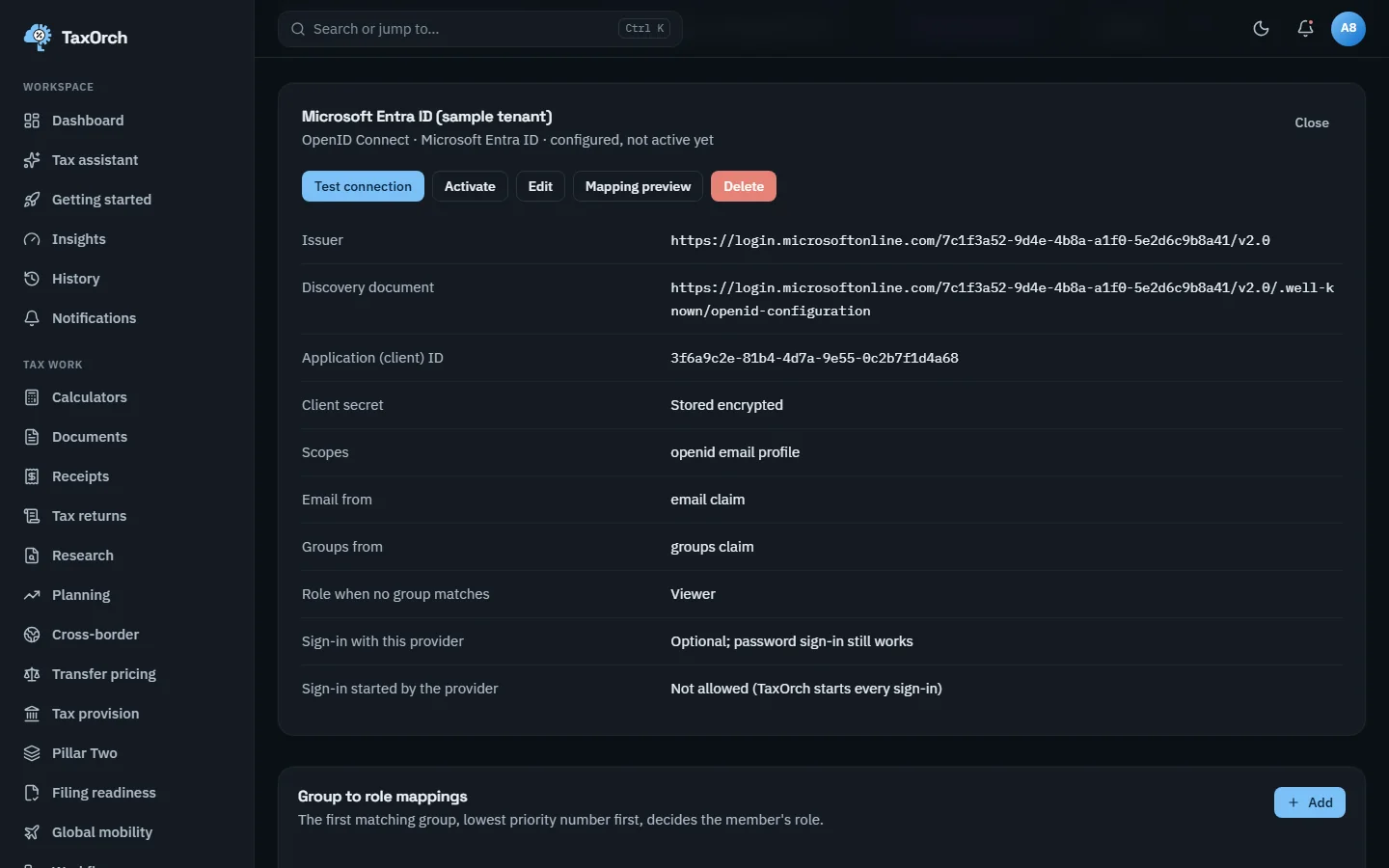
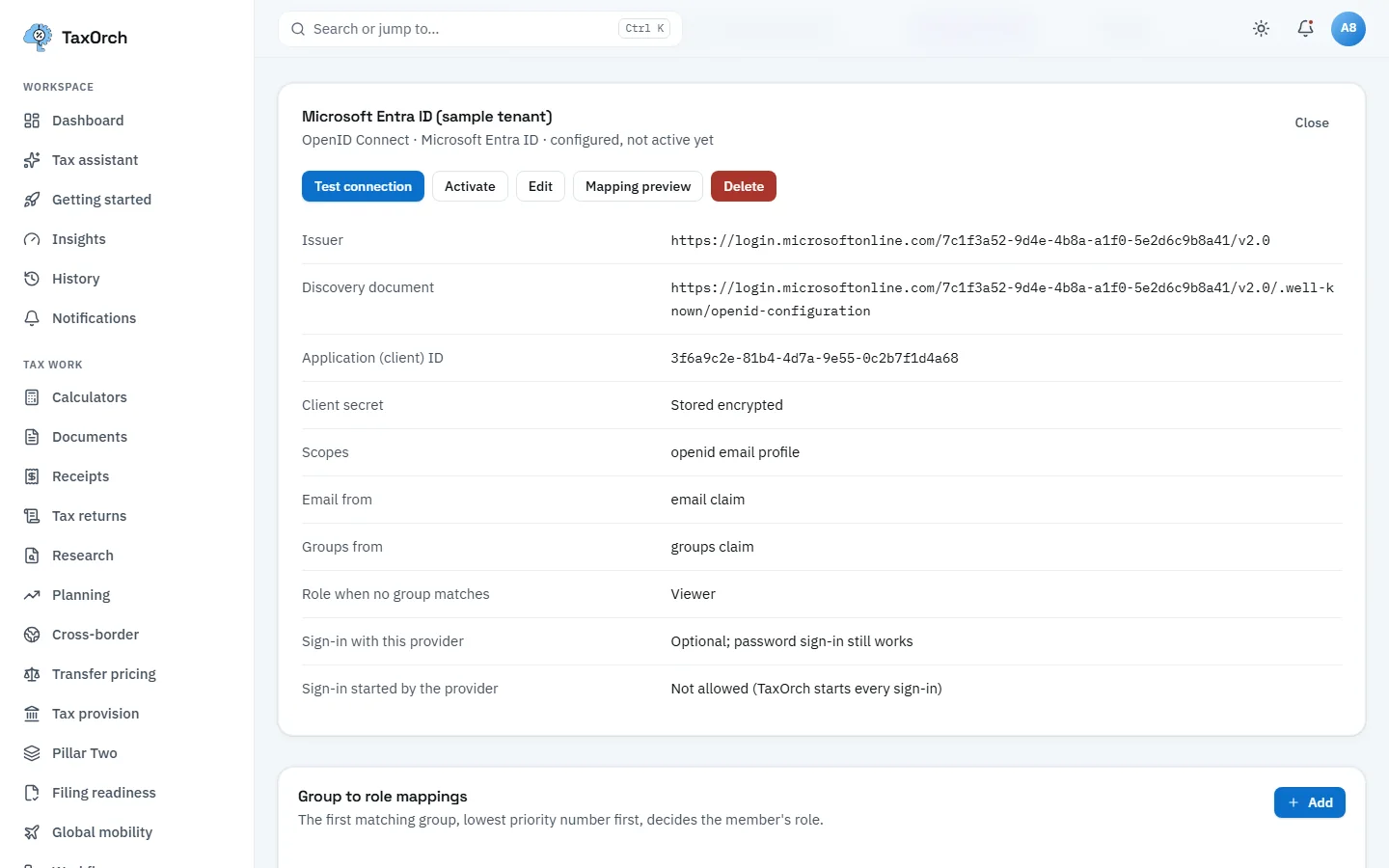
Microsoft sign-in: the OpenID Connect settings, configured and ready to activate.
Turn on two-step verification
In Settings, Security, each person can turn on two-step verification: add an account in an authenticator app, scan the code or type the setup key (time-based, 6 digits, 30 seconds), enter the code and choose Turn on. Once on, every password sign-in also asks for a code, and recovery codes work if the phone is lost. The same tab shows the session and recent verification: high-risk changes ask for the password again within a 15-minute window.
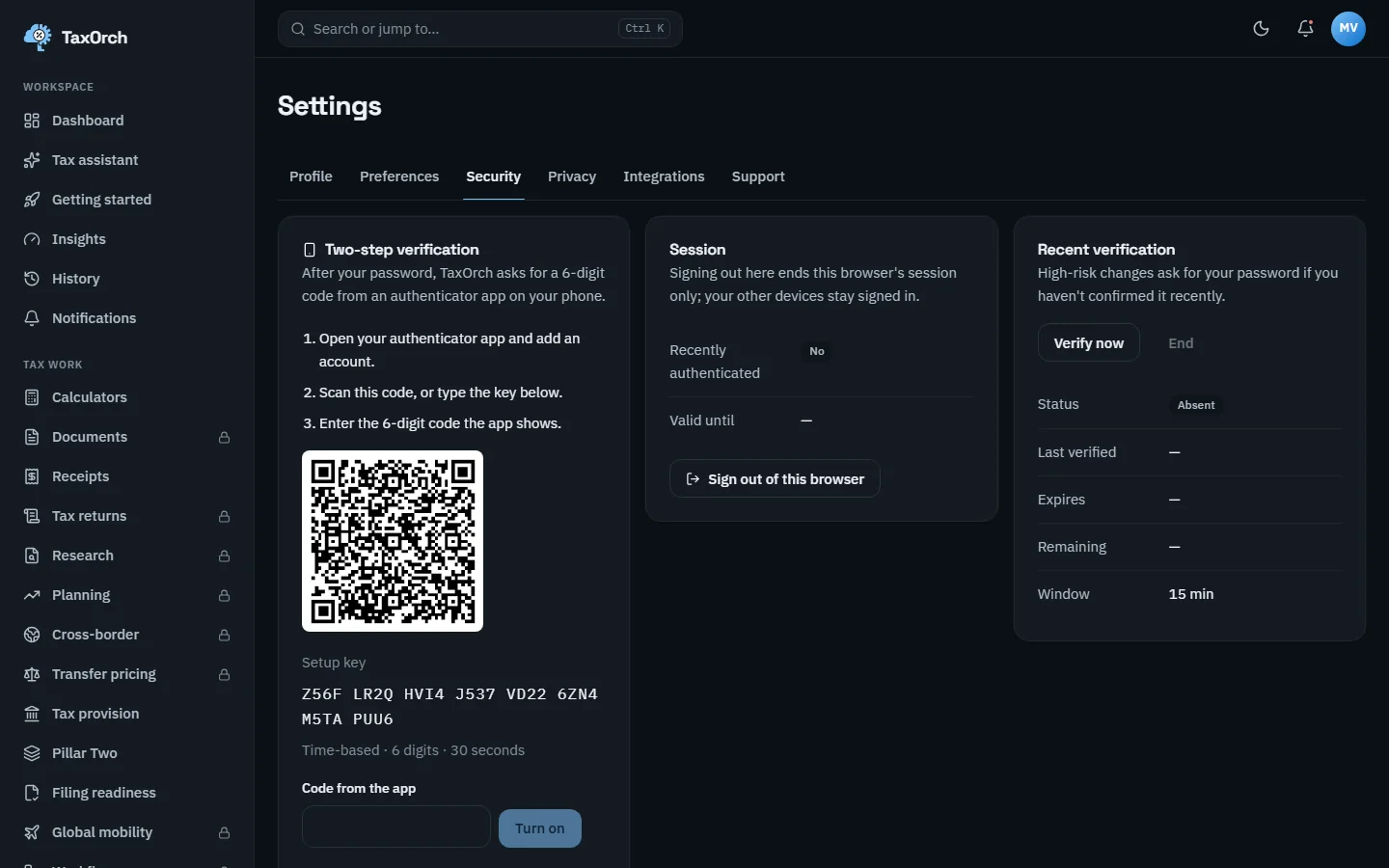
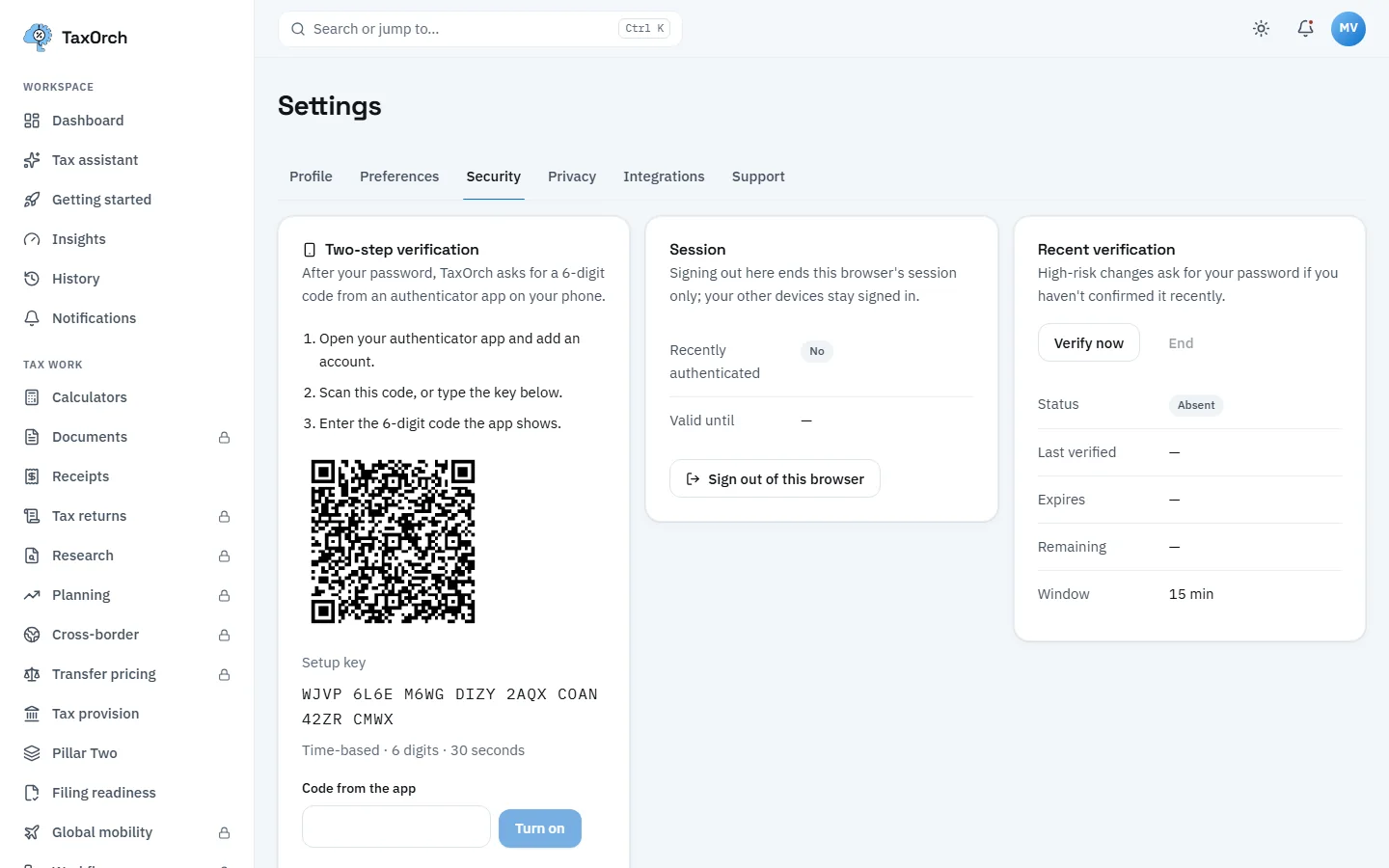
Two-step verification setup: scan the code, enter the six digits, turn it on.
Provision users automatically with SCIM
SCIM provisioning lets the identity provider create, update and remove members. The Directory panel shows the workspace id and slug, the directory name and status, the default workspace role (viewer), and the token state: prefix, hint, whether configured, when rotated, last used and from where. Issue token creates the token to paste into the provider.
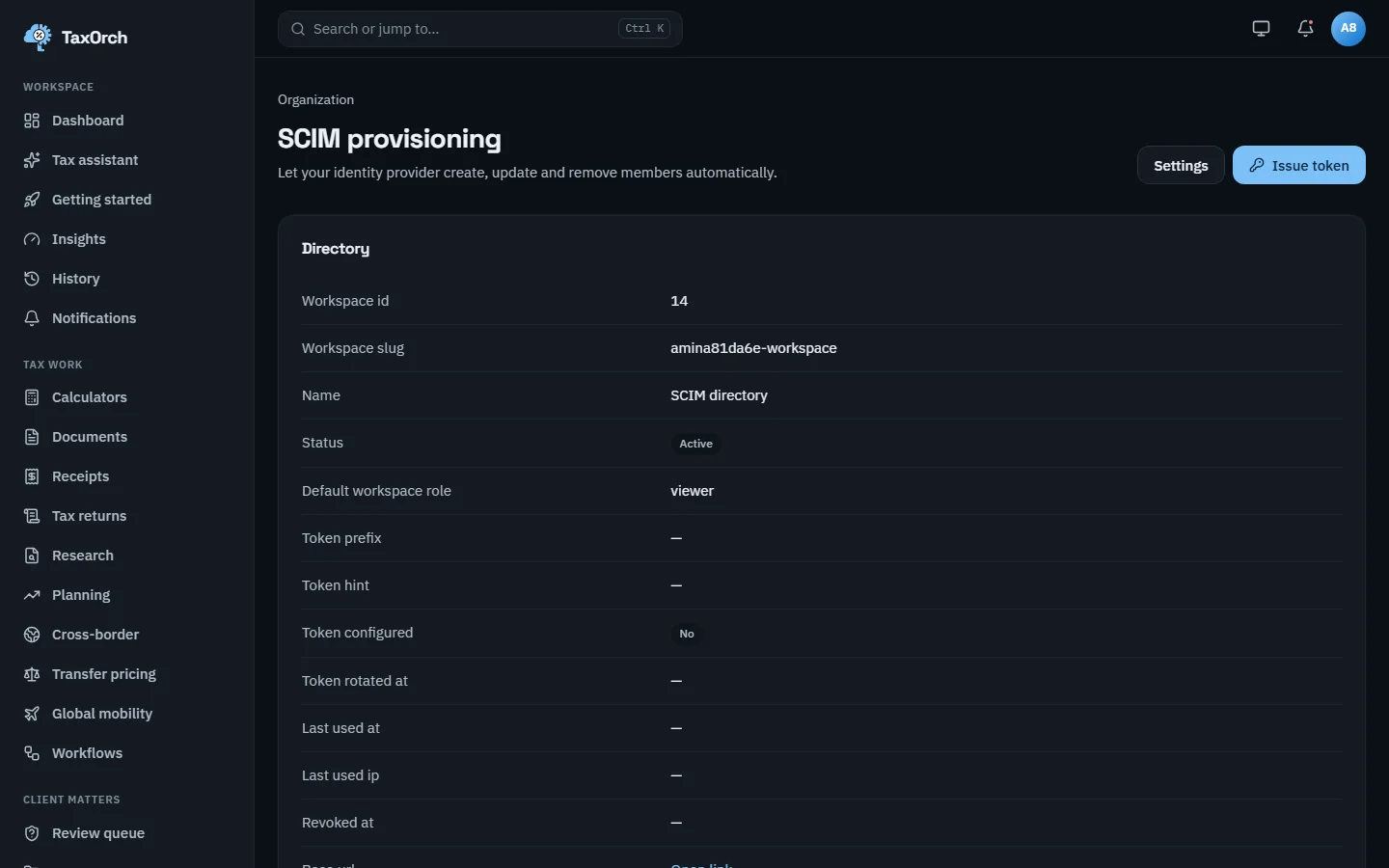
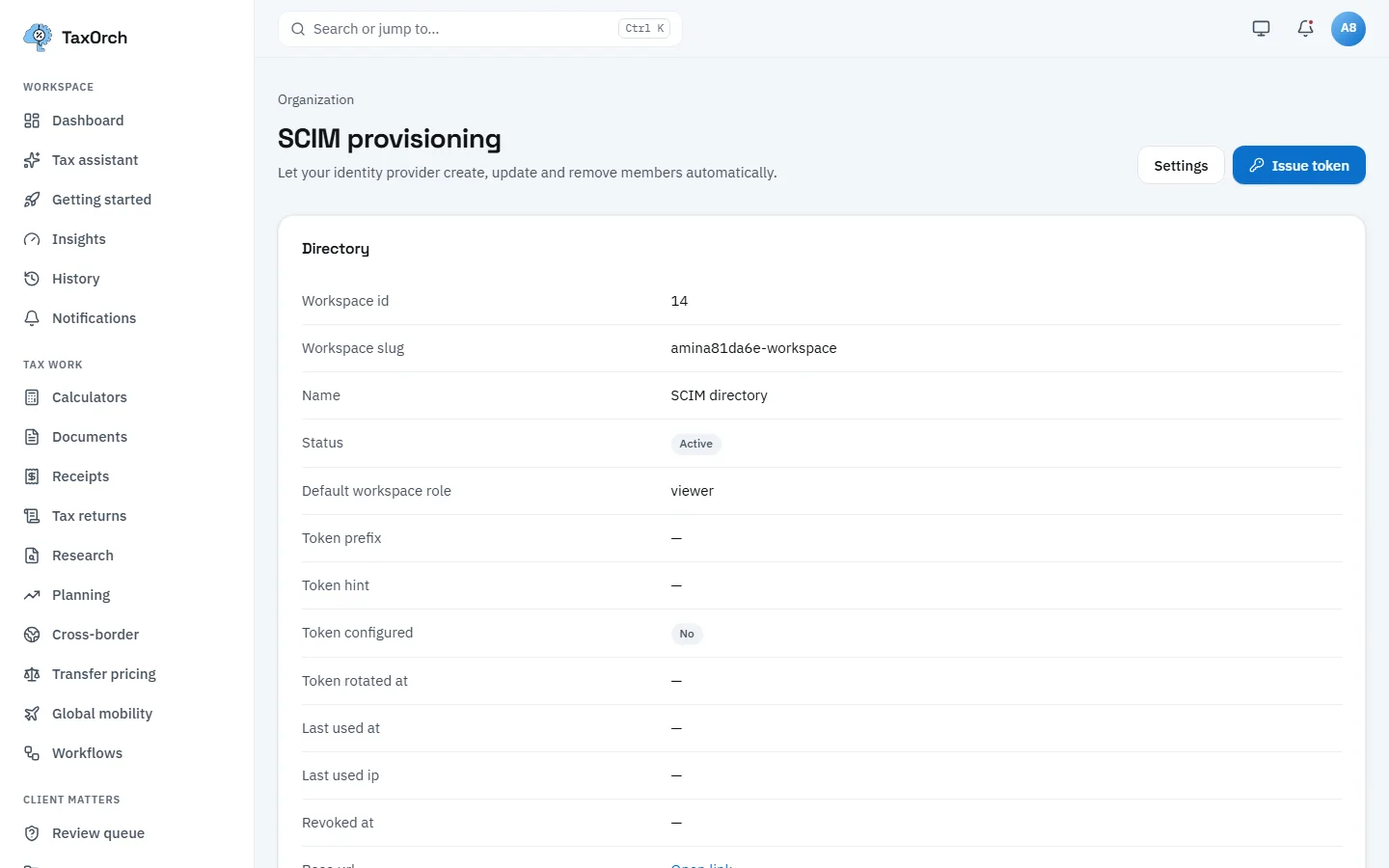
SCIM provisioning: the directory active, the token not yet issued.
Run a periodic access review
Access reviews confirm who can reach the workspace. Start review lists every member; an owner or admin keeps or revokes each one with a note, and the closed review is the evidence. The latest sample review closed on 30 September 2026: five kept, none revoked, reviewed by two people, finished on time against a 14 October due date. A person cannot decide their own row: the owner's access was kept by the admin.
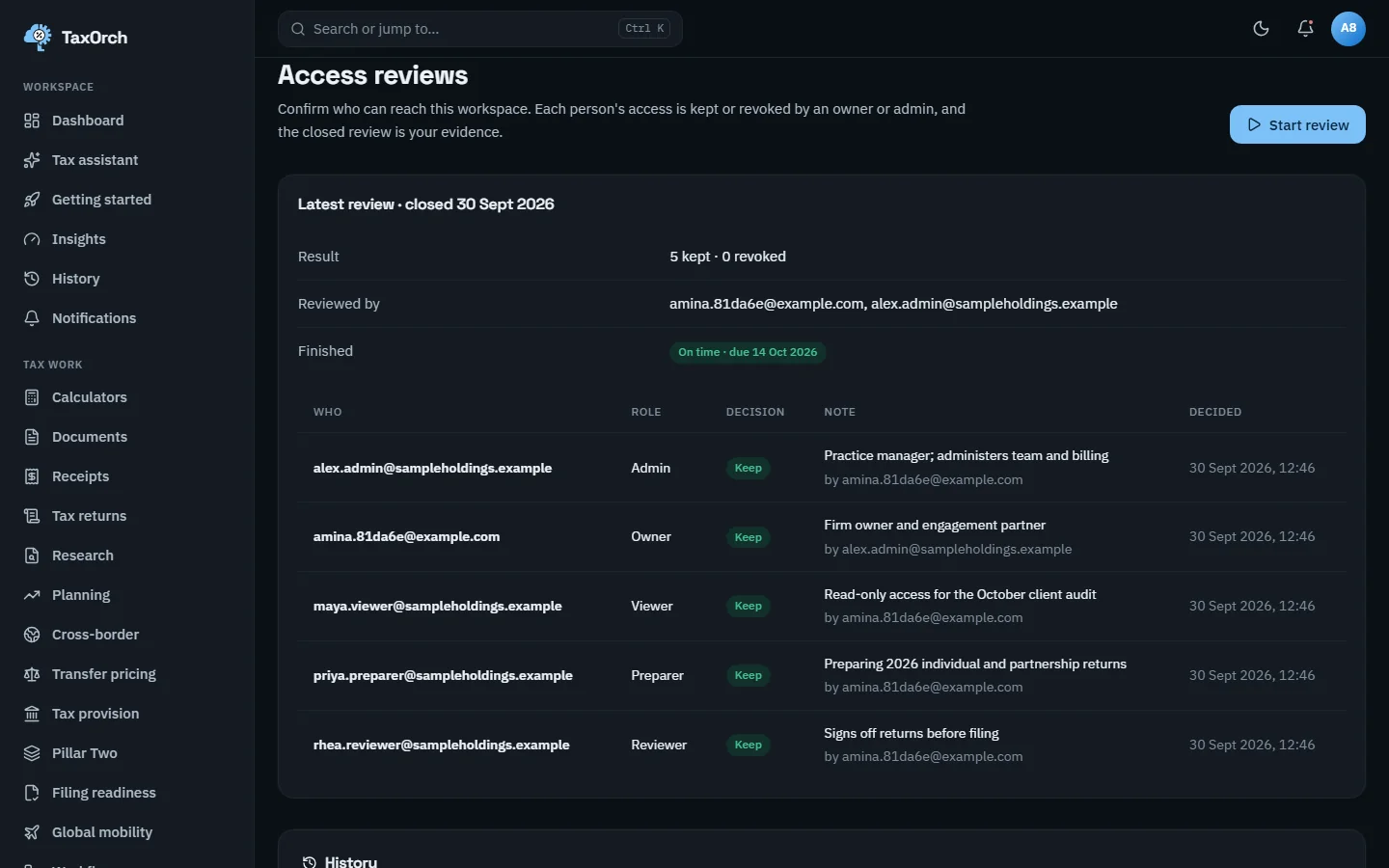
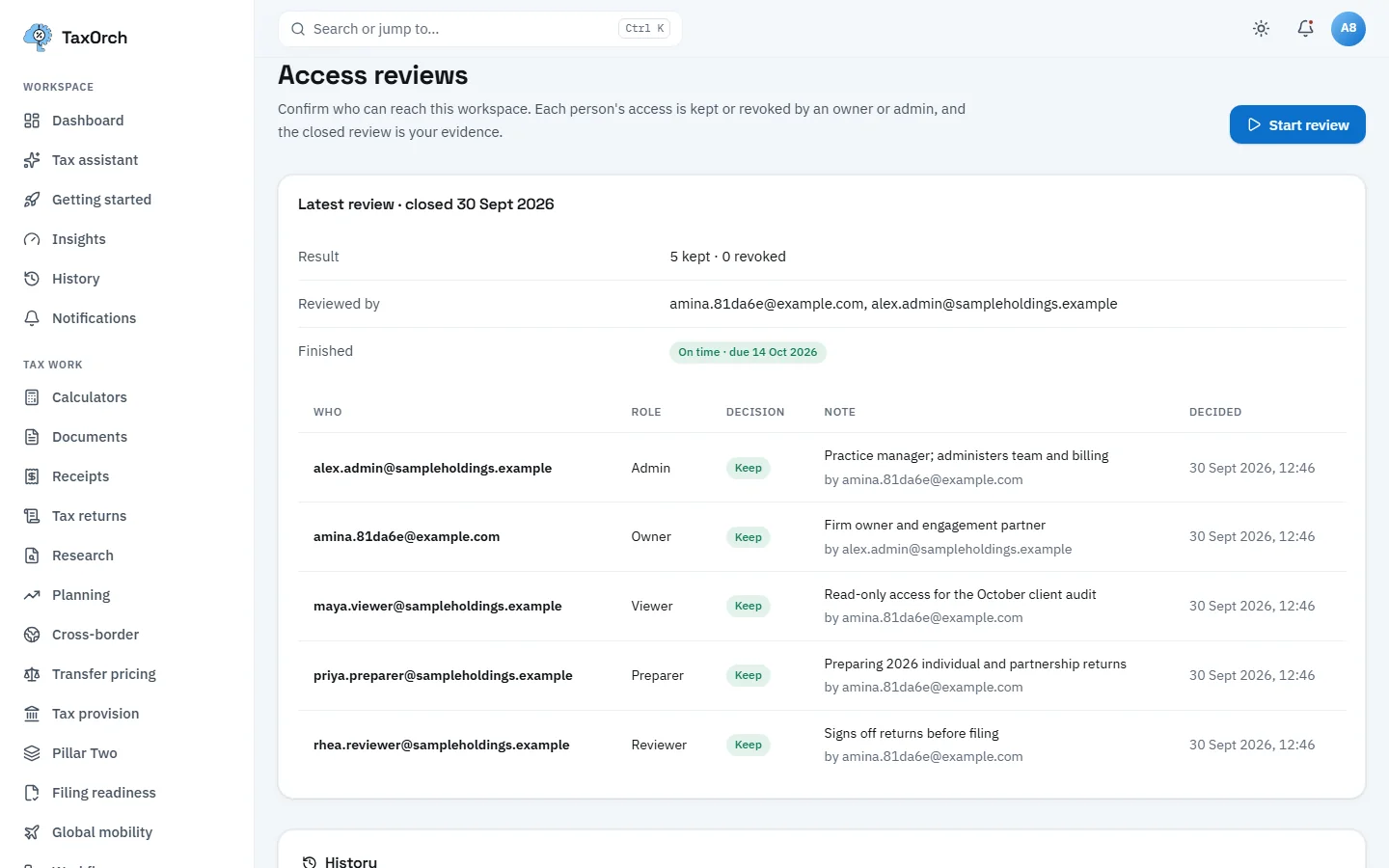
A closed access review: every member kept or revoked, with the note and the decider.
Approve or deny support access
TaxOrch support cannot open your workspace on its own. A request appears on the Support access page for an owner or admin to approve or deny, with the reason, the ticket, the scope (read only) and a time limit. Grants lists active, expired, denied and revoked access, newest first: for example, a 240-minute read-only grant to reconcile duplicated bank-feed transactions, approved by the firm owner, with a Revoke link. Emergency grants approved by a second support approver are shown and the workspace is notified.
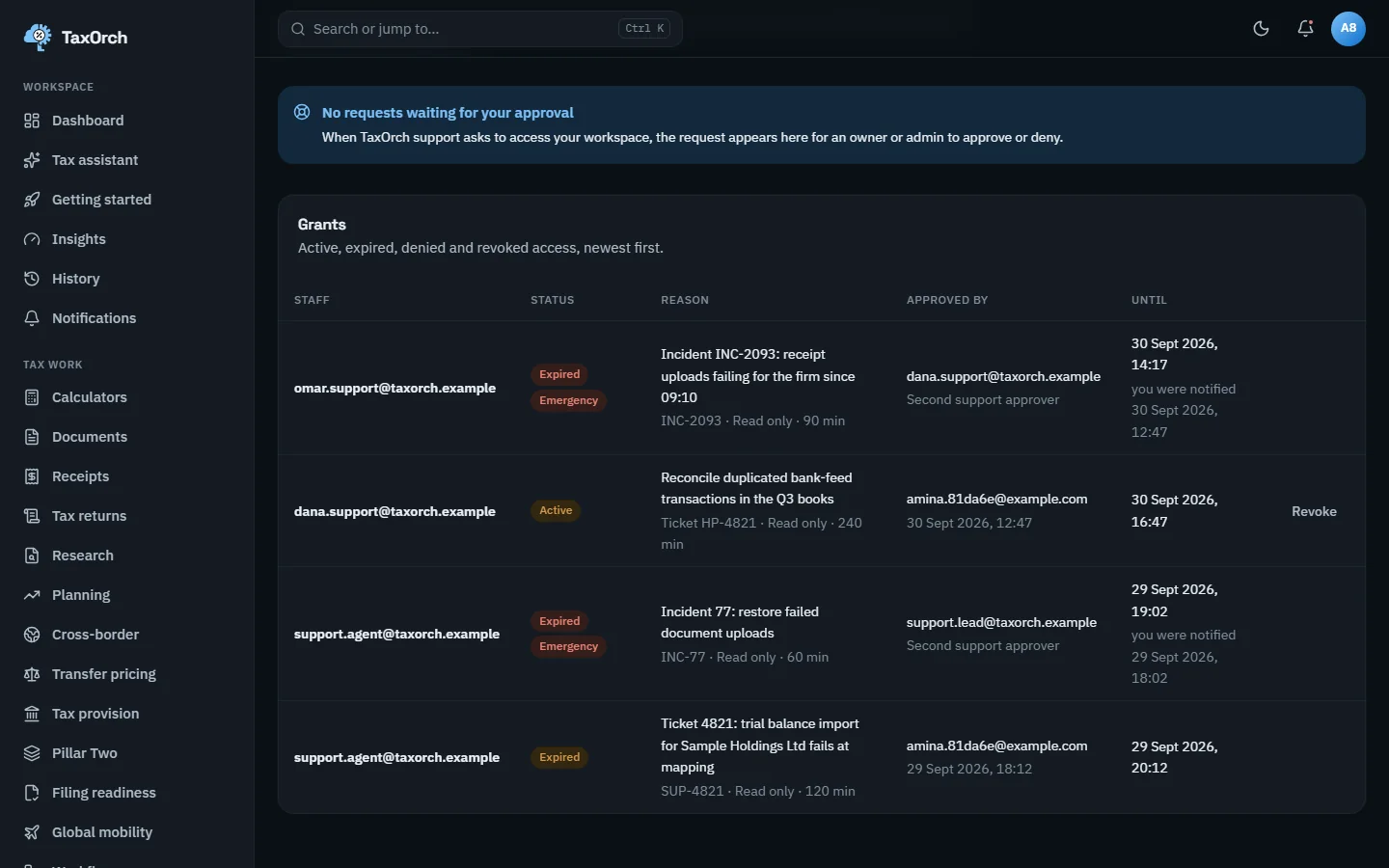
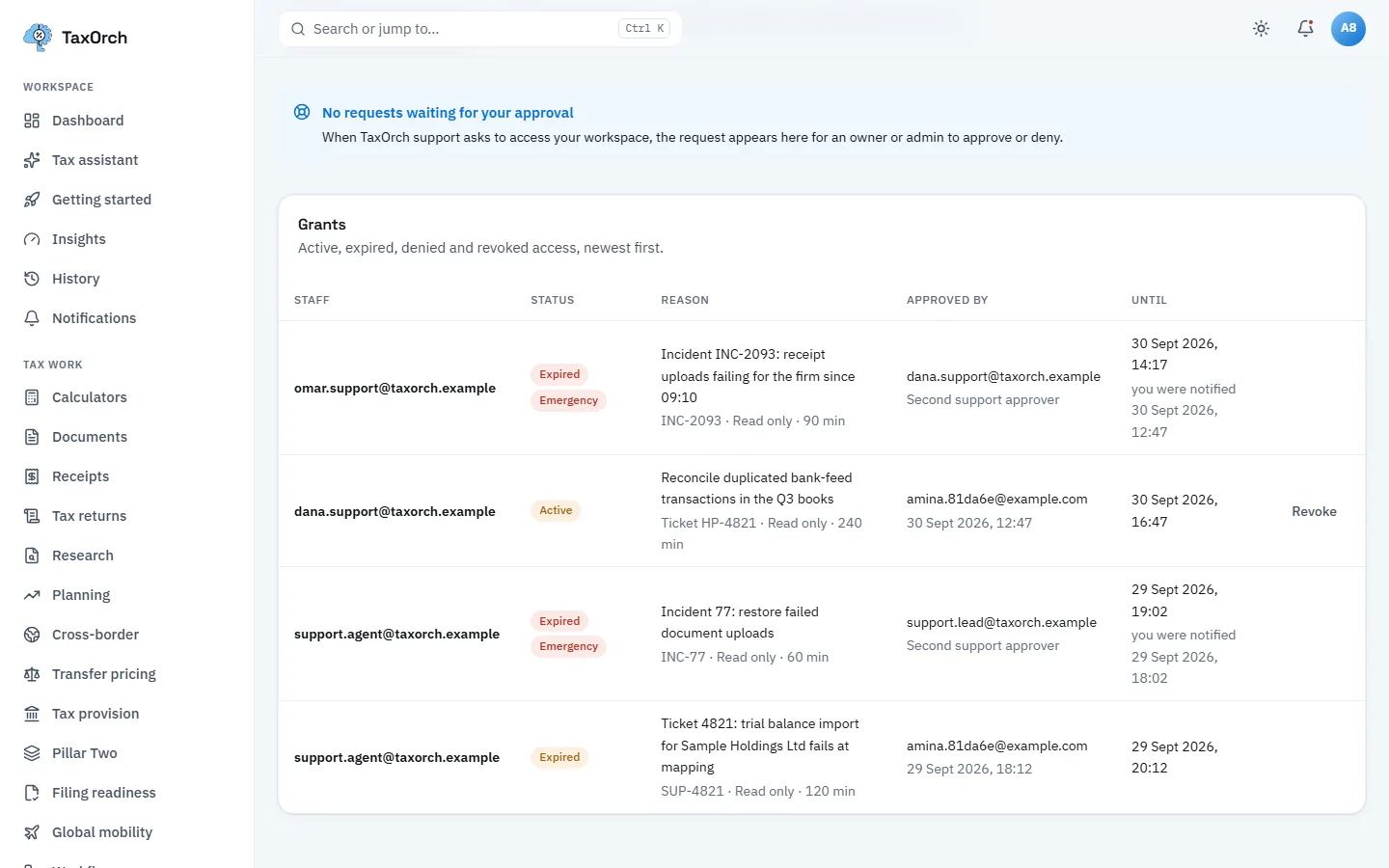
Support access grants: reason, scope, time limit, approver, and Revoke on the active one.
Check the audit log is intact
Every security event is chained to the one before it, so a change or deletion is detectable. Audit log integrity re-computes each event's fingerprint and checks it against the previous event. On the sample workspace the log is intact: 2,938 events checked, every one matching its fingerprint and linking to the event before it, with the newest event number, the chain fingerprint and the count of older events recorded before chaining began. Check again re-runs it.
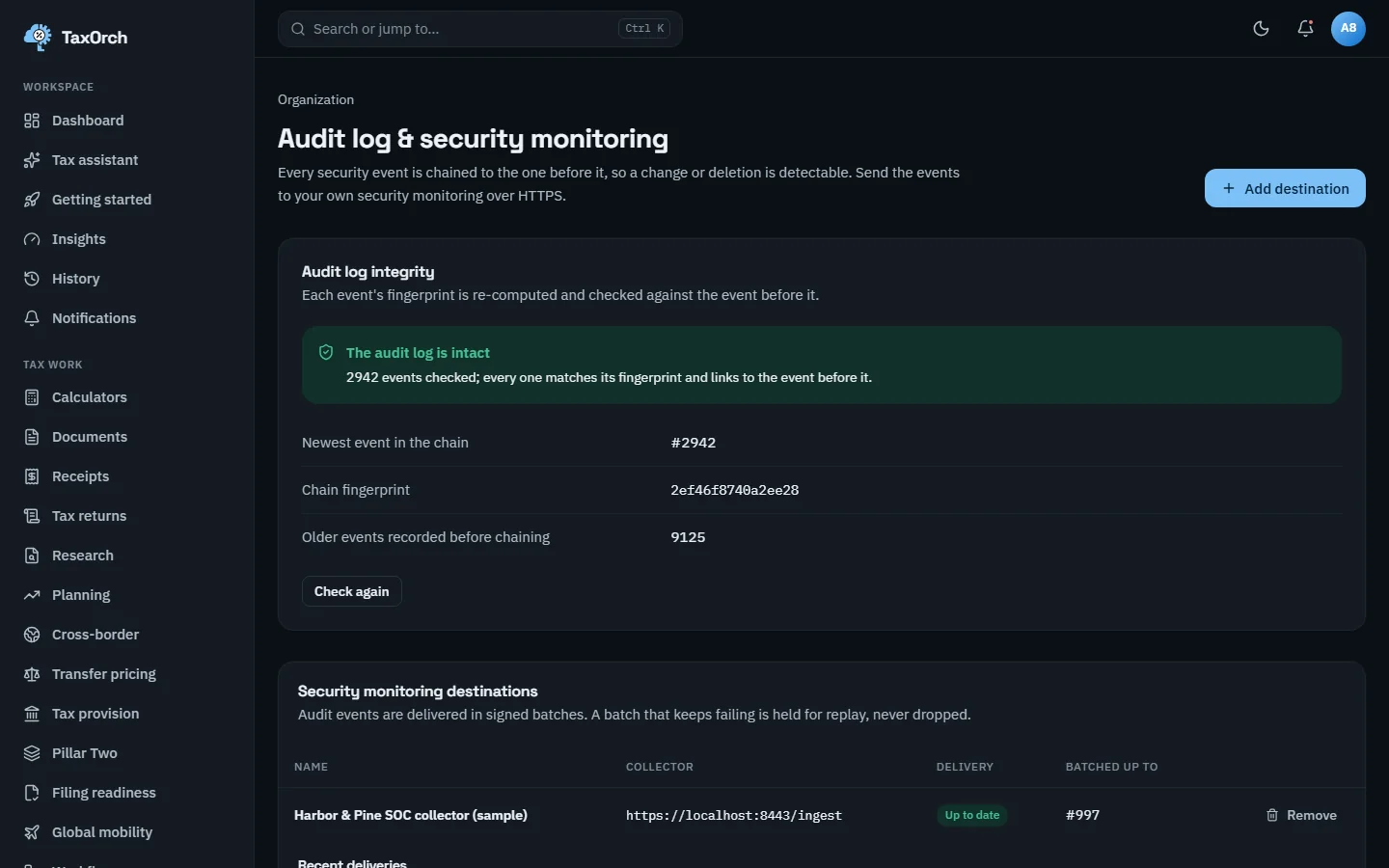
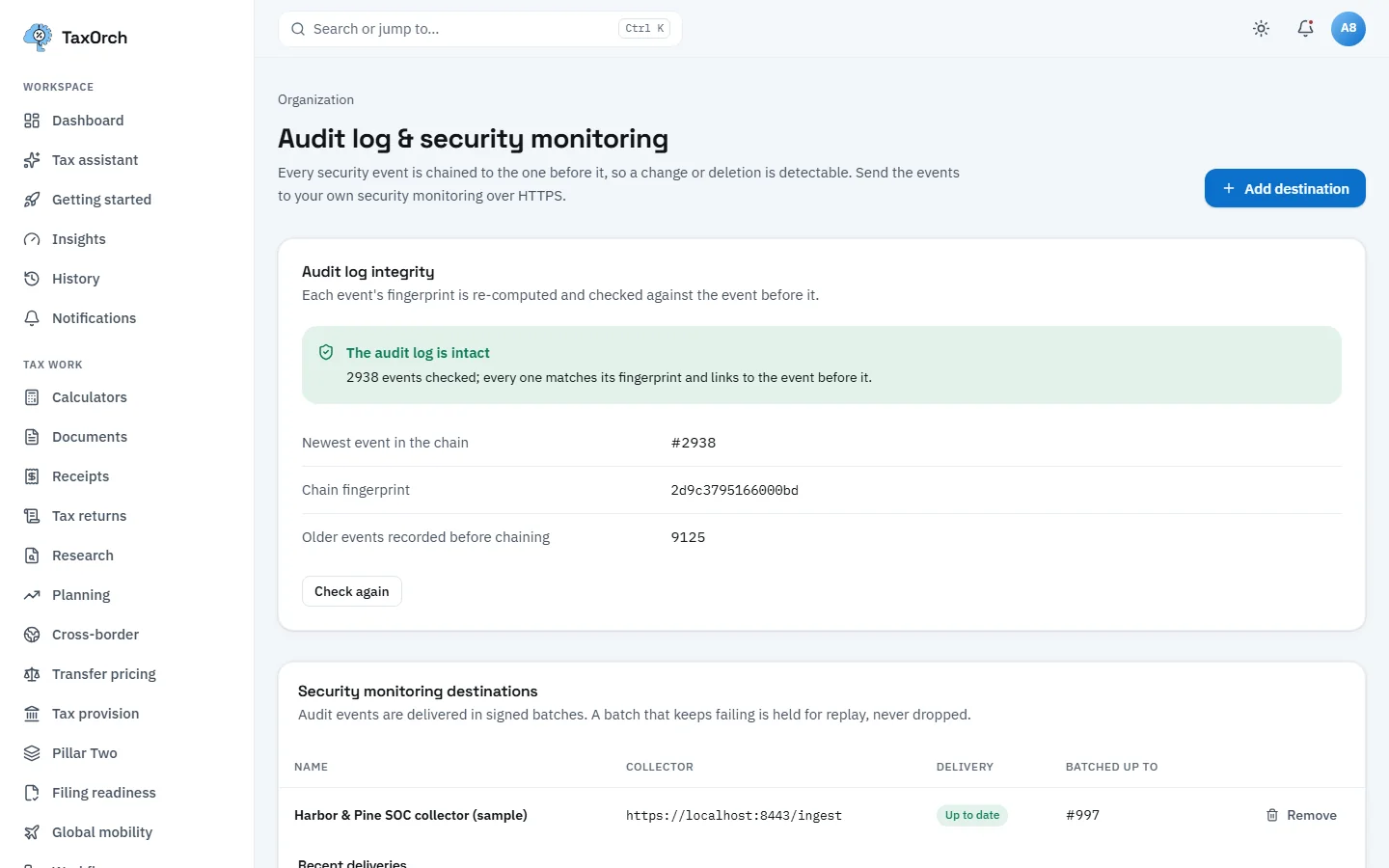
Audit log integrity: every event checked against its fingerprint and the one before it.
Deliver audit events to your security monitoring
Add destination sends audit events to your own collector over HTTPS in signed batches; a batch that keeps failing is held for replay, never dropped. The sample destination, Northbridge SOC collector (sample), is up to date and batched up to event 3,042. Recent deliveries list each batch's event range, count, status, the collector's response, chain fingerprint and time. Recent audit events shows the action, category and severity of each event.
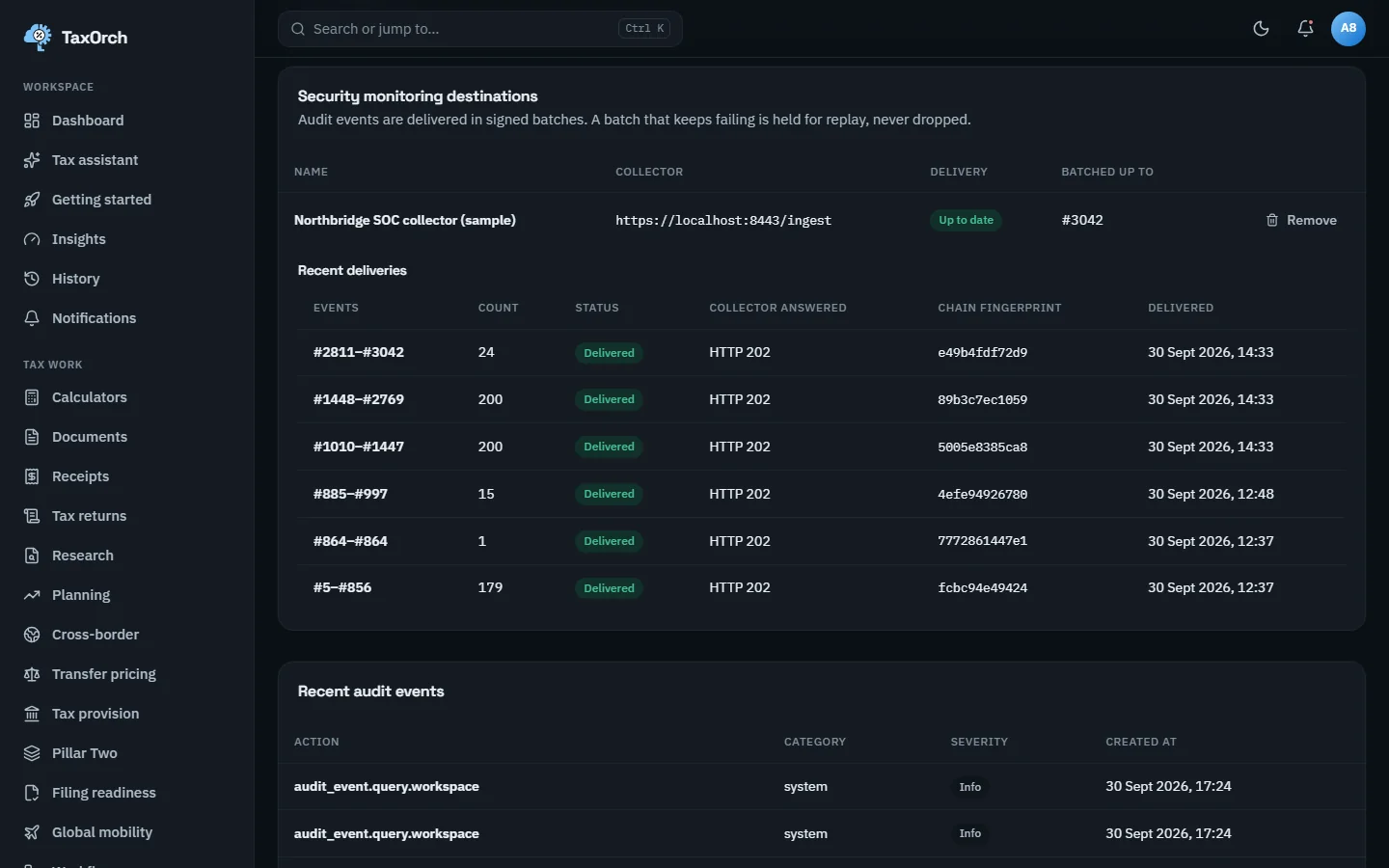
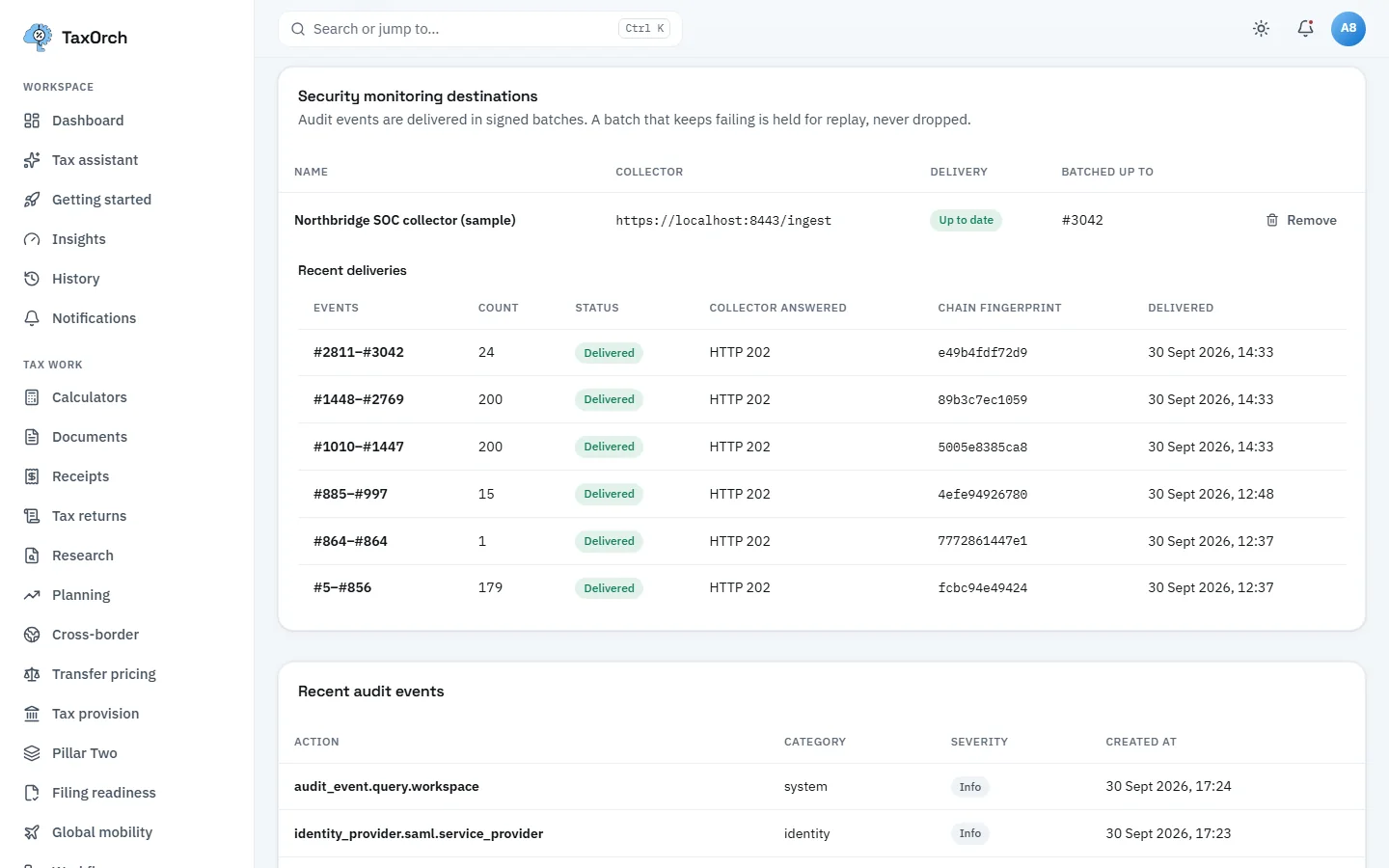
Signed batches delivered to the firm's own collector, each with its response and chain fingerprint.
Rotate the encryption key or use your own
The workspace's data is encrypted with its own key. Rotate key creates a new version on your schedule; older versions stay available to read data encrypted under them until it is re-encrypted. Use your own key holds the key in your own key service. The sample workspace is on version 5, TaxOrch-managed, with four retired versions in the history.
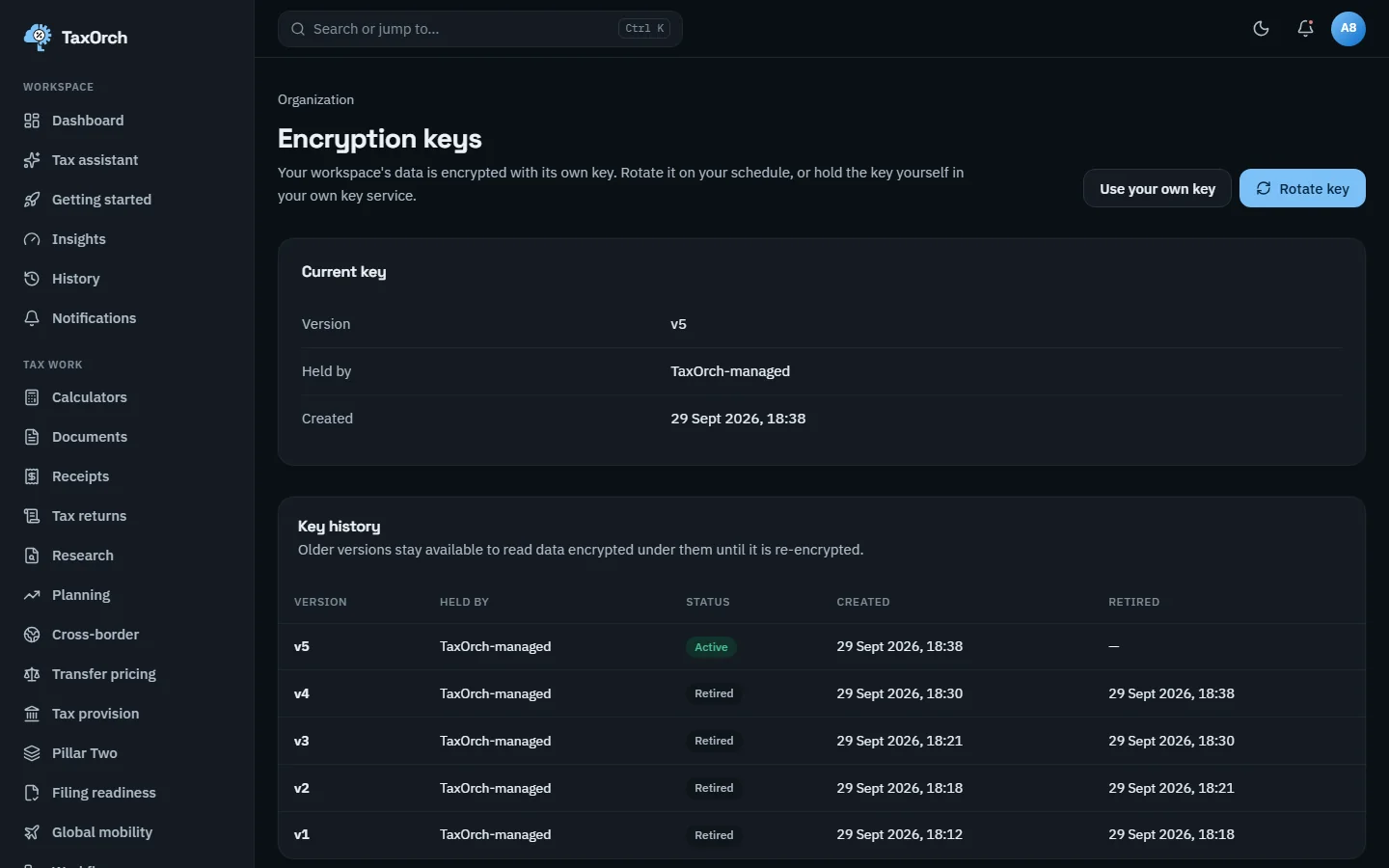
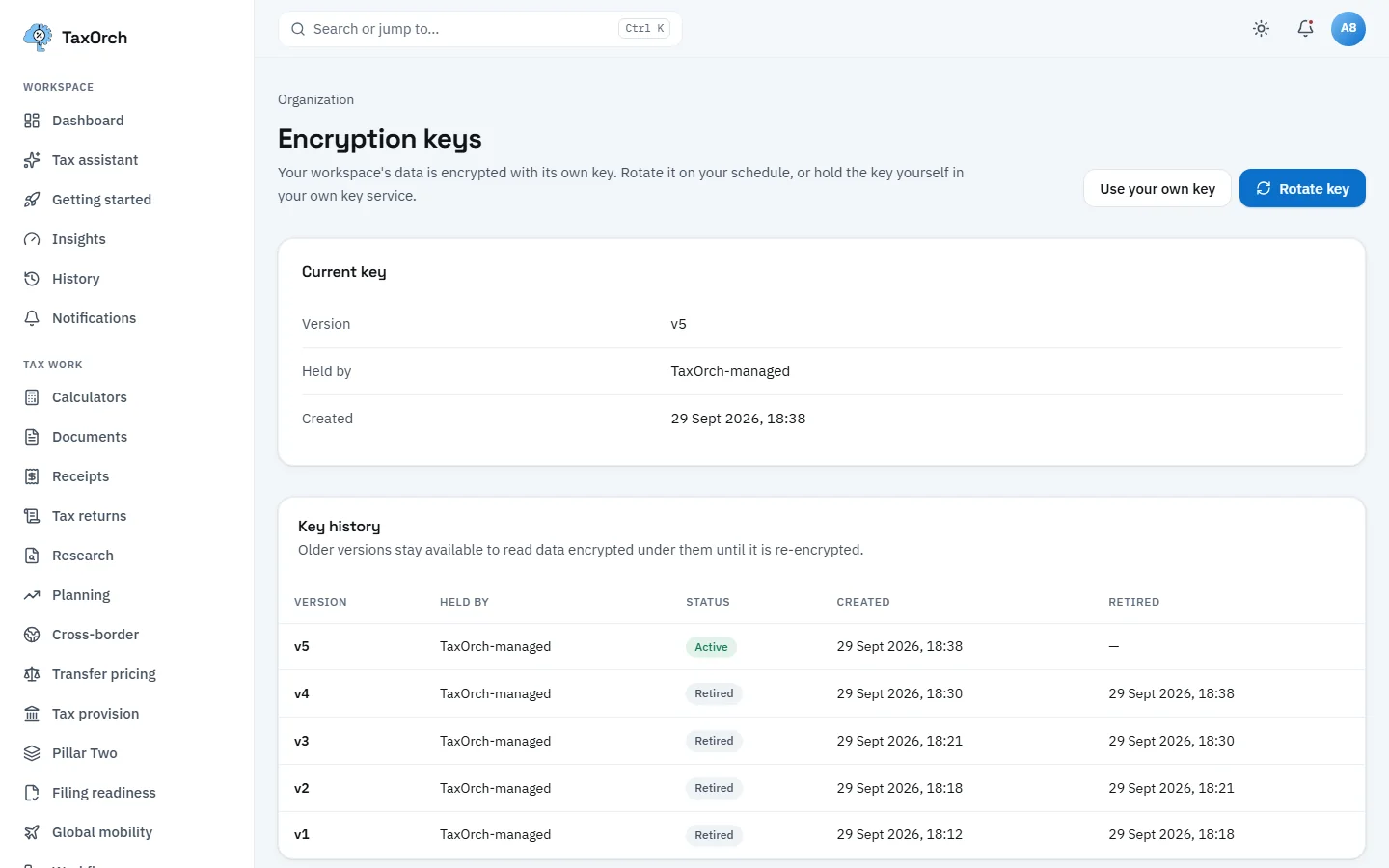
Encryption keys: the active version, the retired history, and the option to hold the key yourself.
Set and prove data residency
Data residency shows where the workspace's records are stored. The sample workspace is locked to the United States under US jurisdiction, policy Enforced, with the reason for the lock recorded (client engagement letters require US storage) and who locked it when. Generate proof checks every tagged record against the region: every checked record is in region, generated on 30 September 2026.
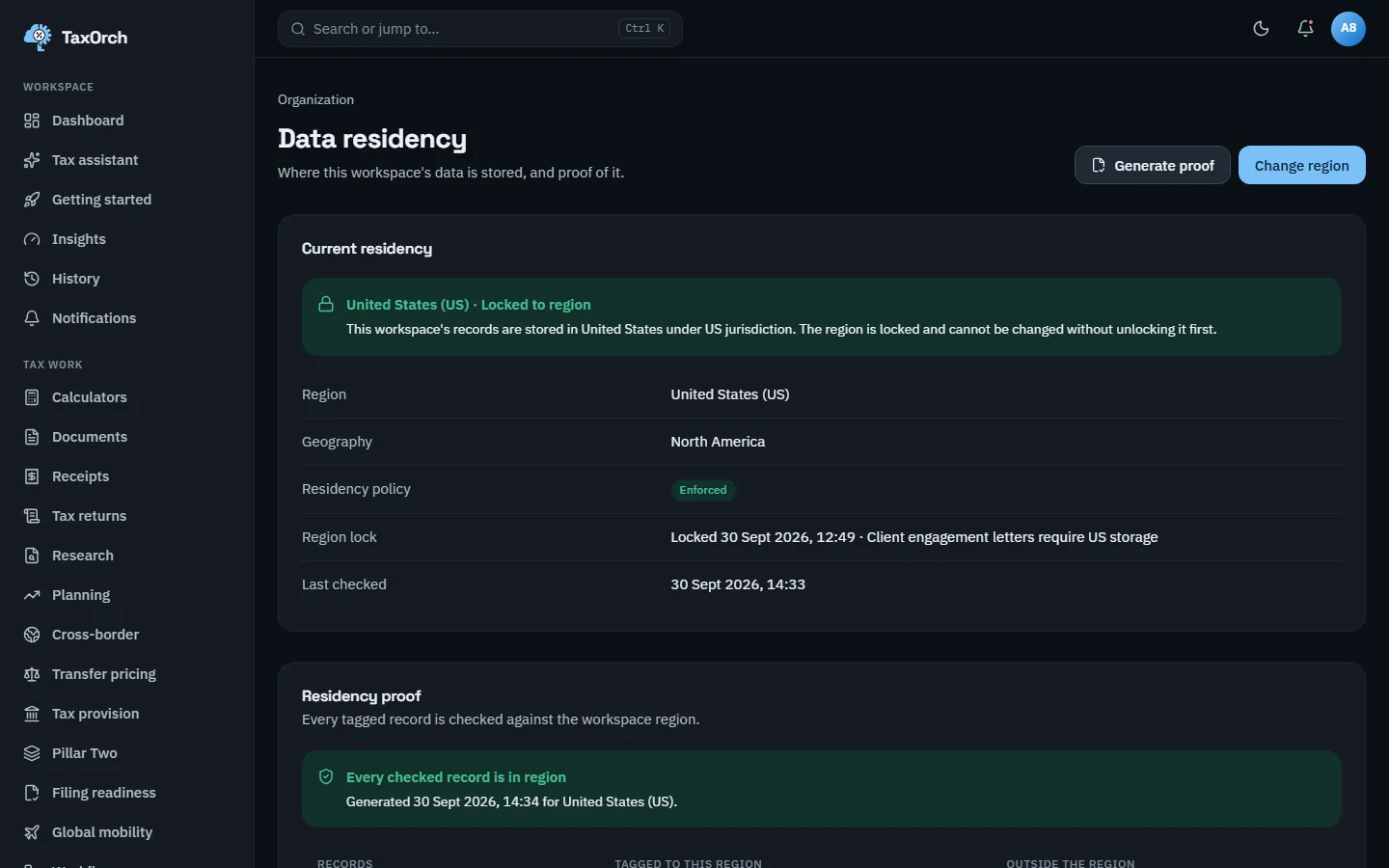
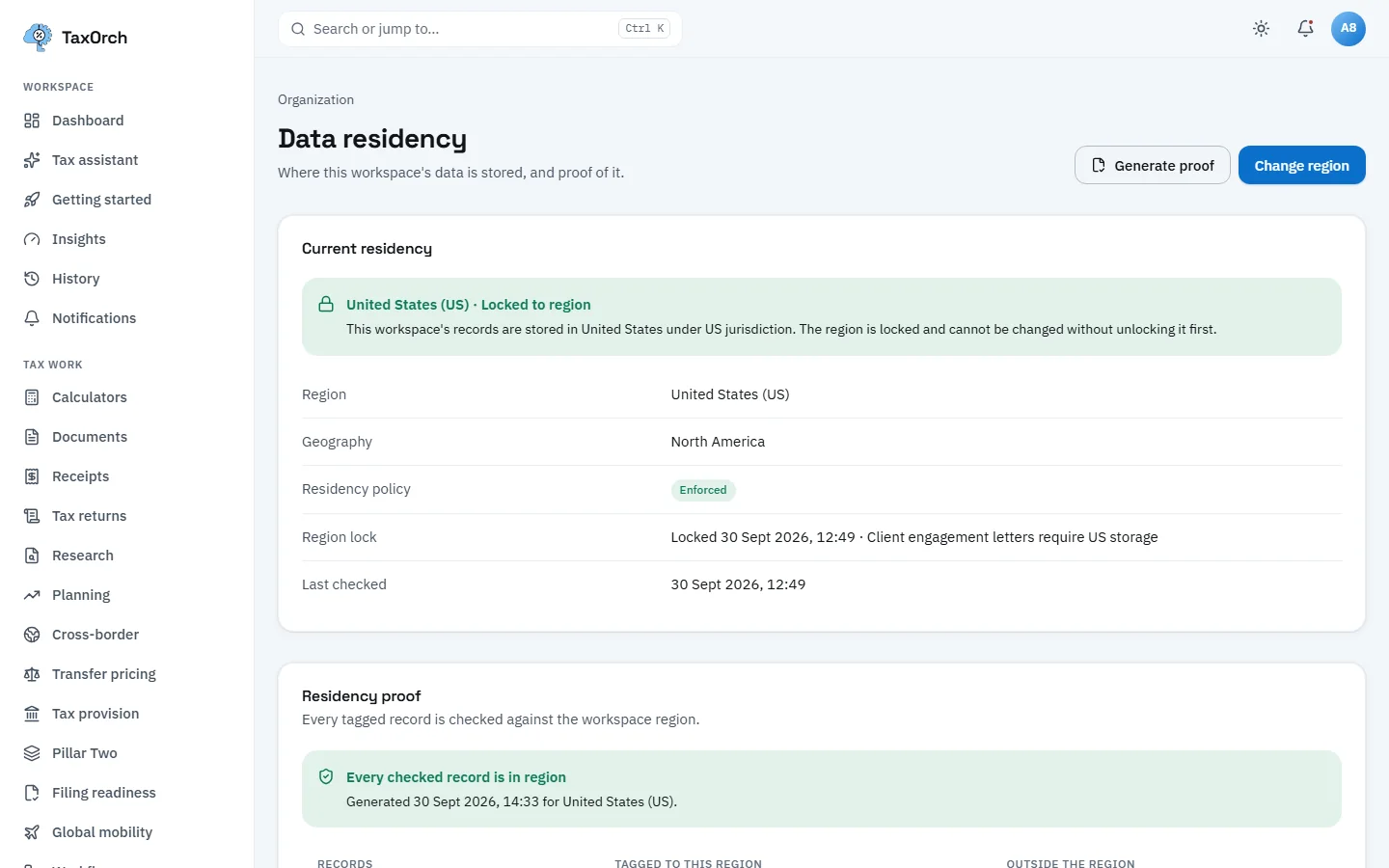
Data residency: the region, the lock and its reason, and a generated proof that every checked record is in region.
Set retention periods and legal holds
Retention & legal hold sets how long each kind of record is kept before secure deletion; a period the firm sets replaces the TaxOrch default and records the reason. The sample firm keeps receipts and tax documents and the security audit log for seven years, assistant conversations for one year and webhook delivery logs for three months. Legal holds stop deletion of everything in an engagement, whatever the schedule says.
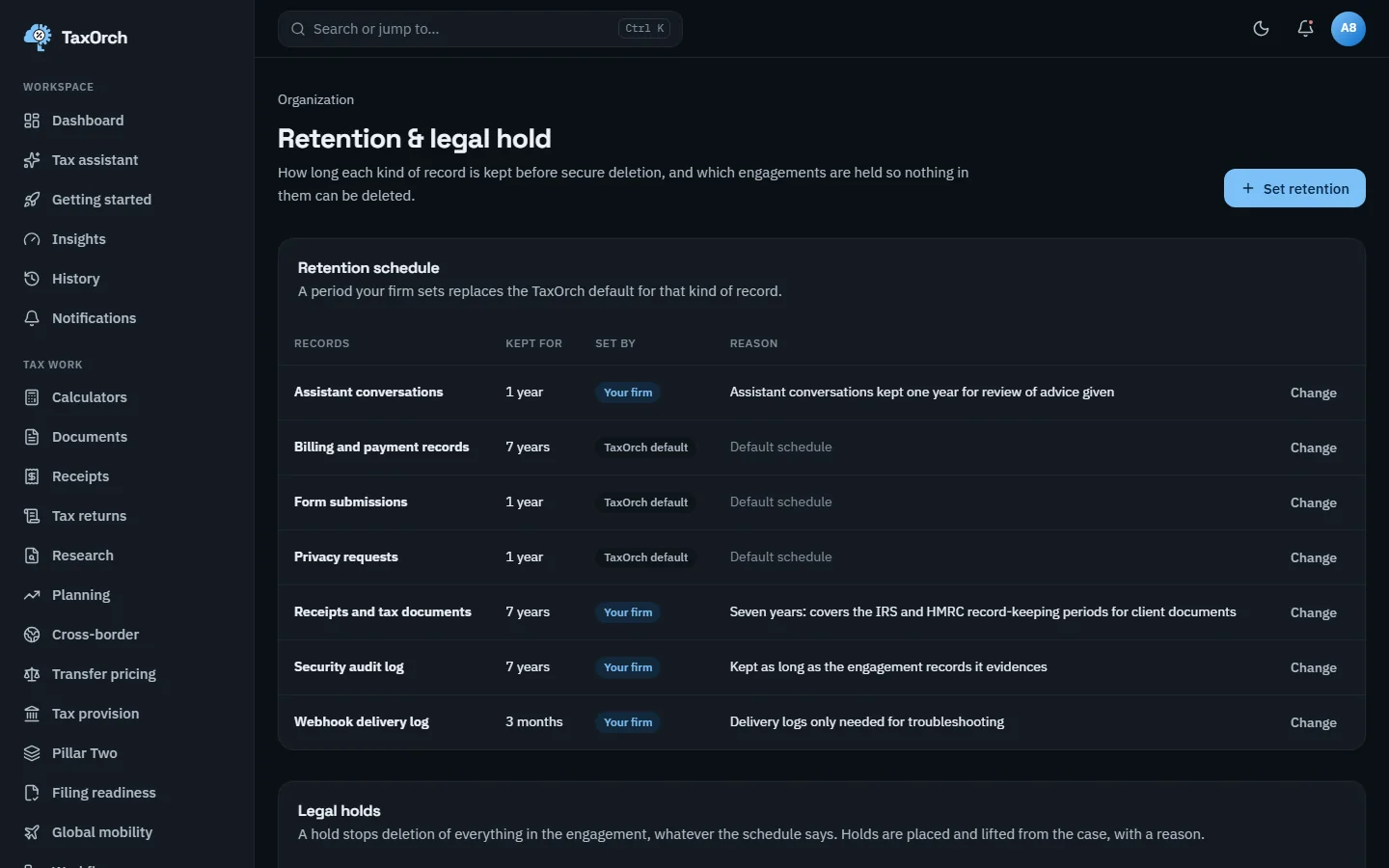
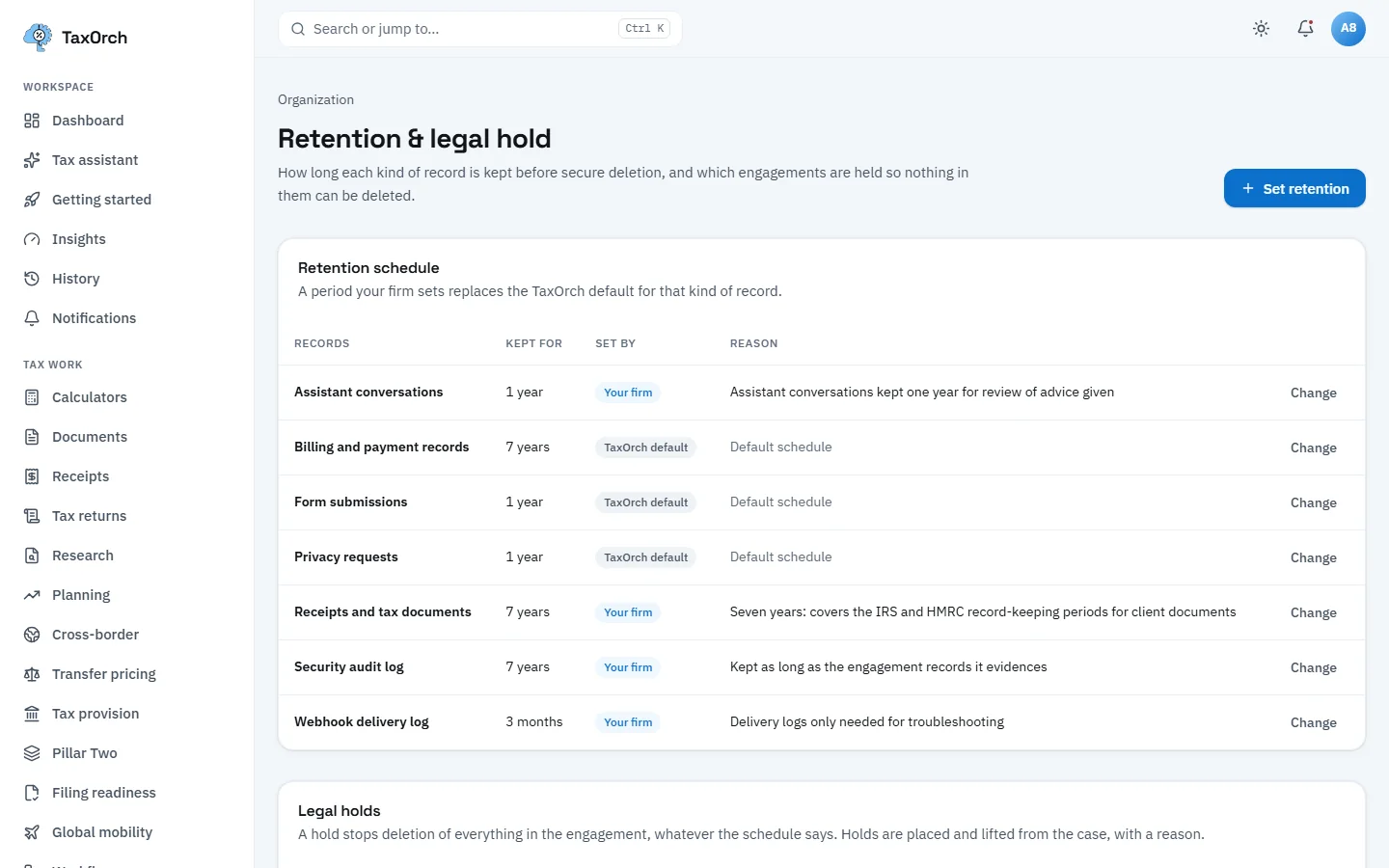
The retention schedule: each record kind, its period, who set it and why.
See holds and preview the next deletion run
Legal holds lists each held engagement, year, reason and who placed it: Daniel Reyes (sample), US 2026, held because an IRS examination notice was received. Next deletion run is a preview only: nothing is deleted from the screen, and records under a legal hold are never included whatever their age. On the sample workspace nothing is past its retention period.
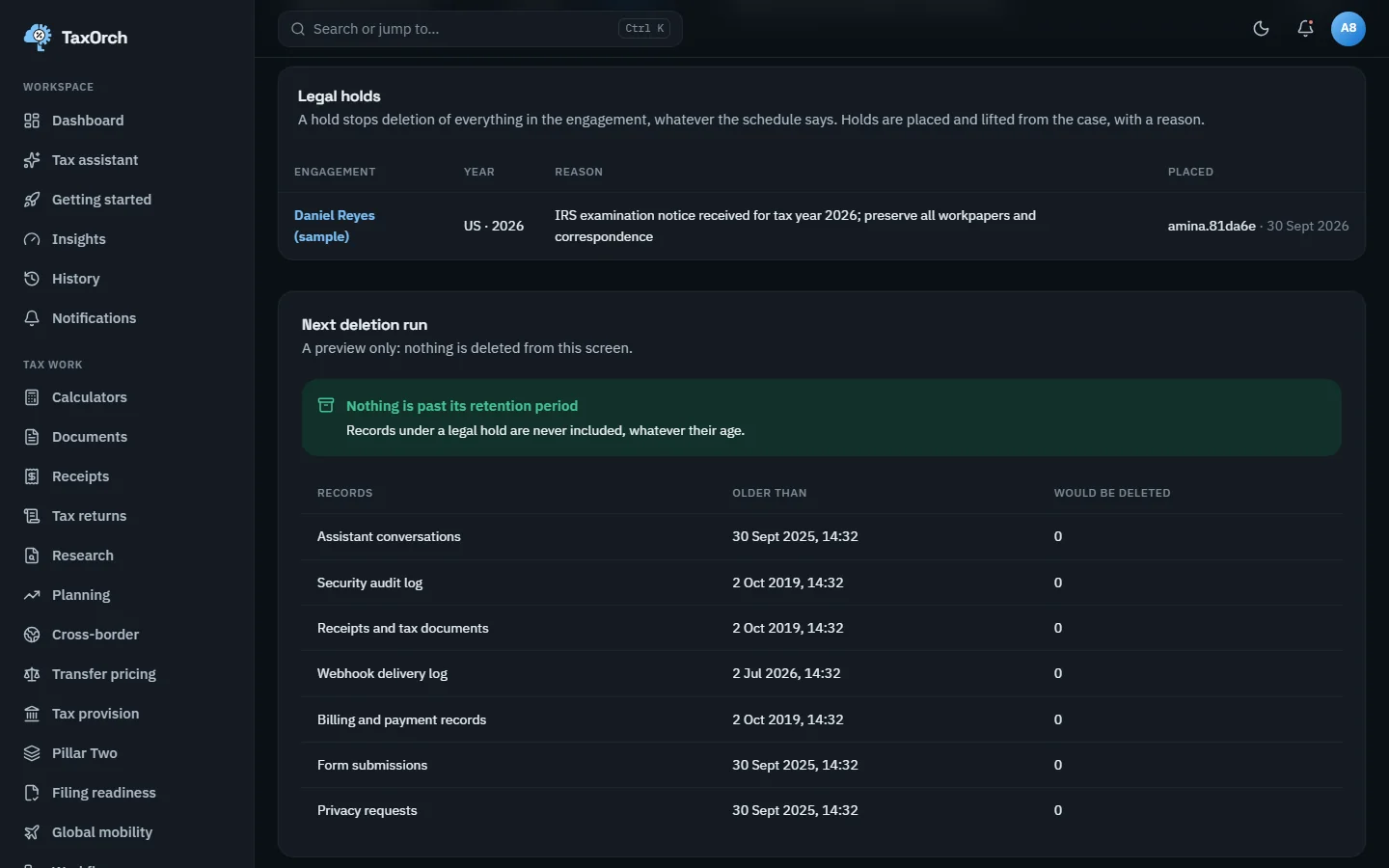
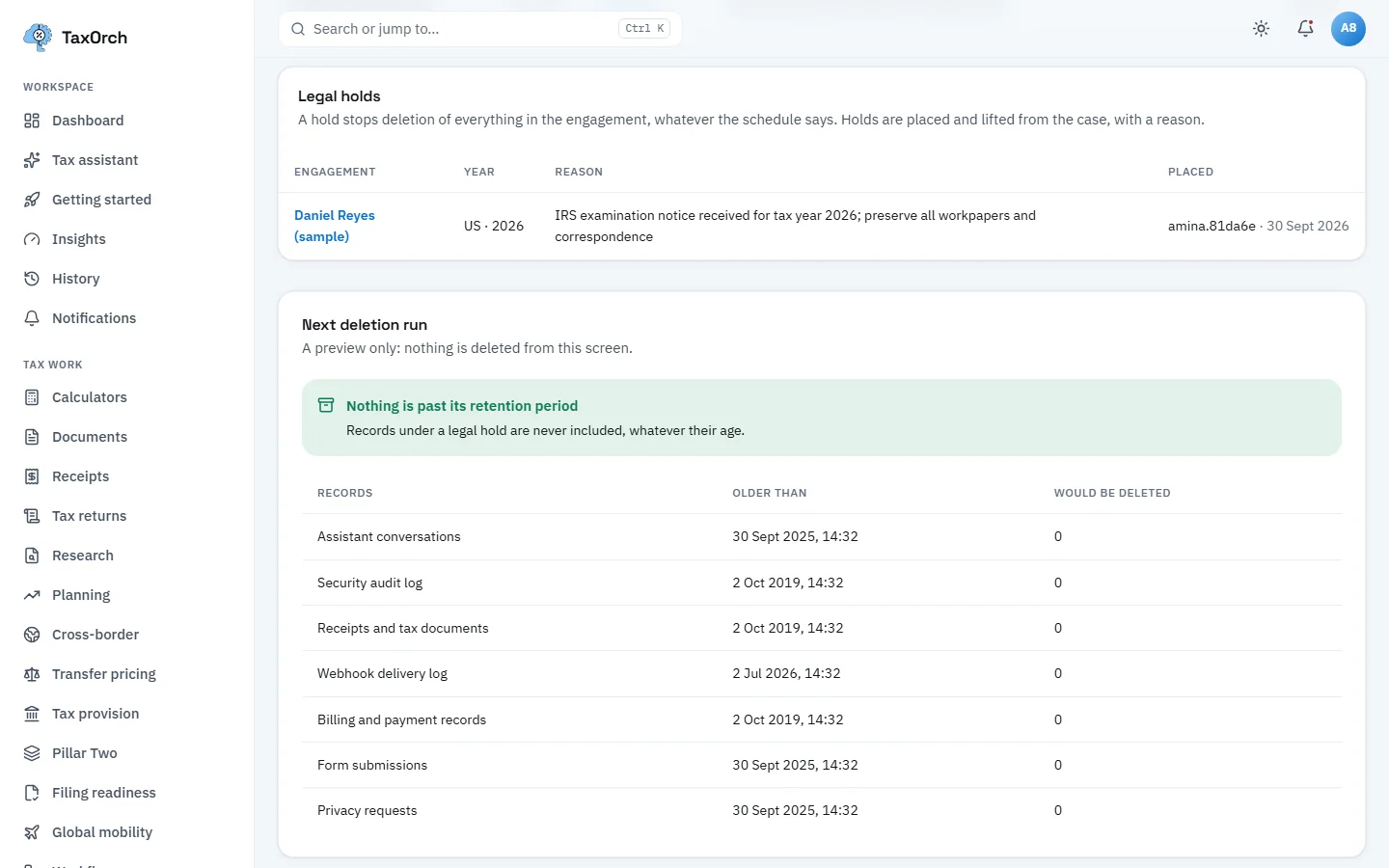
One engagement on legal hold, and the deletion run preview with nothing due.
Export the workspace
Privacy centre, Workspace export produces a full copy of the workspace's data as JSON, with the record count and a SHA-256 checksum for each export. Validate a manifest checks a downloaded export against its checksum. Two completed exports are shown on the sample workspace, 354 and 588 records.
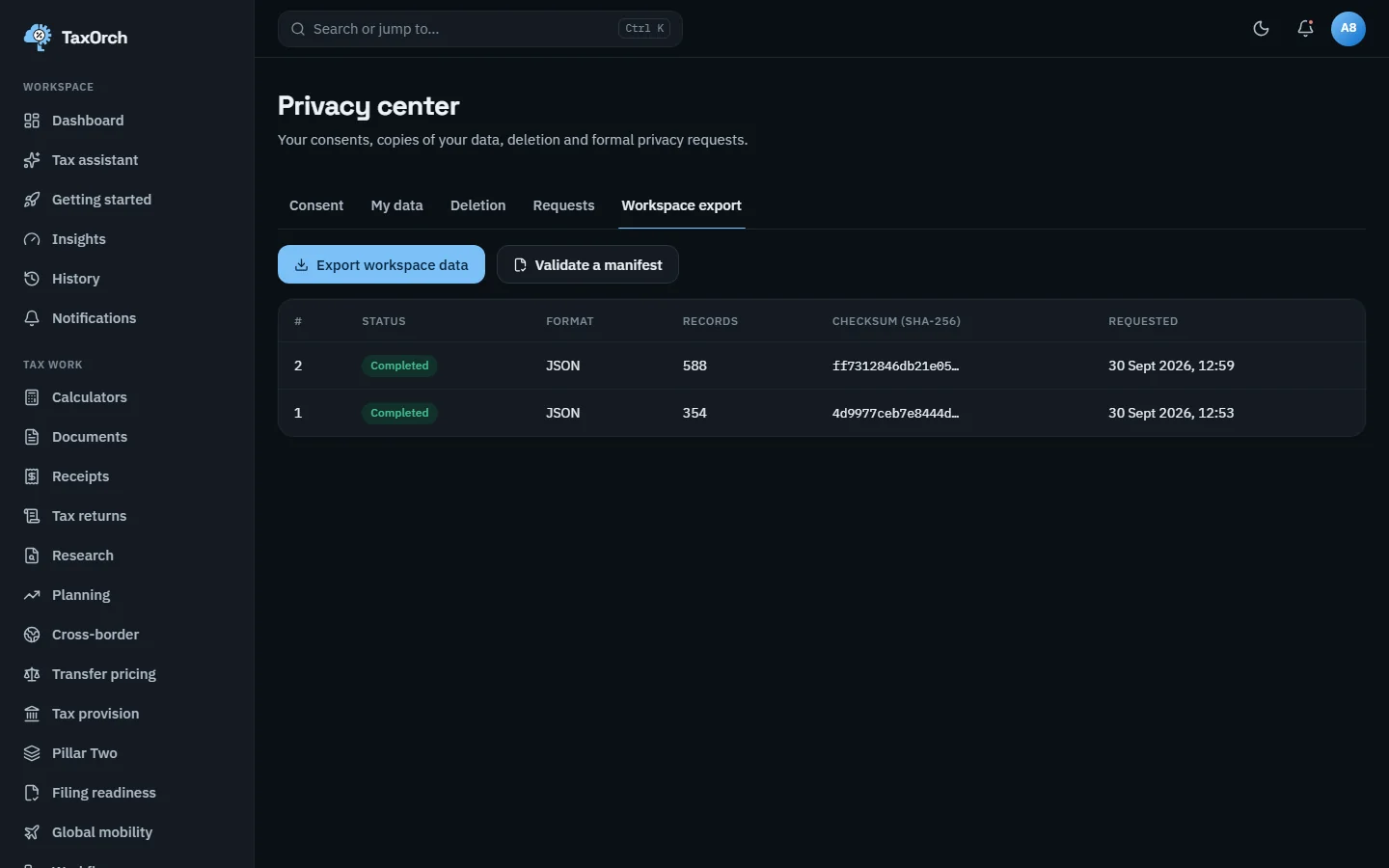
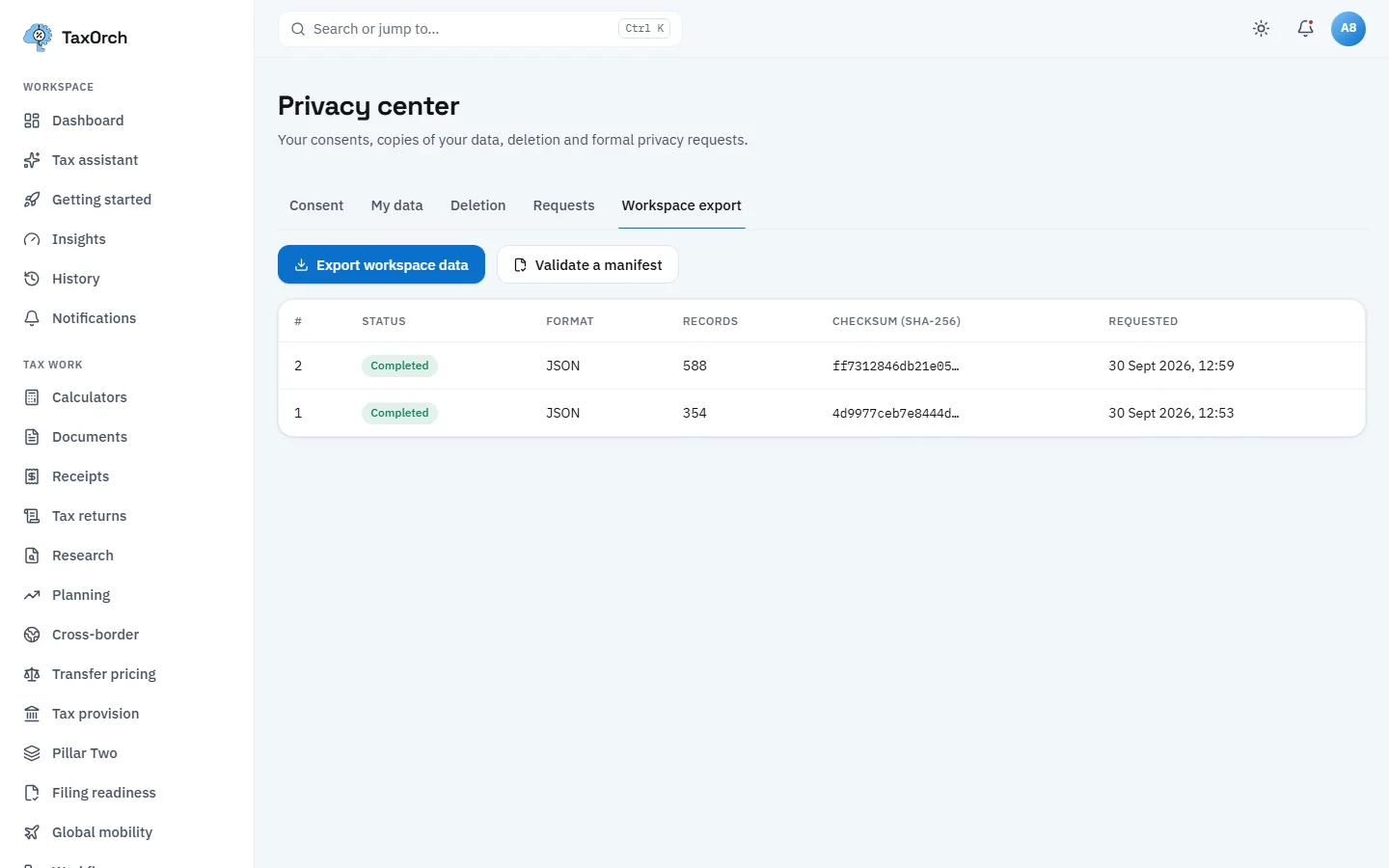
Workspace export: completed exports with record counts and checksums.
Share security evidence from the trust centre
The trust centre holds the documents a prospect's security review asks for, with access grants under NDA and a download audit. The sample documents are a data processing addendum, a 2026 penetration test summary, two security whitepapers and a subprocessors list, each approved, versioned and marked who it is shared with. Other tabs: Access grants, Downloads, Settings, Portal preview and Report a vulnerability.
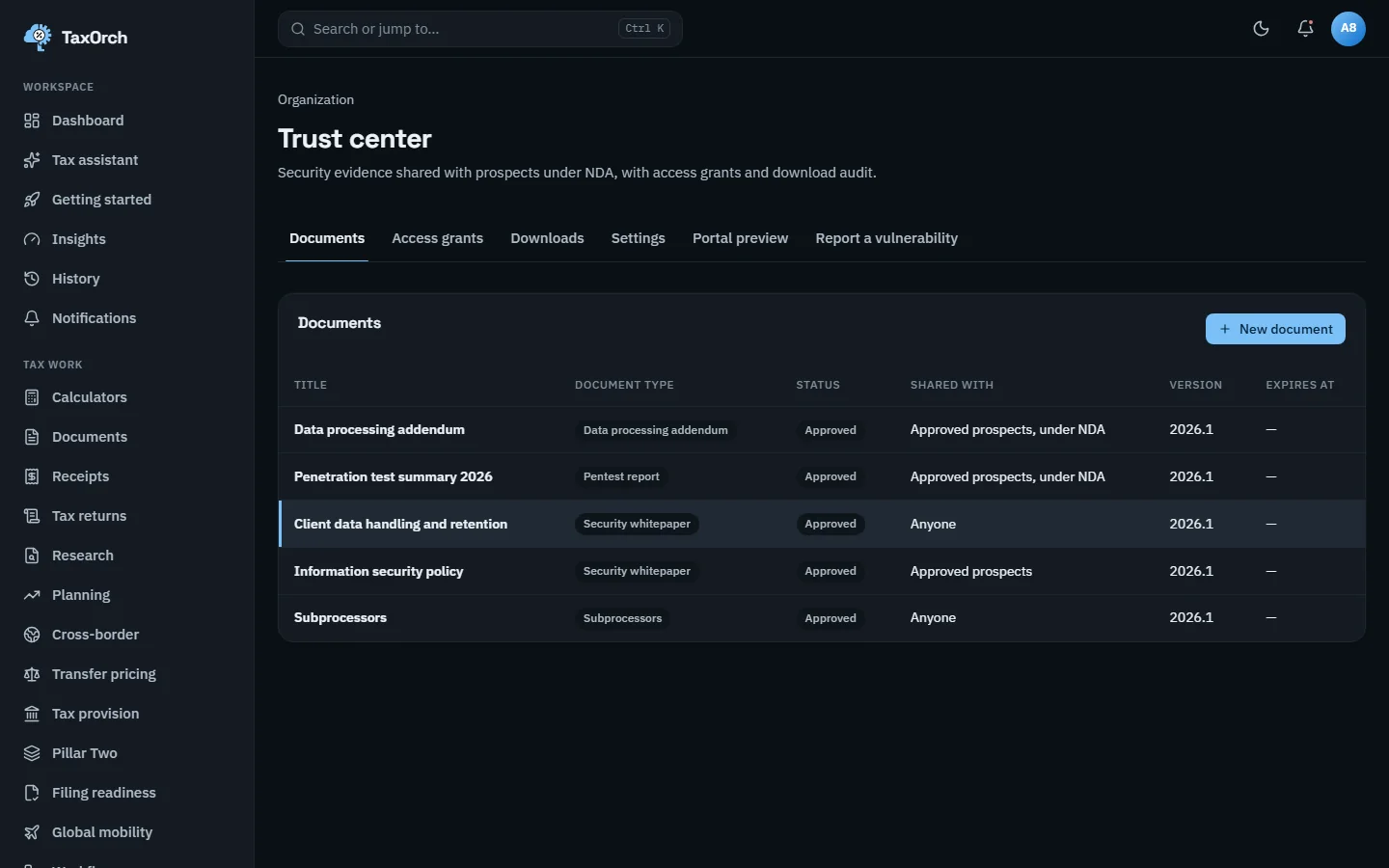
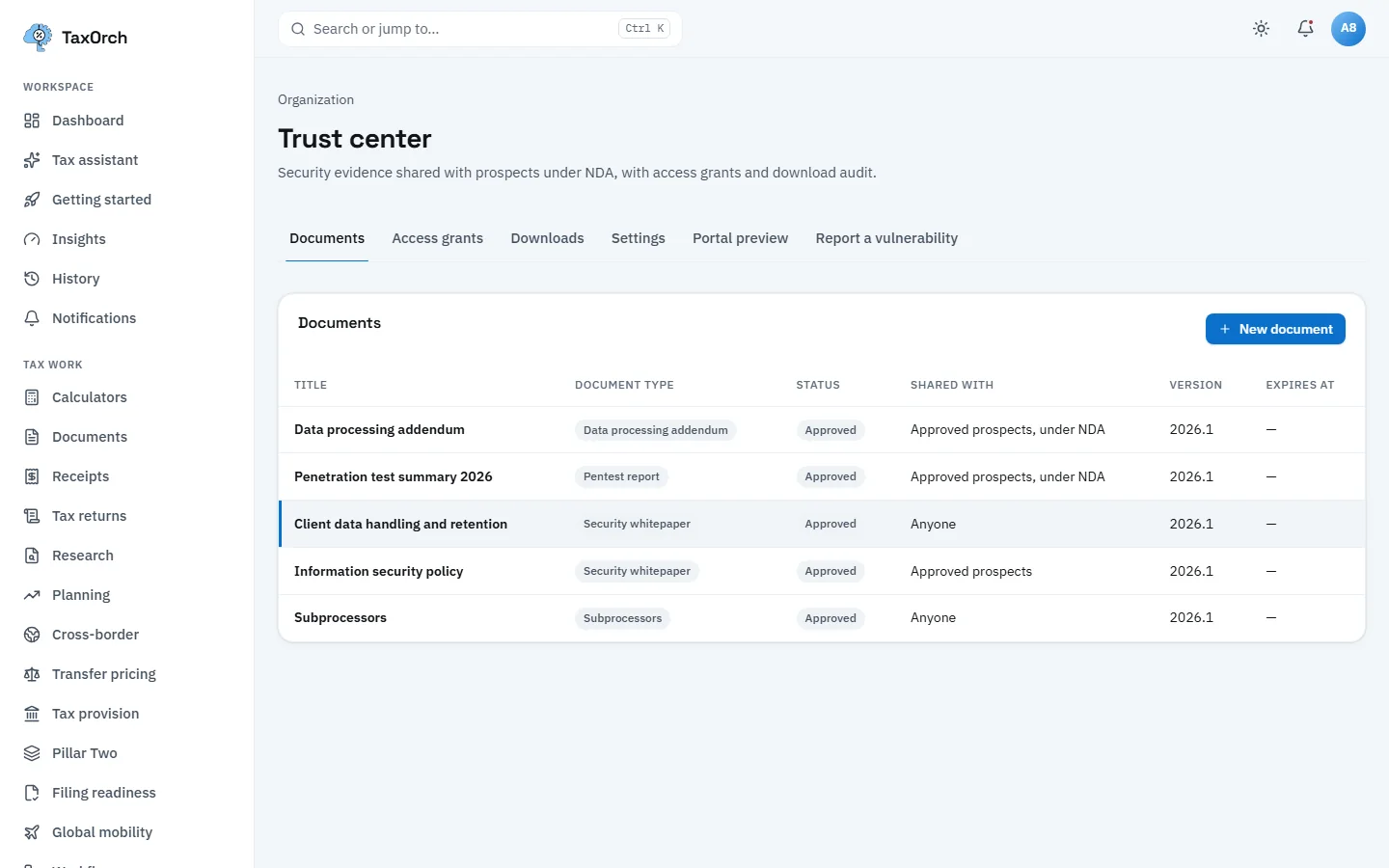
Trust centre documents: what is shared, with whom, and at which version.
Service accounts, API and webhooks
Service accounts are non-human identities with scoped, expiring tokens. The sample account, Practice management sync (sample), has the audit:read and webhooks:read scopes, one active token and the standard rate limit; the scope catalogue lists every scope with its category. Integration webhooks deliver events to your endpoints with secrets and a delivery log.
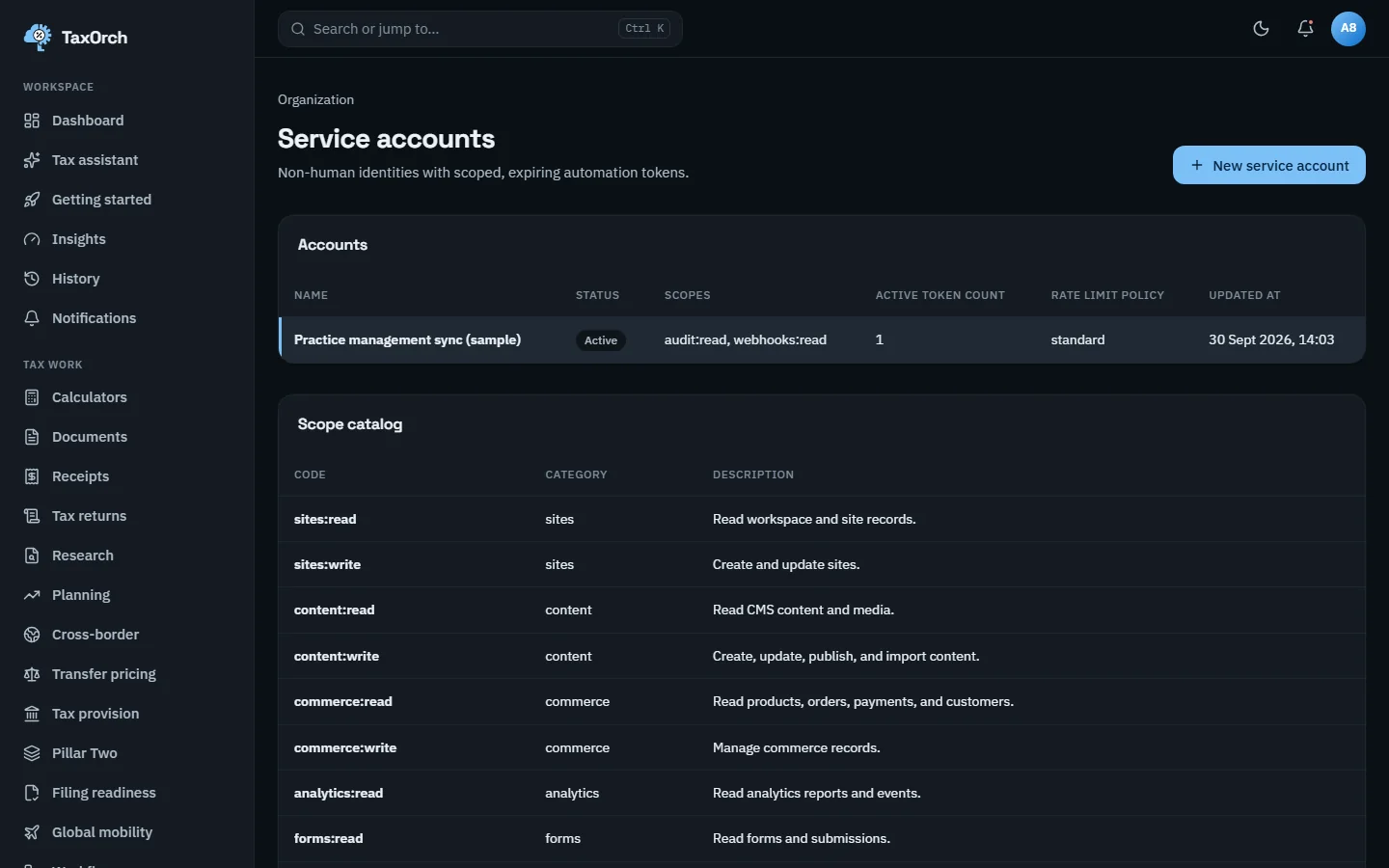
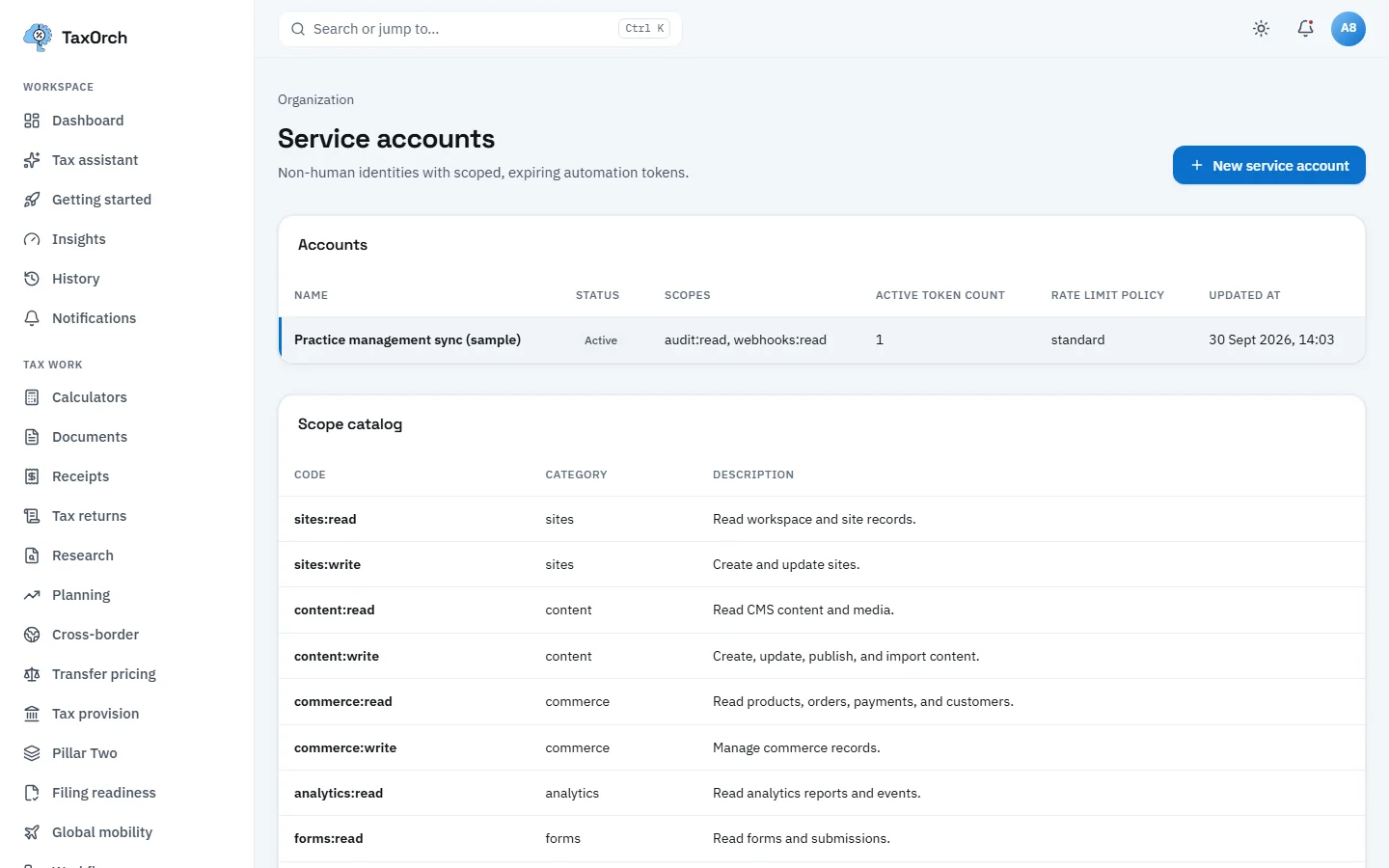
Service accounts: scoped tokens, and the catalogue of scopes they can be given.
Tips
- Turn on two-step verification for owners and admins first, then require SSO on the verified domain.
- Schedule access reviews quarterly; the closed review is what an auditor asks for.
- Set retention by record kind with a reason; the reason is what a reviewer will ask about later.